Connect your Google Calendar
Your busy times stay off the appointment schedule, and every meeting you're booked for appears on the Google Calendar you choose within a few minutes.
On this page
You have a dentist appointment Thursday at 4:00, and you don't want a family booking a progress meeting with you then. Connect your Google Calendar once, and your busy times stay off the appointment schedule while every meeting you're booked for shows up on your own calendar.
Steps
Connect your calendar
- In the menu, press your name near the bottom. It opens your own page, Me.
- Find the My Calendars card and press Connect Google Calendar.
- Sign in to Google in the window that opens and allow access. The button reads Waiting for Google… while you do.
- When the window closes, the card says Connected. and lists the calendars in that Google account.
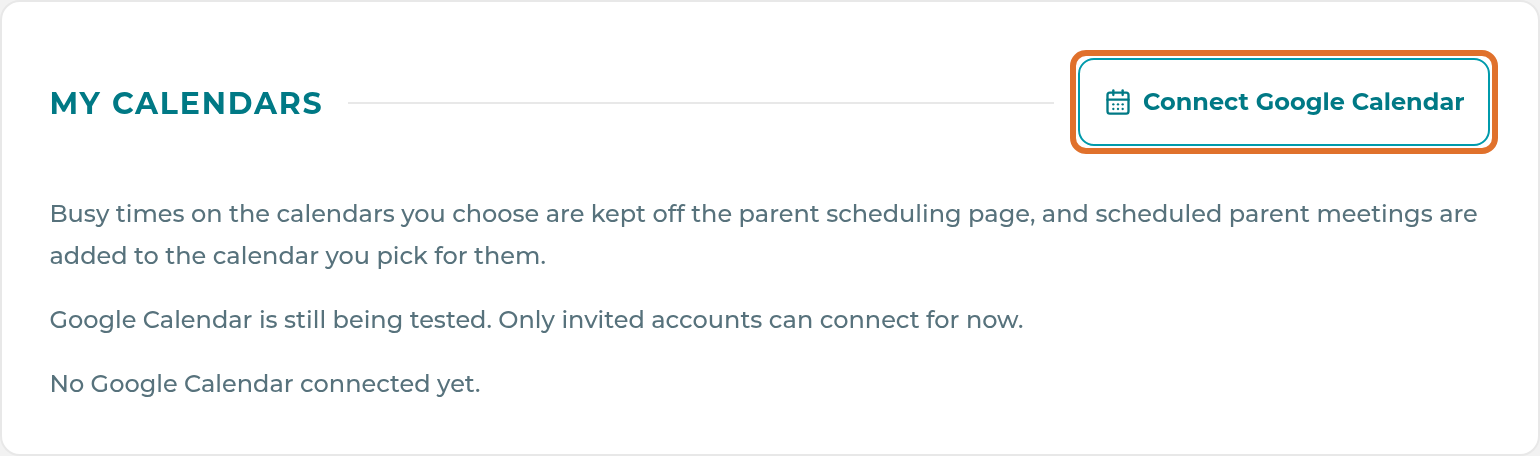
You can press Connect Google Calendar again to add a second Google account, for example a personal one alongside your work one.
Choose what counts as busy
Each calendar in the list has two switches. Each change saves as soon as you flip it.
- Turn Counts as busy on for each calendar whose busy times should be kept off your appointment schedule. Your main calendar starts with this on. Other calendars, like shared or holiday calendars, start off, so connecting never blocks time by surprise.
- Turn All-day events count on if an all-day event on that calendar should block the whole day. It only works once Counts as busy is on.
Choose where your appointments go
- Look for the calendar marked Appointments go here. Your main calendar is picked to start.
- To use a different one, press Put appointments here beside it. Upcoming appointments move over to the new calendar on the next update.
Disconnect an account
- On Me, find the My Calendars card.
- Press Disconnect beside the Google account.
- The card says that account is disconnected. Its busy times stop blocking your schedule, and new appointments stop going to it.
Events already added to that Google Calendar stay there. Delete them in Google if you no longer want them.
What happens next
Busy times are copied from Google every five minutes, so a new event can take a few minutes to block its time. A busy time hides that slot from families in the Family Portal and from your staff on the New appointment form. It only affects you: if another staff member is free then, the time can still be booked with them.
Every meeting you're scheduled for is added to your Appointments go here calendar within about five minutes, updated if it moves, and removed if it's cancelled. The event reads like "Progress Meeting (In Person) with Ava", with the time and a link to the Appointments calendar in the app. Parents are never added as guests, and no family contact details are put on the event.
Note: The card says busy times are kept off "the parent scheduling page". They also keep the time off your staff's New appointment form, so a colleague at the front desk won't be offered a time you're busy.
If something goes wrong
You don't see the My Calendars card. You're not on Available for Appointments, or your center's plan doesn't include Appointments. Ask your center owner.
"Google didn't allow this account yet. Ask your center owner to add it." Google is only letting invited accounts connect for now. Your owner needs to add your Google account.
"Your browser blocked the Google sign-in window." Allow pop-ups for this site, then press Connect Google Calendar again.
"Needs attention" under an account, with a Reconnect button. Google stopped giving the app access. Press Reconnect and sign in again. Until you do, your busy times from that account aren't refreshed and new appointments aren't added to it.
An appointment didn't appear on your Google Calendar. It's tried again every few minutes. After three failed tries, you get an Inbox task about it.
"No calendars found in this account yet." Google hasn't shared the calendar list yet. It's tried again on its own.
The card says Google did not confirm the disconnect. The account is disconnected in The Center Book. To be sure, remove "The Center Book" from your Google account's third-party access.
You were taken off Available for Appointments and want to disconnect. The card disappears once you're off the list, so you can't disconnect from the app. Remove "The Center Book" from your Google account's third-party access instead.
The link in a calendar event opens Attendance. The Appointments calendar that link opens is for owners and managers. Other staff land on Attendance instead.
Related
Last updated October 25, 2026