Schedule a progress meeting
The meeting is on the Appointments calendar, the family gets their confirmation, and the staff member it's with is told according to your Appointment Notices.
On this page
A parent is at the front desk at pickup and asks to sit down about their child's progress. You can book the meeting right there, while they're standing with you, and the family has their confirmation before they reach the car.
Steps
Open the form
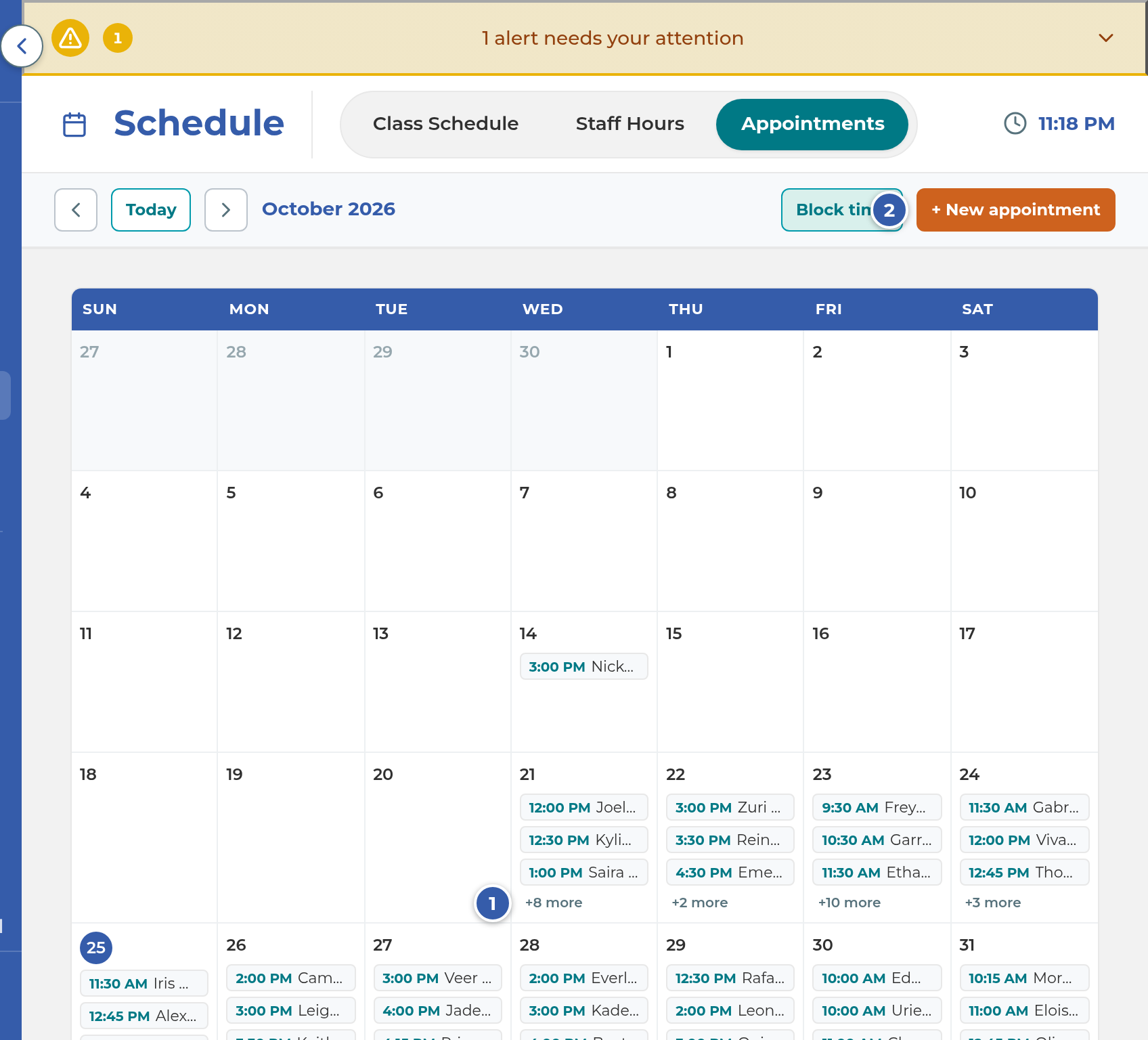
- Open Schedule and choose the Appointments tab. On a smaller screen, such as an iPad, it is under More.
- Press + New appointment.
Book the meeting
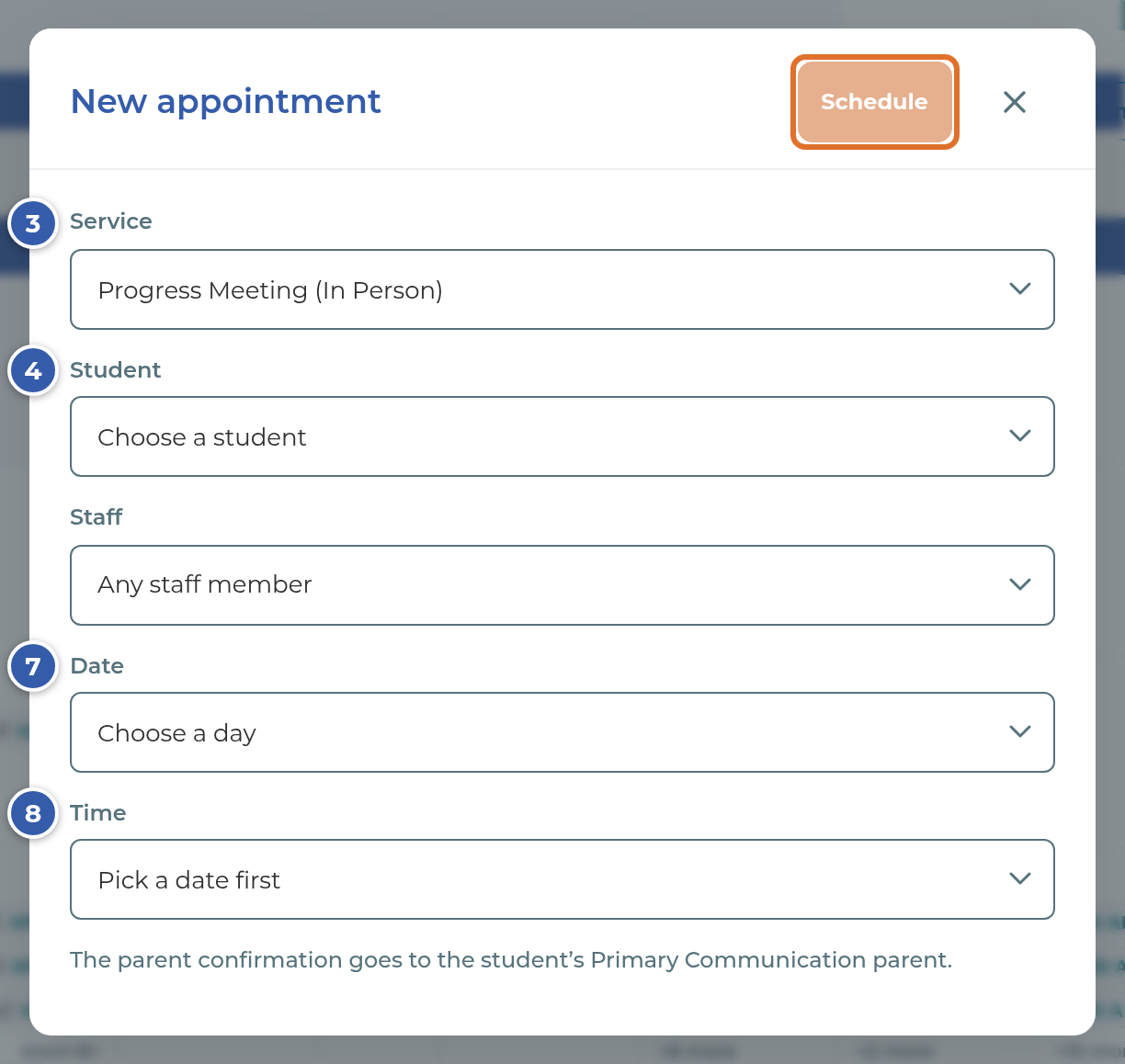
- Under Service, choose the progress meeting the family wants: Progress Meeting (In Person) at the center, or the Virtual progress meeting. Only services that are switched on are listed.
- Under Student, choose the child.
- If the child has brothers or sisters enrolled, Students in this meeting appears. Check any siblings the parent wants to talk about too. One meeting covers them all.
- If more than one staff member takes meetings, use Staff to pick one, or leave it on Any staff member.
- Choose a Date. Only days with open times are listed, up to 60 days ahead. From the front desk, you can book a time later today.
- Choose a Time. When two staff members are free at the same time, the time shows whose it is.
- Press Schedule.
- The app asks before anything goes to the family. Press Schedule and send to book and send the confirmation, or Go back to book nothing and send nothing.
Note: The screen may still say "Zoom" for the Virtual meeting. In the Service list it can appear as Progress Meeting (Zoom).
Tip: You can also start from the student's own page. In the progress meeting card, press Schedule Now, choose Schedule on the spot, then Choose a time. The same form opens with the student already filled in.
What happens next
The meeting appears on Schedule › Appointments. What goes out is controlled per message, each with a box for a new, a cancelled and a moved appointment. Off means it isn't sent to anyone.
To the family, in Settings › Parent Communication:
- Appointment emails to the parent (Email tab): the confirmation email to the student's Primary Communication parent.
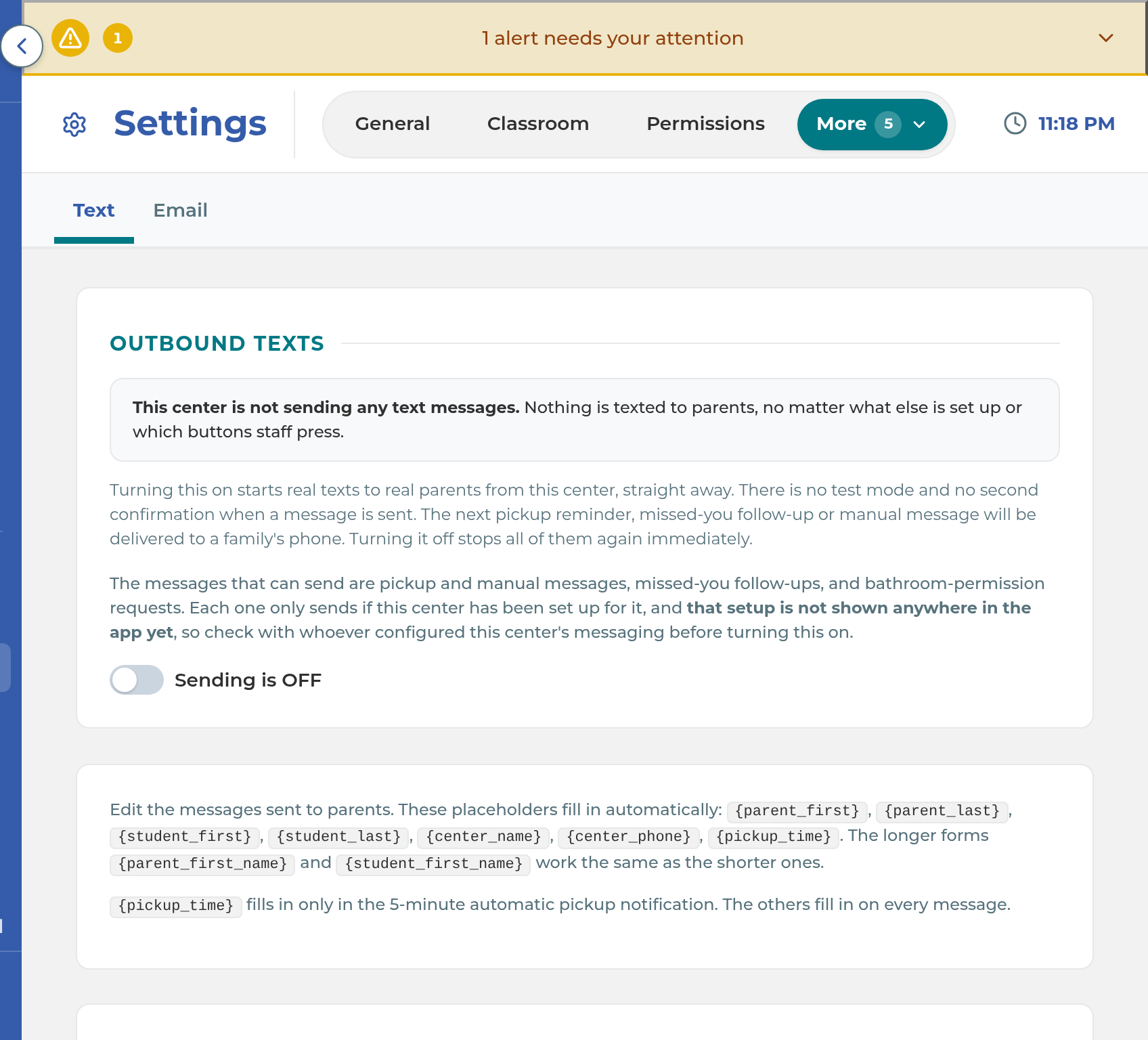
- Appointment texts to the parent (Text tab): a confirmation text to that same parent, only if Sending is ON and the parent has agreed to texts. You can edit the wording of Appointment Confirmation, Appointment Cancelled and Appointment Rescheduled on the same tab.
- Appointment email to the other parents (Email tab): one email to each of the student's other parents when a meeting is booked. This one starts off.
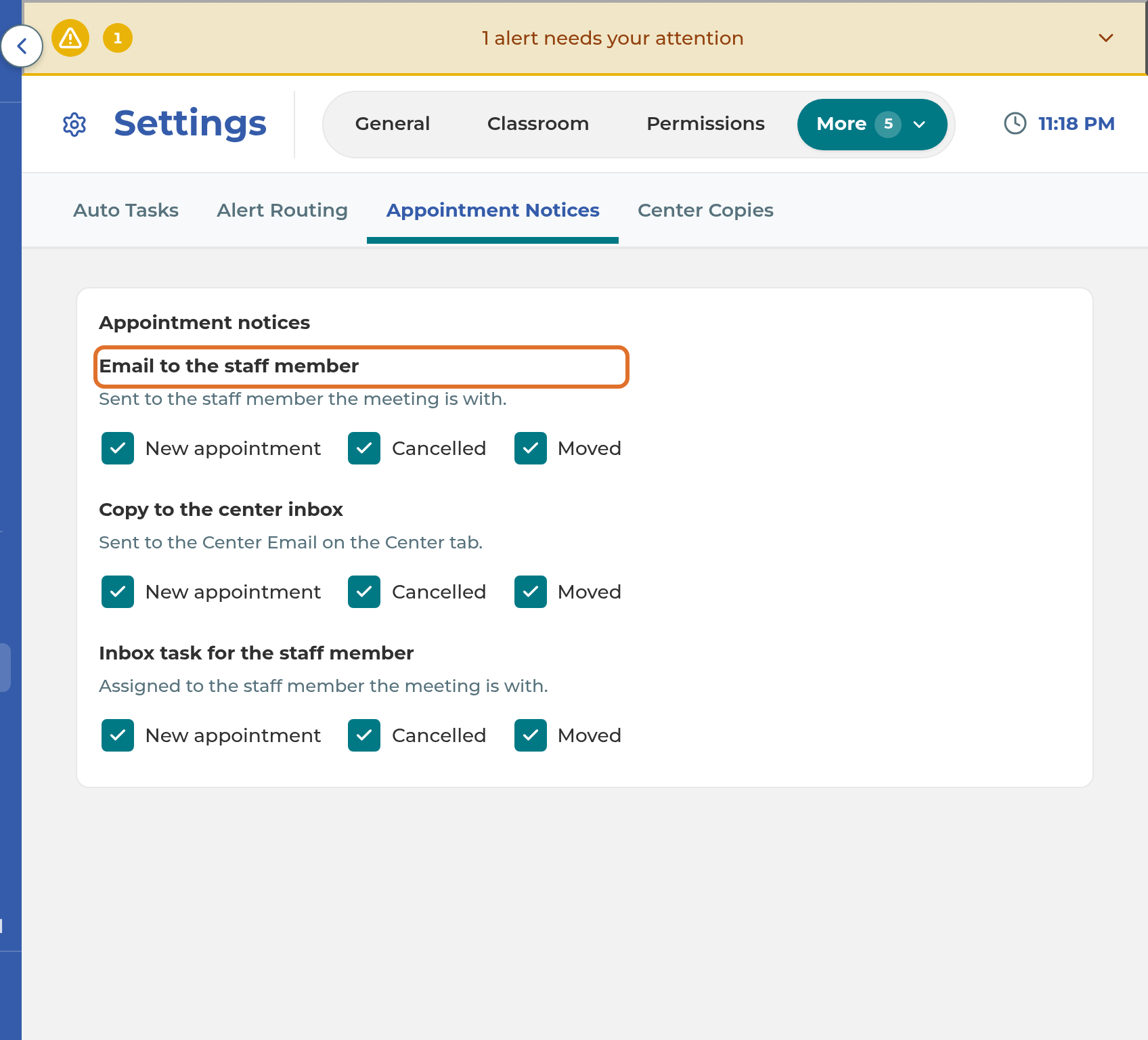
To your team, in Settings › Staff Automations › Appointment Notices:
- Email to the staff member: sent to the staff member the meeting is with.
- Copy to the center inbox: sent to your center's email address from Settings › General.
- Inbox task for the staff member: a task assigned to the staff member the meeting is with.
If the staff member has connected their Google Calendar, the meeting is added to it within a few minutes. See Connect your Google Calendar.
On the Family Portal, the family sees the meeting as Confirmed and can reschedule or cancel it themselves; families can also book their own progress meeting there when one is coming due, from the services you checked Parents can schedule, at least 24 hours ahead.
Important: The confirm step always says the confirmation "emails and texts" the family, even when no text will go: when the Text tab shows Sending is OFF, when the text boxes are unchecked, or when the parent hasn't agreed to texts. In the same way, Schedule on the spot says the parent gets a confirmation email even when Appointment emails to the parent is off. Check the settings above rather than the dialog's wording (CB-394).
If something goes wrong
"No days open for appointments. Check Settings → Appointments." No staff member has open hours for this service. Check that the service is on and that the staff in Available for Appointments have Appointment Hours.
"(name) has no appointment hours set." That staff member is available but has no hours. Add them in Settings › Appointments › Appointment Hours, or choose Any staff member.
"Scheduled, but: no parent email on file, so no confirmation was sent." The meeting is booked. Add an email for the student's Primary Communication parent, then let the family know the time.
"Scheduled, but: parent email is switched off in Settings." The meeting is booked, and nothing was emailed because Appointment emails to the parent is off for new appointments.
"Could not create the appointment. The slot may have just been taken." Someone booked that time a moment before you. Pick another time.
A family says they didn't get a text. Check that Settings › Parent Communication › Text shows Sending is ON, and that the parent has agreed to texts and has a mobile number on file.
You don't see the Appointments tab on Schedule. Your job title doesn't include it, or your plan doesn't include Appointments. Ask your owner.
Related
Last updated October 25, 2026