Set up services and appointment hours
Families see the services you checked Parents can schedule for, your staff see every service that is on, and the times offered come from each person's appointment hours.
On this page
A parent asks for a progress meeting, and you want the times they're offered to be times someone at your center can actually sit down with them. You decide once which meetings your center holds, who takes them, and when those people are free, and every time offered to families and to your front desk follows from that.
Steps
Choose which meetings you hold
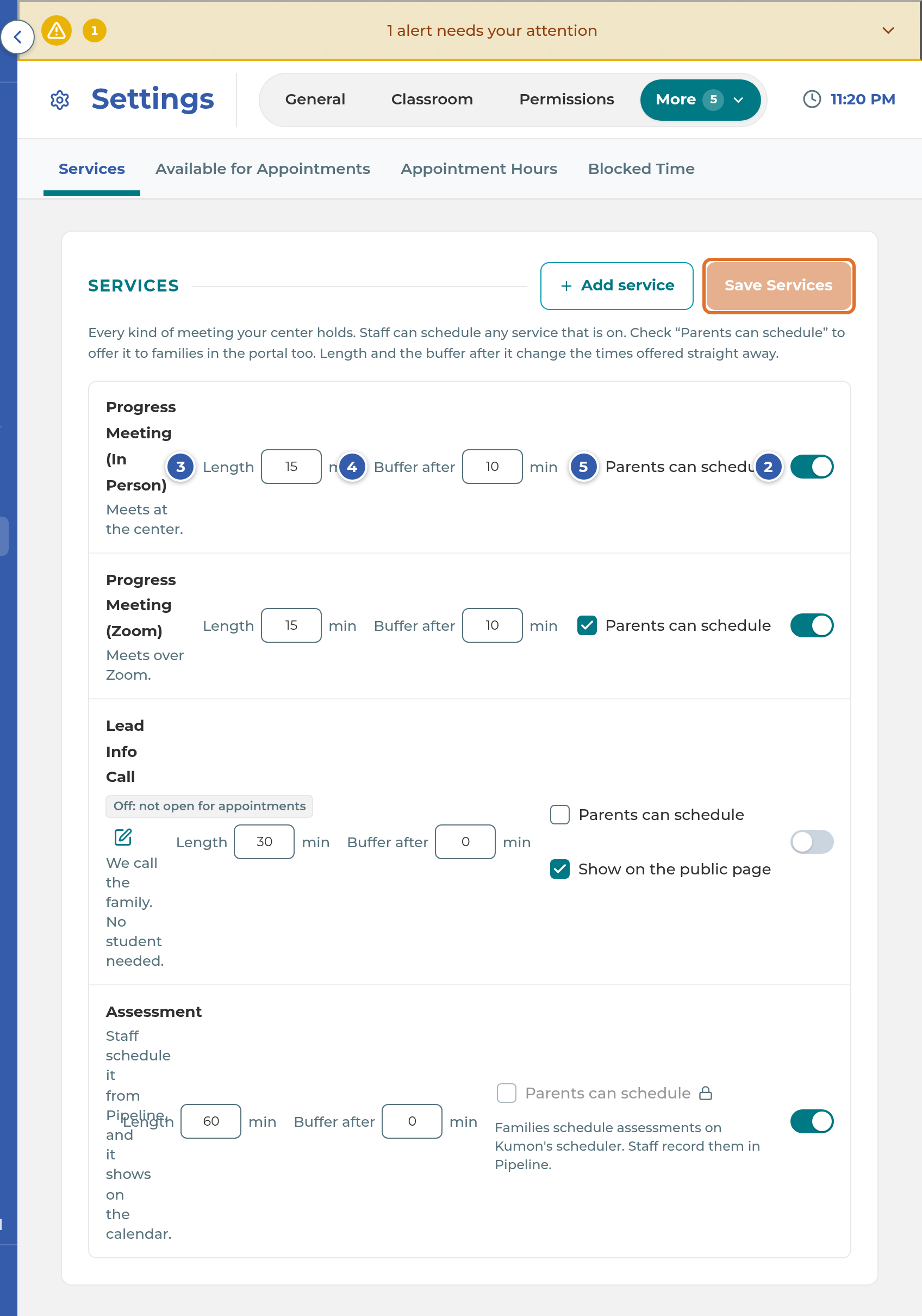
- Open Settings, choose the Appointments tab, then Services. The list shows every kind of meeting your center holds: the two progress meetings, Lead Info Call, Assessment, and any services you've added.
- Use the switch at the right of a row to turn a service on or off. A service that is off stays in the list with the tag Off: not open for appointments, and nobody can schedule it.
- Set Length in minutes. This is how long the meeting is.
- Set Buffer after in minutes. This is the breathing room kept free after each meeting before the next one can start. Use 0 for back-to-back meetings.
- Check Parents can schedule to offer the service to families in the Family Portal. Your staff can schedule any service that is on, whether or not this box is checked.
- Press Save Services at the top right of the list.
A few rows work differently:
- The two progress meetings are built in. You can change their length, buffer, on/off and Parents can schedule, but you can't rename or delete them. One meets at the center; the other is the Virtual progress meeting.
- Lead Info Call is the phone call a new family books before they enroll. It starts switched off. Its row has one more box, Show on the public page, which offers it to leads on your center's public scheduling page.
- Assessment is listed so you can set its length. Its Parents can schedule box is locked: staff record assessments in Pipeline, and they show on the calendar from there.
Note: The screen may still say "Zoom" for the Virtual option. The Virtual progress meeting can be listed as Progress Meeting (Zoom), with the summary Meets over Zoom.
Add your own service
- In Settings › Appointments › Services, press Add service.
- Give it a Name, a Length (minutes) and a Buffer after (minutes).
- Under Where it meets, choose in person at the center, Virtual, or Phone call: we call the family. A Virtual service needs its meeting link, starting with https://, and every appointment of that service uses the same link.
- Leave About one student checked for a meeting about a particular child. Uncheck it for a meeting with a family that isn't about one student; staff then book it against a lead card instead of a student.
- Under Staff who take it, pick the staff who handle this service. Leave it empty to use everyone in Available for Appointments.
- Press Add service at the top of the form.
- If families should be able to book it, check Parents can schedule on its new row and press Save Services.
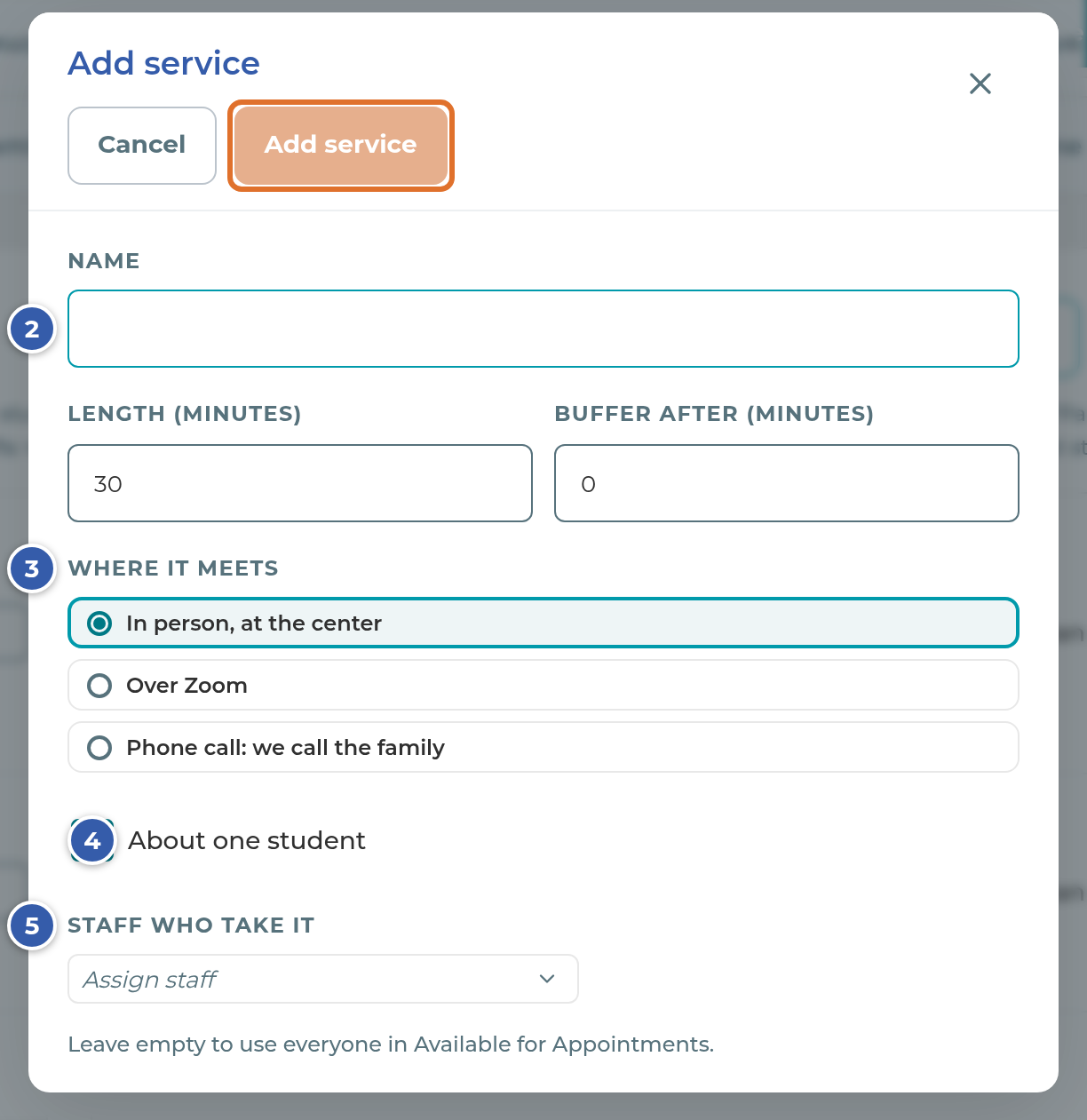
Note: The Virtual choice may still read Over Zoom on the screen, and its link box Zoom link.
To change a service you added, press the pencil beside its name. To remove it, press Delete. A service that already has appointments can't be deleted, so the row offers Turn off instead.
Choose who is available for appointments
- Open Settings › Appointments › Available for Appointments.
- Check each staff member that families and staff can schedule time with.
- Press Save Available for Appointments.
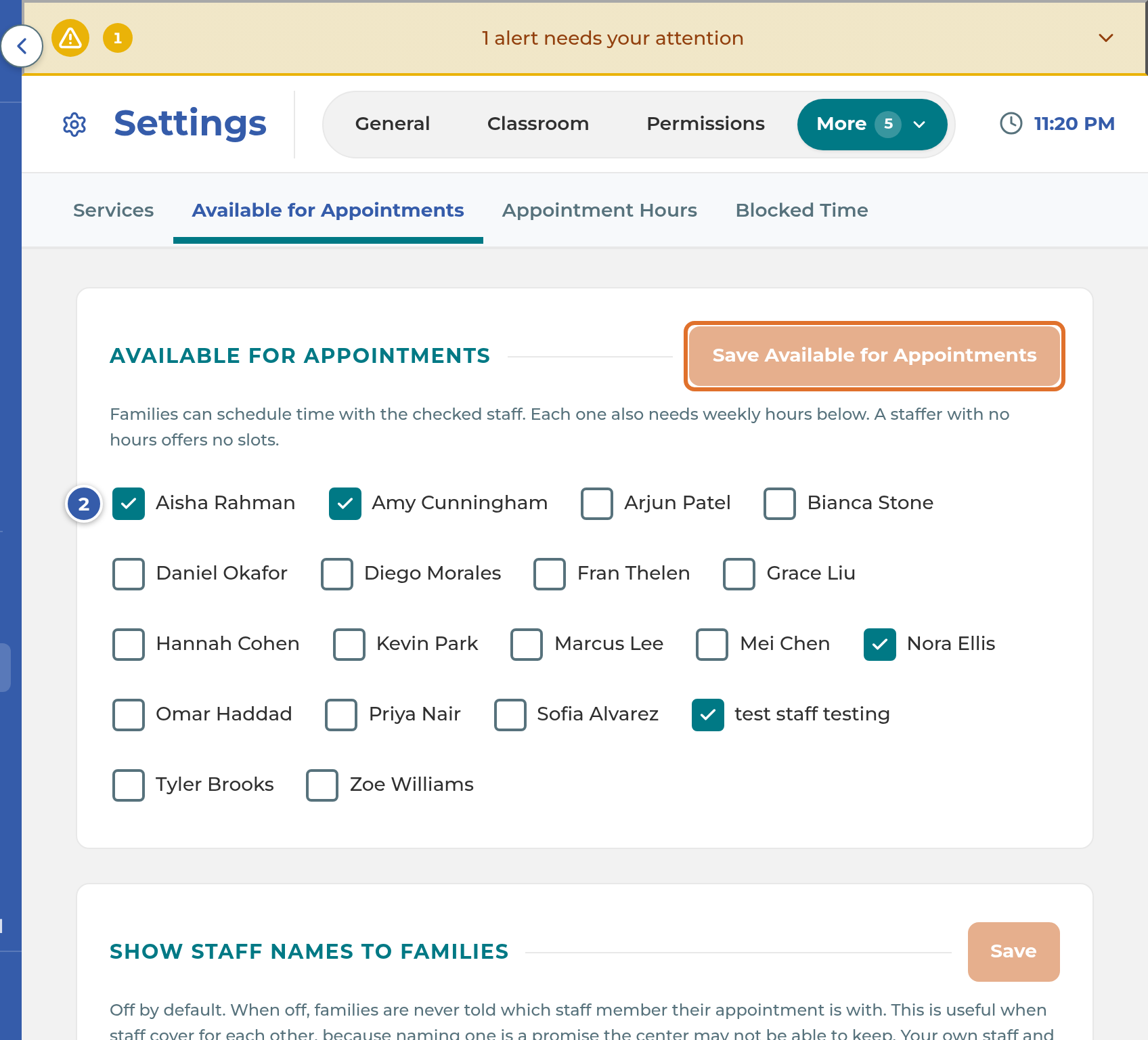
Being on this list is also what lets a staff member connect their Google Calendar. See Connect your Google Calendar.
On the same sub-tab, Show Staff Names to Families is off to start. While it's off, families are never told which staff member their appointment is with, which helps when staff cover for each other. Your staff always see who it's with. It has its own Save button.
Set each person's appointment hours
- Open Settings › Appointments › Appointment Hours. Each person on the Available for Appointments list has a card, Weekly Hours for their name.
- Press Add window.
- Pick the day, a start time and an end time. Add as many windows as that person needs, for example two on one day with a break between them.
- Press Save Weekly Hours on that person's card. Saving replaces their whole set of hours.
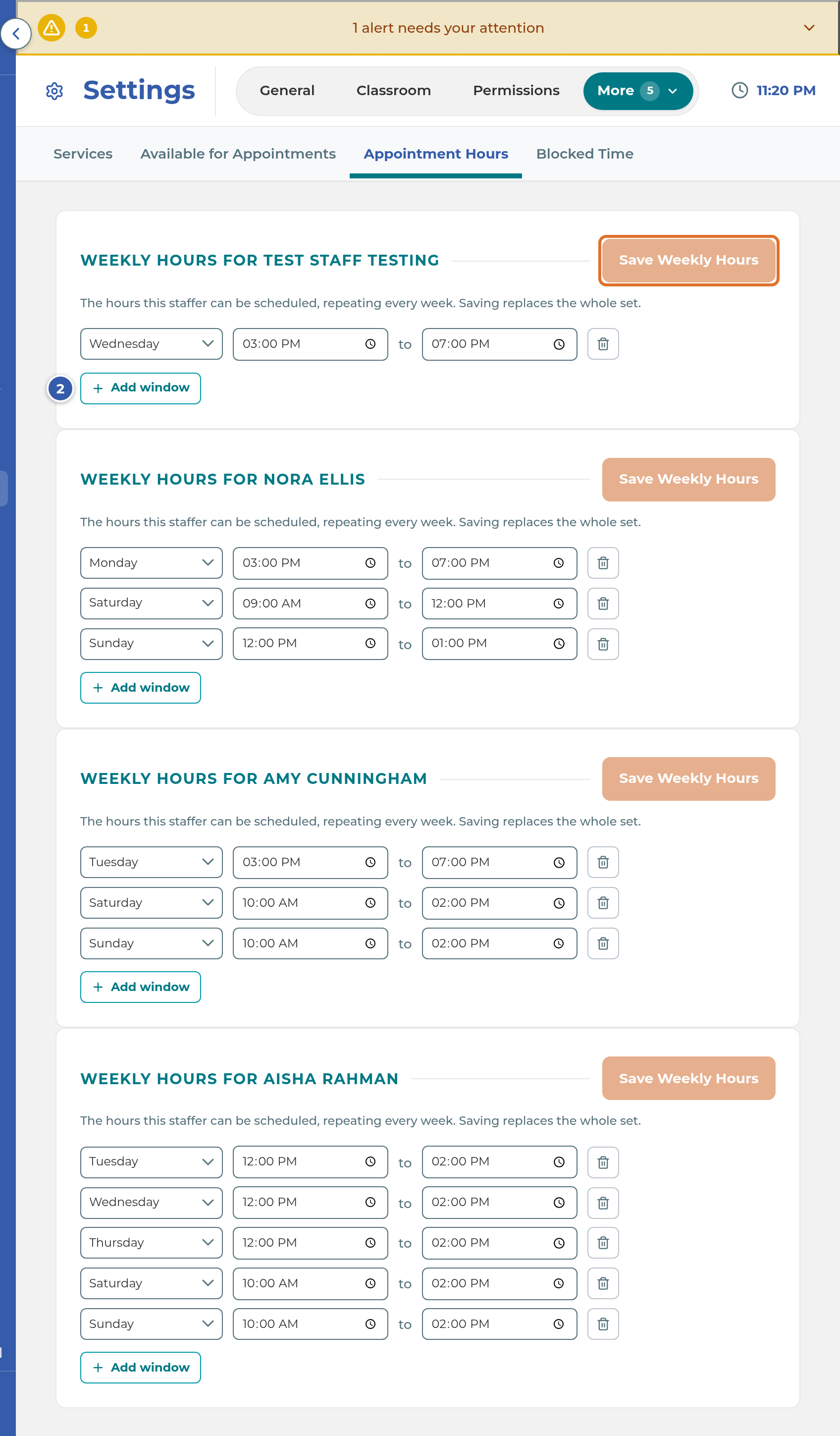
A staff member with no hours offers no times, even when they're checked as available.
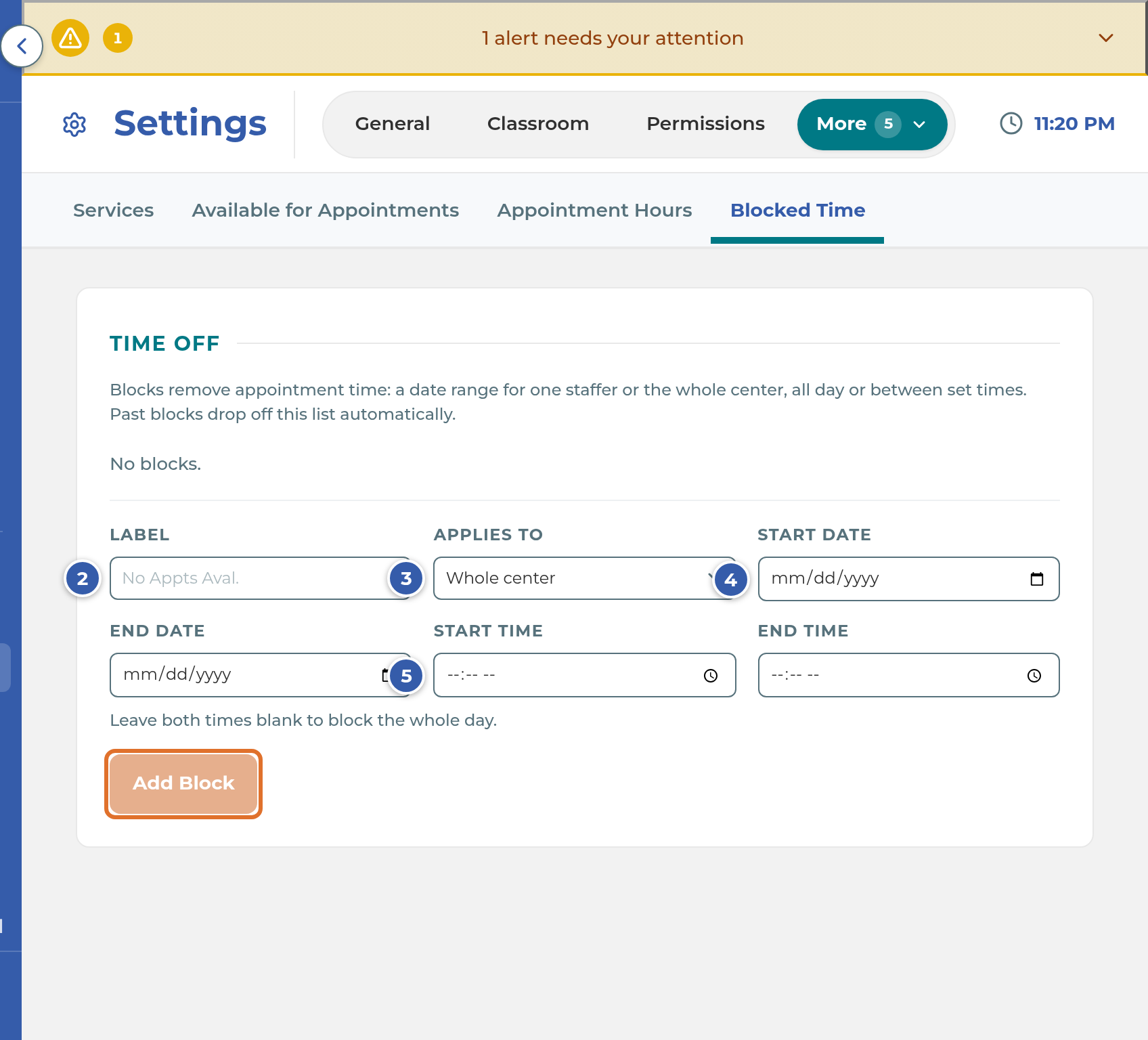
Block time off
Use this for a vacation, a training day, or an afternoon with no meetings.
- Open Settings › Appointments › Blocked Time. The card is titled Time Off.
- Type a Label.
- Under Applies to, choose one staff member or Whole center.
- Pick the Start date and End date.
- Leave both times blank to block the whole day, or set a Start time and End time.
- Press Add Block.
Tip: You can also block time straight from the calendar with Block time on Schedule › Appointments.
What happens next
Changes to length and buffer change the times offered straight away, both on the family's scheduling page in the Family Portal and on your staff's New appointment form. Families only see services with Parents can schedule checked, and they can only pick times at least 24 hours away. Staff can book any service that is on, including later today.
A time is taken off the list when that staff member already has an appointment (plus its buffer), when a block in Blocked Time covers it, or when their connected Google Calendar shows them busy. Past blocks drop off the list on their own.
If something goes wrong
A family says there are no times to choose. Check that the service is on, that Parents can schedule is checked, that at least one staff member who takes it is in Available for Appointments, and that each of them has Weekly Hours. Families can only pick times at least 24 hours away.
Staff see "has no appointment hours set" when scheduling. That staff member is available but has no hours. Add them in Settings › Appointments › Appointment Hours.
A time you expected is missing. A block in Blocked Time, another appointment plus its buffer, or a busy event on that staff member's connected Google Calendar can each take a time away.
Save Services stays gray. Length must be between 1 and 480 minutes (5 to 480 for a service you added), and buffer between 0 and 480. The hint beside the button says so.
You don't see the Appointments tab in Settings. You need to be an owner or manager, and your plan needs to include Appointments.
Related
Last updated October 25, 2026