Add a new lead to the Pipeline
The family appears as a lead card in the column you chose, usually Lead, with today as its inquiry date. Nothing is sent to the family when you create it.
A parent just called to ask about classes for their two kids, and you want to make sure nobody forgets to follow up.
Steps
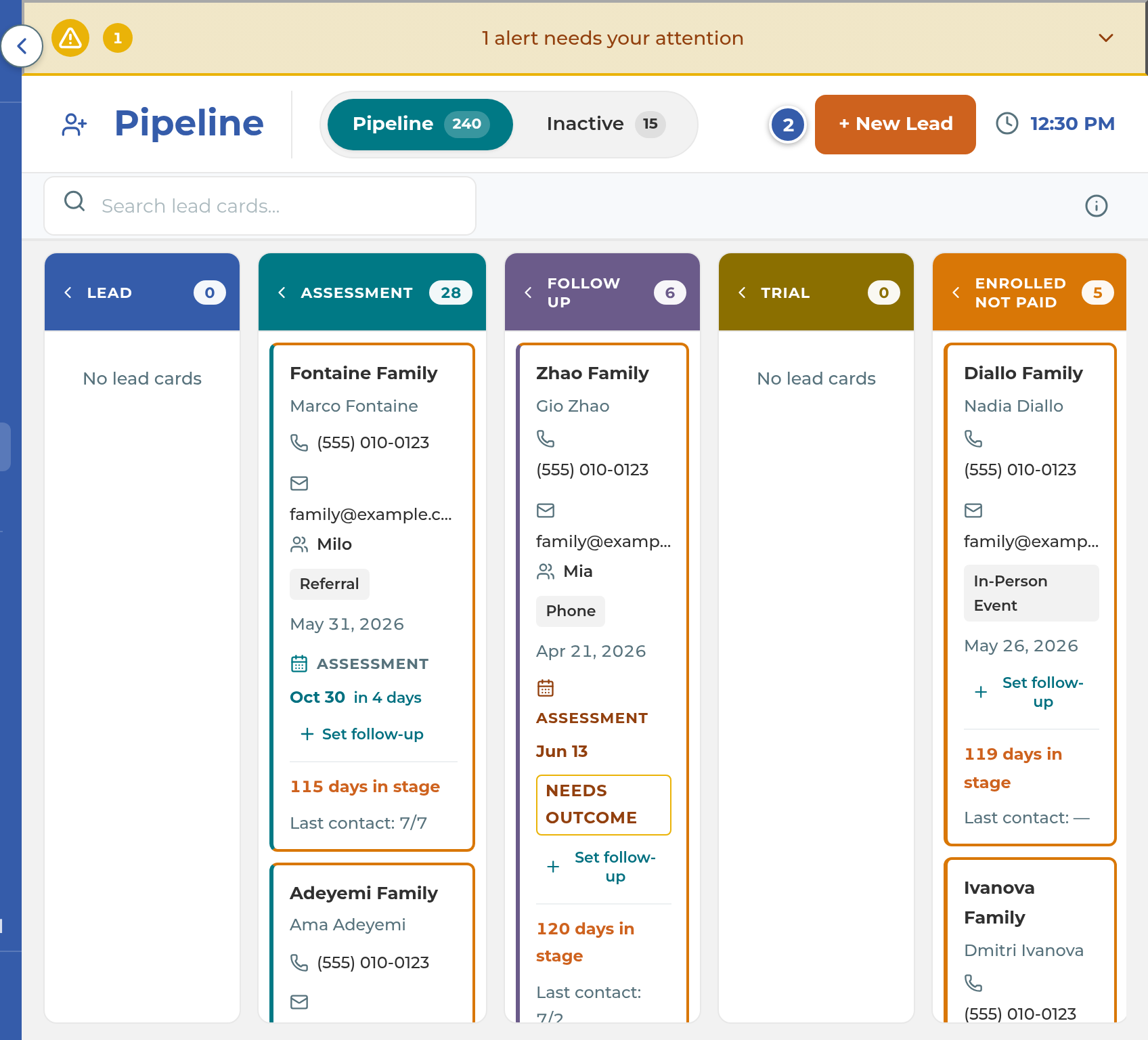
Go to Pipeline in the menu. It opens on the Pipeline tab.
Select + New Lead at the top right.
In the New Family Lead window, type a Family / Lead Name, for example "Smith Family". It's the only required field.
Choose a Lead Source, such as Phone or Walk-in. If you pick Referral, a Referral Name box appears for who referred them. Leave Pipeline Status on Lead, or choose Assessment or Follow Up if they're further along.
Under Parent Name, type the parent's first and last name, then their Email and Phone.
Under Students, type each child's first and last name. Select + Add another student for each extra child. You can leave this blank and add them later.
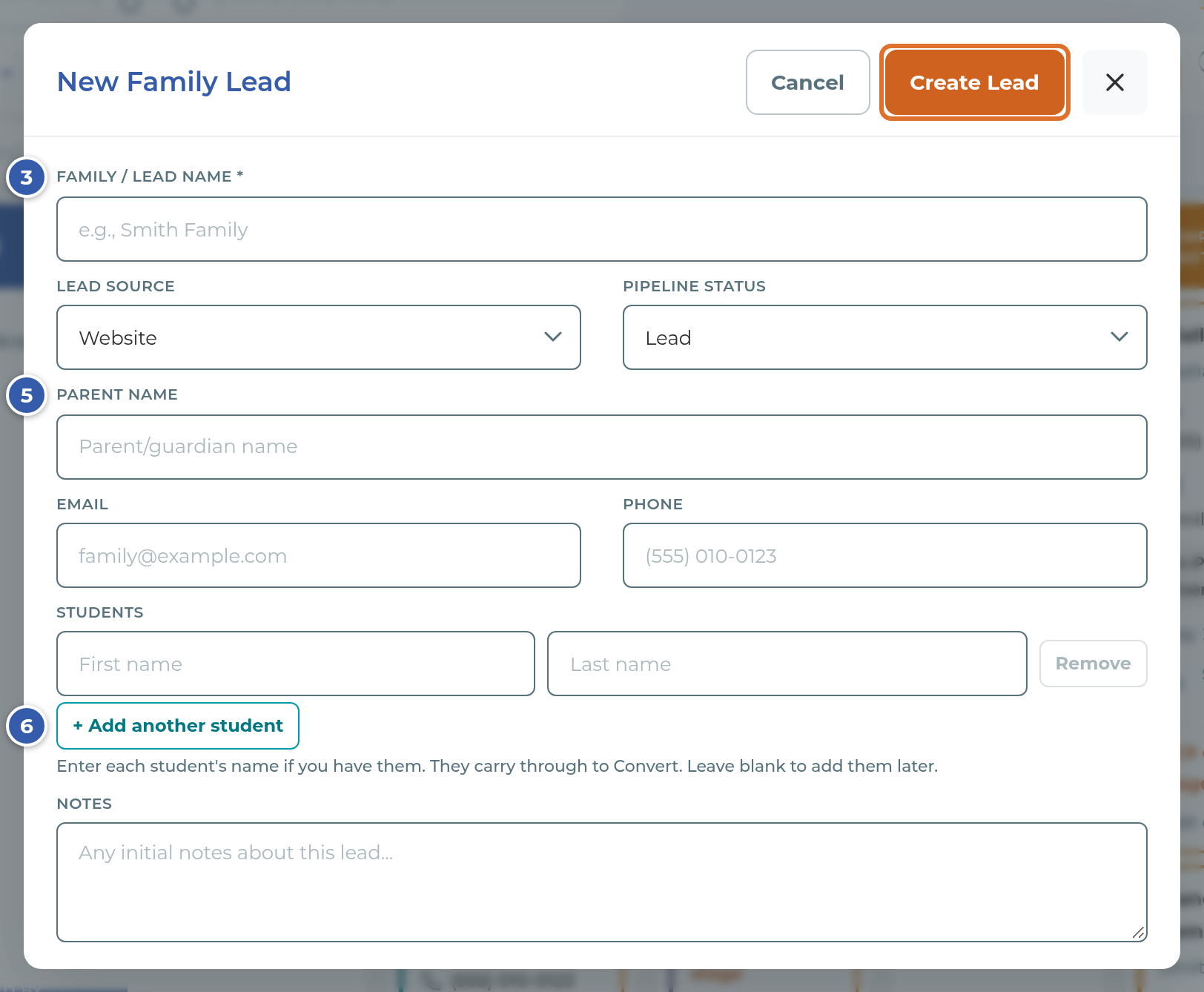
Add anything else you learned in Notes, then select Create Lead.
Tip: Type the parent's first and last name. A one-word name can't be added as a parent, so you'd have to add them again from the lead card.
What the Pipeline board shows
The Pipeline tab has six columns, in this order:
| Column | What it means |
|---|---|
| Lead | A new inquiry. New cards start here unless you choose otherwise. |
| Assessment | Families at the assessment step. |
| Follow Up | Families you're following up with before they decide. |
| Trial | The family started a free trial. |
| Enrolled, Not Paid | The students are enrolled, but tuition hasn't been received. On a narrow screen it reads "Enrolled" over "Not Paid". |
| Enrolled | The family has enrolled and paid. |
The Inactive tab has three more columns: Cold Leads (followed up, never enrolled), Discontinued, and Not Enrolled (a trial that ended without enrolling). The number on each tab counts its cards.
Each card shows the family name, the main parent, their phone and email (or "No phone" and "No email"), the children's names, the lead source and the inquiry date. Under that:
- Assessment shows "Not scheduled", the date, "Needs outcome", "Completed" or "No show".
- Trial shows "Ending" and a date when a trial is about to end.
- Follow up shows the follow-up date, or a Set follow-up button. Enrolled and Trial cards don't have it.
- The bottom line shows how many days the card has been in its stage, and the last contact date.
The card's edge changes color when it needs you. It turns orange when an assessment needs an outcome, when a trial is about to end, or when the card has sat in its stage for 7 days with no follow-up set (14 days in Enrolled, Not Paid). A follow-up date that has passed turns it amber, and red once it's more than 7 days late. Enrolled cards never change color.
In each column, the card that has waited longest is at the top. In Enrolled, the newest is at the top.
Select a card to open it. Use Search lead cards... to find a card by family, parent or student name, email or phone.
Note: Enrolled cards move off the board about 30 days after their enrollment date. Select Show followed by the number archived at the bottom of the Enrolled column to see them again.
What happens next
- The card is in the column you chose, with today as its Initial Inquiry Date. It's in the Pipeline only: no student or parent record is added to People until you convert it.
- The parent is listed under Parents on the card, and each child you named is under Students, marked ENROLLING.
- Nothing is sent to the family when you create the card. If your center has turned on the Lead Nurture emails in Settings › Parent Communication, they go to the card's parent while it stays in Lead with no assessment date. They start off.
- To move a card, drag it to another column on a computer, or open it and use Stage at the top. On a phone, the board shows one column at a time, and you move a card from its own page.
Note: Families who fill in your center's online inquiry form arrive in Lead on their own, with the lead source Website. If the same email asks again, it's added as a note on their existing card instead of making a second one.
If something goes wrong
"Family name is required.": type a Family / Lead Name, then select Create Lead again.
"Lead created, but the parent needs a first and last name to be added as a parent.": the card was made. Open it and select Add parent in Parents. Don't create the lead again.
"Lead created, but" a student name "couldn't be saved.": the card was made. Open it and select Add student in Students.
"Failed to create lead. Please try again.": nothing was saved. Try again in a moment.
You close the window with something typed: you're asked whether to save first. Saving creates the lead.
Dragging a card to Trial, Enrolled, Not Paid or Enrolled opens a window instead of moving it: that's the convert window, which adds the family to People. See Enroll a lead: trial and convert. Select Cancel to leave the card where it was.
A move is refused with a short message: some moves aren't allowed. For example, a card that has been converted can't go back to Lead, and a Trial card can only move with its own Enroll or Did not enroll buttons.
Choosing Cold Leads or Not Enrolled asks you to confirm: select Move to Cold Leads or Move to Not Enrolled. No student records change and nothing is sent.
Related
Last updated October 26, 2026