Enroll a lead: trial and convert
Each enrolling child is a student in People, each parent is a parent record, and the card moves to Enrolled, Enrolled, Not Paid or Trial. Unless it's a trial, every parent gets the welcome email with their Family Portal sign-in.
On this page
The family loved the assessment and wants to start next week. Converting their lead card adds the children and parents to People in one step, so you don't type anything twice.
Steps
Get the card ready
Go to Pipeline and select the family's card.
In Students, select the pencil beside each child, or Add student for a child who isn't listed. Fill in Legal First Name, Last Name and Date of Birth, make sure Enrolling is checked at the top, and select Save student.
In Parents, check that each parent is listed, or select Add parent. Use Make Primary Communication and Make Primary Billing to choose who gets your messages and who gets invoices.
When everything is ready, select Convert to Enrolled at the top of the card. You can also drag the card to the Trial, Enrolled, Not Paid or Enrolled column, which opens the same window.
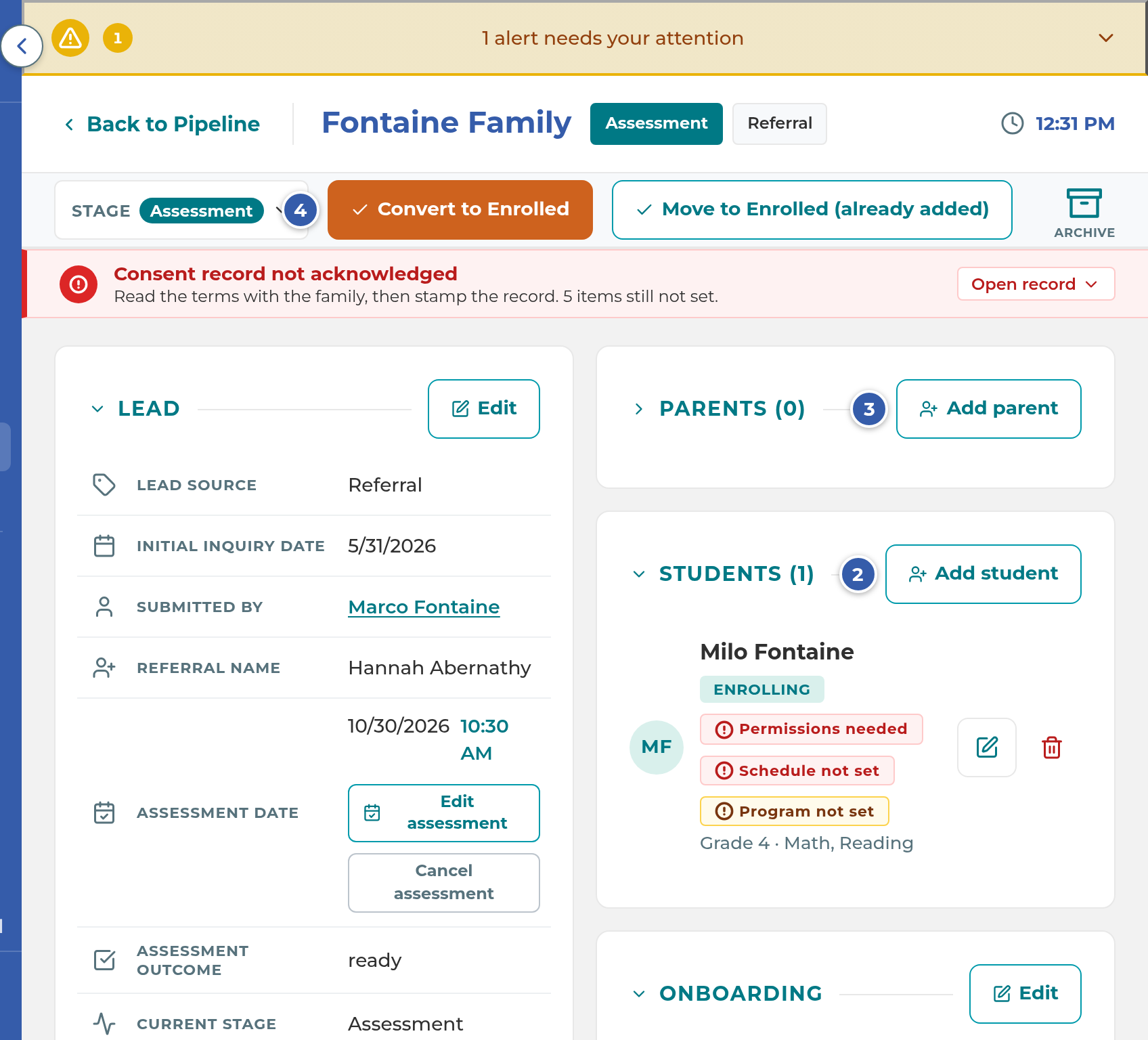
Tip: Each child's row in Students shows what's still missing, such as Permissions needed or Schedule not set, or Ready to enroll when it's complete. Select the label to jump straight to that part.
Important: The Add Student window marks Classroom Position as "required to enroll," but converting doesn't check it. A child converted without one becomes an Active student with no classroom position. Set it on each child before you convert.
Convert the lead
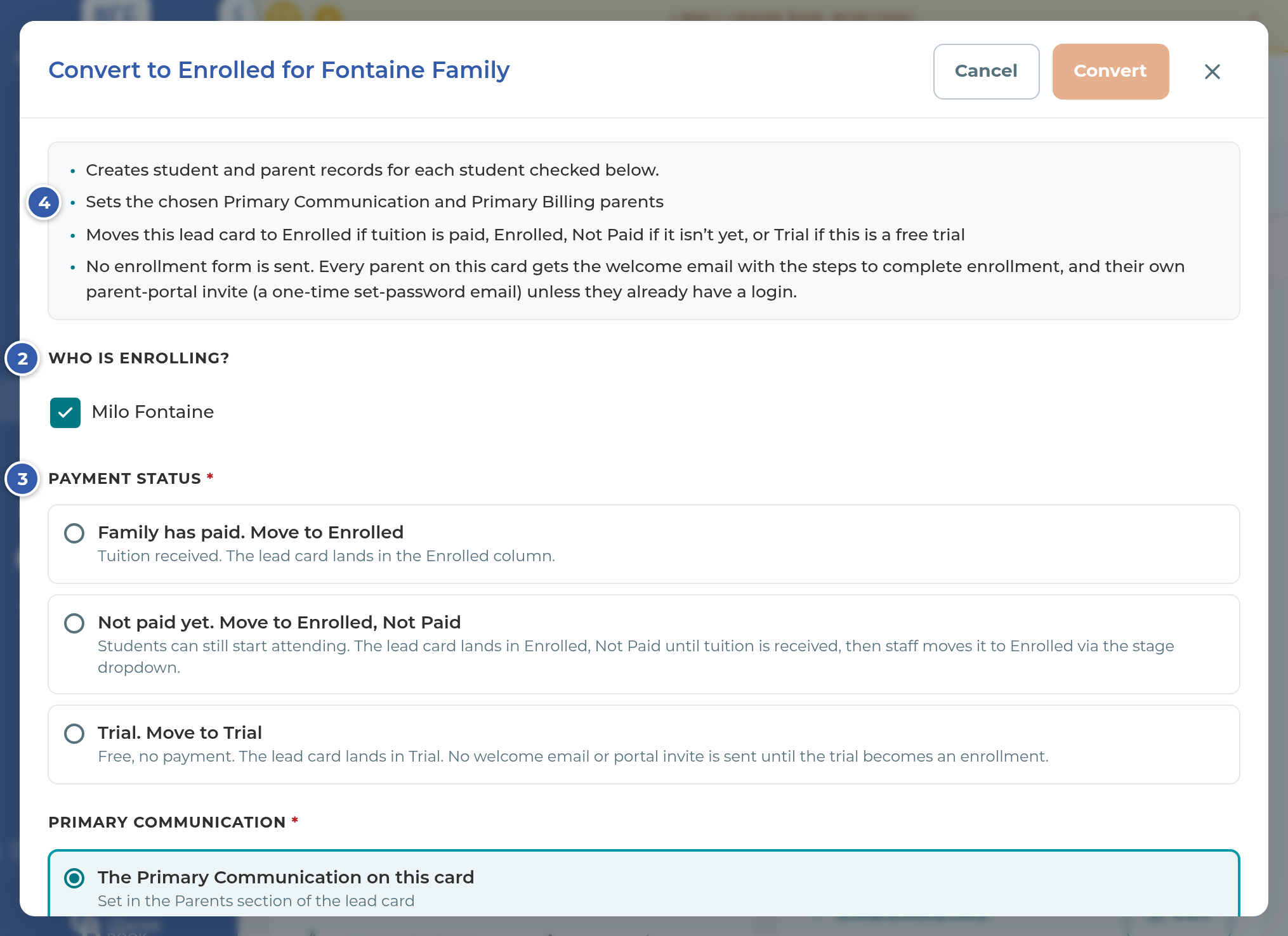
The window is titled Convert to Enrolled followed by the family name.
Under Who is enrolling?, check each child who is starting. Children you leave unchecked stay on the card.
Under Payment Status, choose one:
- Family has paid. Move to Enrolled
- Not paid yet. Move to Enrolled, Not Paid. The students can still start attending.
- Trial. Move to Trial for a free trial. The window's title changes to Start a Trial for the family name.
Check Primary Communication and Primary Billing. They start on the parents you chose on the card. Select Add a different parent to type in someone new.
Select Convert.
Unless it's a trial, the app asks "Send the welcome email to" the children's parents. Select Convert and send, or Go back to change nothing.
Note: If a child might already be on file, a section called Existing Student Matches appears. For each child, pick Link existing to use their current record, or Create new record. A single, active, exact name and birthdate match is picked for you. Check it before you convert.
Finish a trial
- On Pipeline, select the card in the Trial column. Its Trial section shows Trial Start, Trial Ends and Days Left.
- If the family is staying, select Enroll at the top of the card.
- Under Who is enrolling?, uncheck any child who isn't staying. Check each child's Enroll Date. It starts on the date already on file, or today.
- Under Payment Status, choose Family has paid. Move to Enrolled or Not paid yet. Move to Enrolled, Not Paid, then select Enroll.
- When asked "Send the welcome email to" the parents, select Enroll and send.
- If nobody is staying, select Did not enroll instead, and then Did not enroll again to confirm.
Note: When a trial is close to ending, the card says to "Mark each student Enroll or Did not enroll in the Students card." The Enroll and Did not enroll buttons are at the top of the card, not in Students.
What happens next
After Convert, with Enrolled or Enrolled, Not Paid:
- Each checked child is an Active student in People with today as their Enroll Date. Each parent is a parent record, linked to their children.
- The card moves to Enrolled or Enrolled, Not Paid. The children and parents on it now link to their People pages, and you edit them there.
- Every parent on the card gets Welcome Email 1, which has the steps to finish enrolling and a link to set up their Family Portal sign-in. A parent who already has a student at your center gets the Additional Student Enrollment email instead. No text message is sent.
- Welcome Email 2 follows after the child's first class. Each email has its own switch in Settings › Parent Communication › Email. See Parent Communication and automations.
After Convert, with Trial:
- Each checked child is a student with the status Trial, starting today. The card moves to Trial.
- Nothing is sent. The welcome email and portal sign-in go out when the trial becomes an enrollment.
After Enroll on a trial: checked children become Active with the Enroll Date you chose. Unchecked children become Not Enrolled and stay on the card. The card moves to Enrolled or Enrolled, Not Paid, and the parents get the welcome email, the same as Convert.
After Did not enroll: every trial child becomes Not Enrolled, and the card moves to the Not Enrolled column on the Inactive tab. Nothing is sent. If the family comes back, open the card and use Stage to move it to Lead or Trial.
When an Enrolled, Not Paid family pays: open the card, select Stage, and choose Enrolled. Pick How did they pay? and select Family has paid. Nothing is sent to the family.
Note: Move to Enrolled (already added) is for a family whose children are already in People. It links the card to those students and moves it to Enrolled. No records are created and no form is sent.
Important: Enroll on a trial card closes without telling you whether the welcome email went out. If Welcome Email 1 is turned off, a parent has no email address, or the send fails, you won't see a message. Check the parent's Family Portal card on their page in People, and send the invite from there if it's missing.
If something goes wrong
"Can't convert yet" and Convert is grayed out: a checked child is missing a name or date of birth, or nobody is checked under Who is enrolling?. Add what's missing on the card, then open the window again.
You close the convert window without converting: nothing is saved and the card stays where it was.
A child "already exists.": choose Link existing for that child instead of Create new record.
"The lead card was converted" and some parents "got no welcome email or portal invite": those parents have no email address. Add it on their page in People, then send the portal invite from there. See Invite families to the Family Portal. Select Done.
"The lead card WAS converted, but the welcome email could not be sent.": the family is converted. Don't convert again. Contact The Center Book support so the email can be sent.
"This lead card was not converted, and nothing was saved.": nothing changed. Try again later, or contact The Center Book support.
"To enroll or end this trial, open the lead card and use Enroll or Did not enroll.": a trial card can't be dragged or moved with Stage. Use its own buttons.
A converted card won't go back to Lead or Follow Up: once converted, a card can only move between Enrolled, Not Paid, Enrolled and Discontinued.
Related
Last updated October 26, 2026