Choose which messages families get
Each message goes out, or stops, the next time it's due. Nothing already sent is changed.
On this page
You're getting ready to open on The Center Book and want to know exactly what families will hear from you without anyone pressing a button. Every automatic message has its own switch, and this page lists them all.
Steps
- Go to Settings › Parent Communication.
- Choose Text or Email. Messages are grouped the way you'll meet them in a normal week, for example Appointments or Progress Journey.
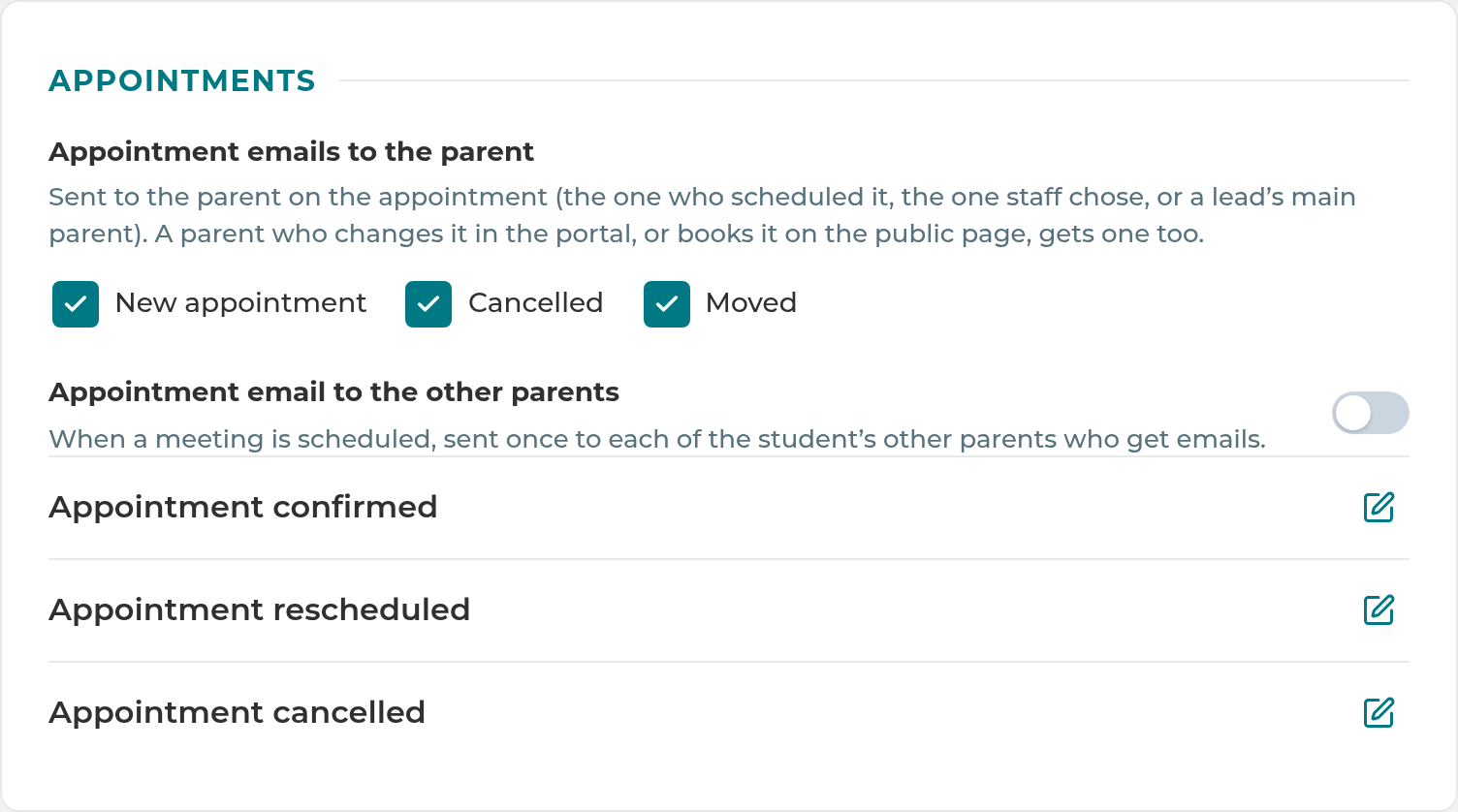
- Flip a message's switch on or off. For appointment messages, tick or untick New appointment, Cancelled and Moved instead. Each change saves the moment you make it.
- If the row has a number box, type the number of days and click out of the box. It saves when you leave it.
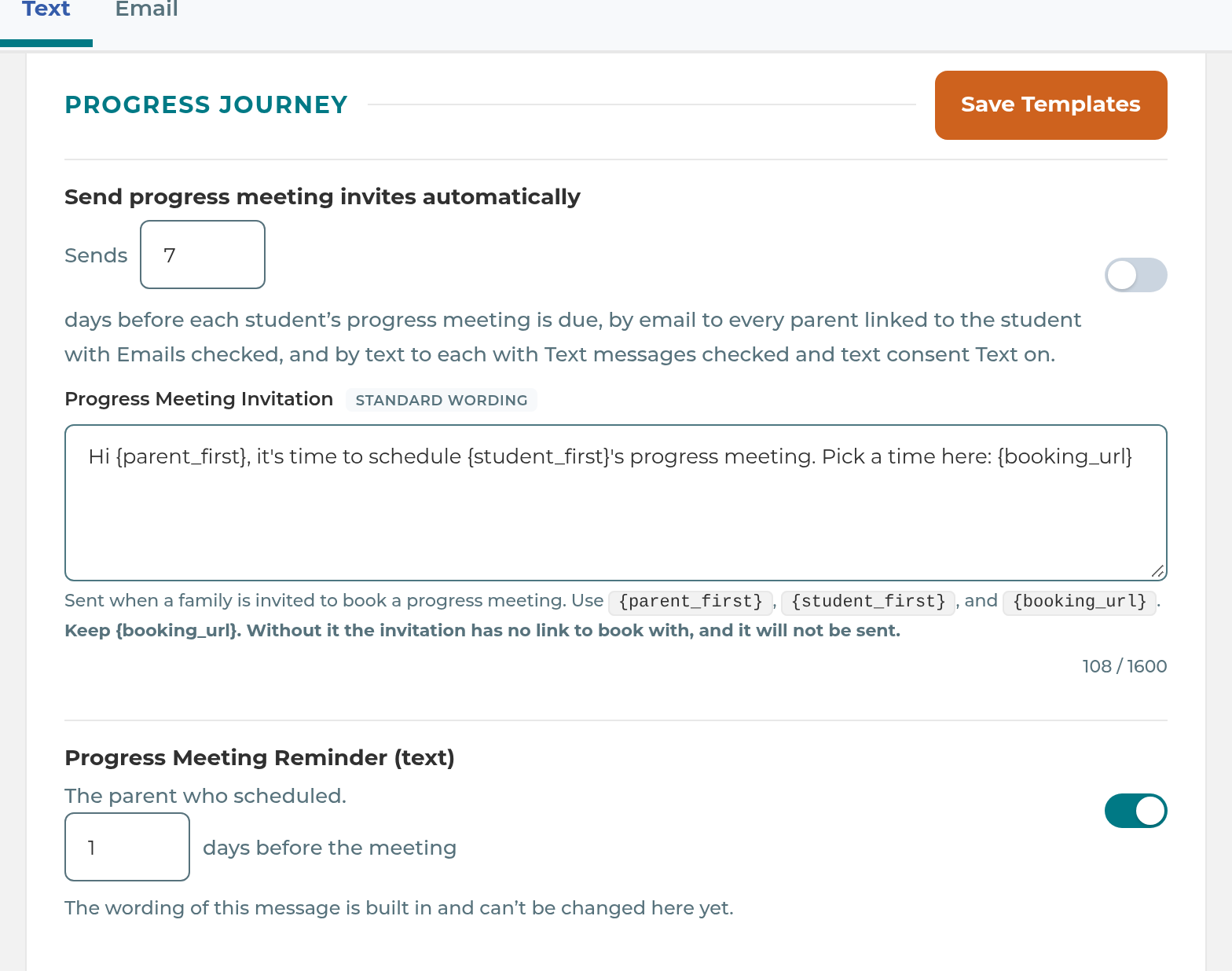
- To change a text's wording, edit it and select Save Templates at the top of its group. For emails, see Emails to families.
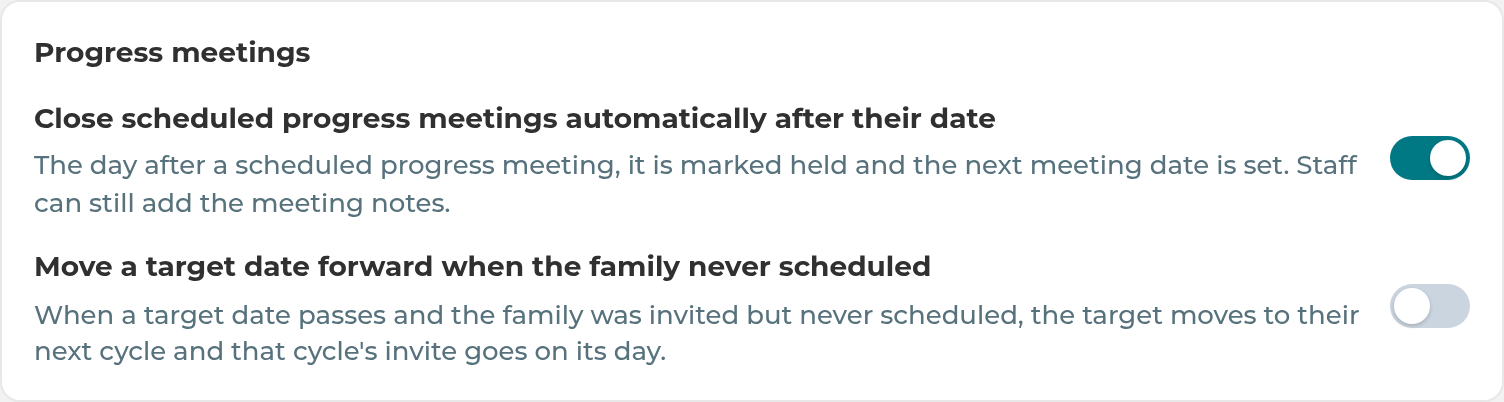
A few switches that change what families are sent live in Settings › Staff Automations. See the last table below.
Note: "Starts" is how a switch is set when The Center Book creates your center from your setup form, if you didn't change it there. A center created another way starts these five differently, all off: Outbound texts, Send progress meeting invites automatically, Progress Meeting Nudge (email), and the two progress meeting switches in Staff Automations. The screen always shows how yours are set right now.
Texts (Settings › Parent Communication › Text)
| Switch | Who gets it | When | Starts |
|---|---|---|---|
| Outbound texts | Controls every text below, and texts staff type | Any time | On |
| Appointment texts to the parent (New appointment, Cancelled, Moved) | The parent on the appointment: the one who scheduled it, the one staff chose, or a lead's main parent. Needs Text on. | When an appointment is made, cancelled or moved, whoever did it | On |
| Send progress meeting invites automatically | Every parent of the student with Text messages checked and Text on, plus the invite email (one switch for both) | The number of days you choose (1 to 30, 7 to start) before each student's progress meeting is due | On |
| Progress Meeting Reminder (text) | The parent who scheduled the meeting | The number of days you choose (1 to 14, 1 to start) before the meeting | On |
| Send the automatic pickup reminder | The pickup contact chosen at check-in | The minutes you set in Send it this many minutes before the session ends (5 to start), then Save | On |
| Send the birthday text | Every parent of the student who gets texts. Brothers and sisters who share a birthday are named in one text. | The morning of each active student's birthday | Off |
These texts have wording you can change but no switch, because staff send them on purpose: Pickup Reminder (manual) (from Send pickup reminder on Attendance), We Missed You (from a no-show student's card on Attendance), and the two bathroom texts, Bathroom Permission Required and Bathroom Notification (FYI). The bathroom texts only appear when the Bathroom question is on in Settings › General › Set Up. The Cancellation Form Link text goes only when staff press Send cancellation form on a parent's profile.
Emails (Settings › Parent Communication › Email)
| Switch | Who gets it | When | Starts |
|---|---|---|---|
| Welcome Email 1 (before the first class) | Each of a lead's parents when the lead is converted, or a Trial student's linked parents when the student is enrolled. It carries their Family Portal login. | At that moment | On |
| Additional Student Enrollment (not Welcome Email 1) | A parent on a converted lead who already has a student enrolled, instead of Welcome Email 1 | At that moment | On |
| Welcome Email 2 (after the first class) | Every parent of the student with Emails checked | When the student checks out of their first class, or the next morning if that was missed | On |
| Lead Nurture 1, Lead Nurture 2, Lead Nurture 3 | The lead card's parent email | 1, 4 and 10 days after the inquiry to start (1 to 30) | Off |
| Not decided after the assessment | The lead card's parent email | 3 days after a Completed assessment to start (1 to 30) | Off |
| No show or cancelled | The lead card's parent email | 1 day after a No Show or a cancel to start (1 to 30) | Off |
| Cancellation Request Received (email) | The parent who asked to cancel | When they submit the portal Cancellation form, or staff send it from the parent's page | Off |
| Send progress meeting invites automatically | Every parent of the student with Emails checked, plus the invite text | Same switch and days as the text above. Covers the 1, 3, 6 and 12 month invites, then every 6 months. | On |
| Progress Meeting Nudge (email) | Parents who haven't scheduled yet | The days you choose (7 to start) after the invite | On |
| Progress Meeting Reminder (email) | The parent who scheduled | The days you choose (7 to start) before the meeting | On |
| Level Up Email | Every parent of the student with Emails checked. The screen says the Primary Communication parent only, but every such parent gets one. | Right away, when a passed test moves the student up a level | On |
| Appointment emails to the parent (New appointment, Cancelled, Moved) | The parent on the appointment. A parent who changes it in the portal, or books on your public page, gets one too. | When an appointment is made, cancelled or moved | On |
| Appointment email to the other parents | Each of the student's other parents who get emails, once | New appointments only | Off |
| Send the birthday email | Every parent of the student who gets emails. Brothers and sisters who share a birthday are named in one email. | The morning of each active student's birthday | Off |
The Family Portal invite and Family Portal password reset emails, and the Cancellation Form Link email, have no switch. They go when staff send them.
Staff Automations that affect families
| Switch | What it does | Starts |
|---|---|---|
| Close scheduled progress meetings automatically after their date (Auto Tasks) | The day after a scheduled progress meeting, it's marked held and the next meeting date is set. Staff can still add notes. | On |
| Move a target date forward when the family never scheduled (Auto Tasks) | When a target date passes and the family was invited but never scheduled, the target moves to their next cycle, and that cycle's invite goes on its day. | On |
| Email to the staff member, Copy to the center inbox, Inbox task for the staff member (Appointment Notices) | Tell the staff member the appointment is with, and your center's email, when an appointment is made, cancelled or moved. One box for each. | On |
| Center copy of assessment emails (instructions, cancelled, new time) (Center Copies) | Sends your center's email a copy each time one of these goes to a family, even if the family's email fails | On |
Important: Keep
{booking_url}in the Progress Meeting Invitation text. Without it the invitation has no link to schedule with, and it won't be sent. The page lets you save without it.
Important: The Appointment texts to the parent row says the parent needs Text messages checked. Today the app only checks their text consent (Text on) and phone, so a parent with that box unchecked still gets appointment texts.
Note: Each lead email row also shows a short line about where its timing came from. It doesn't change anything.
What happens next
A switch you turn off stops that message for everyone, starting with the next one due. It isn't sent later when you turn it back on. For example, a family whose first class falls while Welcome Email 2 is off never gets it.
While Send progress meeting invites automatically is off, owners and managers see a Family messages not sent alert each day, with the count of invites that weren't sent. The same alert counts nudges held back while Progress Meeting Nudge (email) is off.
If something goes wrong
A family didn't get a text. Check Outbound texts, then the message's own switch, then the parent's Communication Preferences: they need Text on and a phone number.
A family didn't get an email. Check the message's switch, then the parent's email address and their Emails box.
"That switch didn't save. Try again." or "Those days didn't save. Try again." Make the change again.
"Choose a number of days from 1 to 30." The lead email days must be a whole number from 1 to 30.
The Save Templates button is grayed out. A text is empty or longer than 1,600 characters. Fix it, then save.
You can't change Outbound texts. It reads Only an owner or manager can change this. Ask an owner or manager.
Related
Last updated October 25, 2026