Add a new student
The student is on your roster, on the Class Schedule and on Attendance for the days in their schedule, and their profile opens.
On this page
A family has just enrolled at the front desk, and you want their child on the roster before their first class.
Steps
Open a new student
Go to People. It opens on Students.
Select + New Student at the top right.
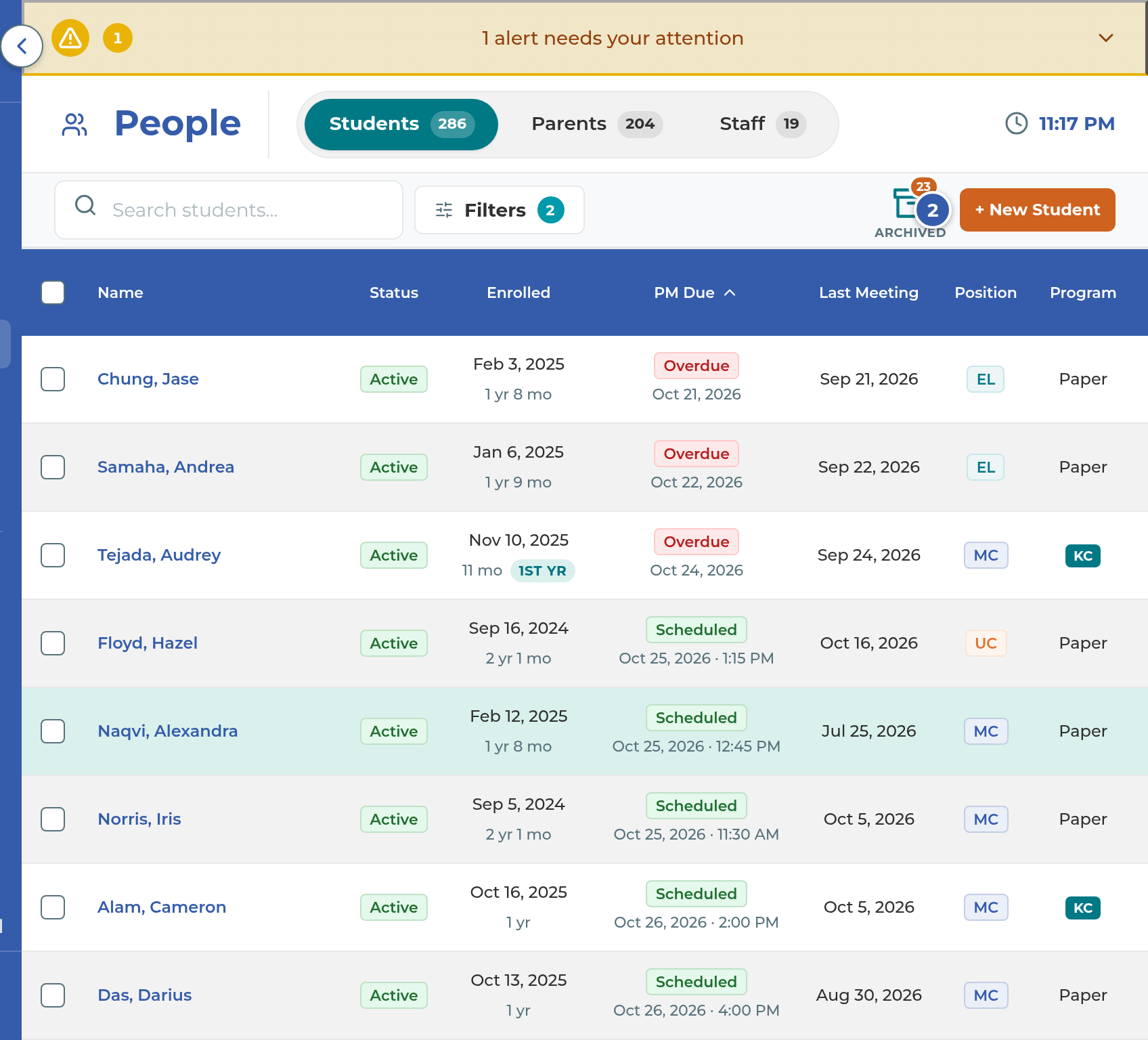
The New Student page opens. It's laid out like a student's Profile tab, with every section ready to type in. Fill in what you have today; everything can be added later from the profile.
Fill it in and save
In Personal, enter the Legal First Name and Last Name. Both are required. Add the Date of Birth if you have it. It's how the app spots a student who is already on file.

In Enrollment, leave Enrollment Status on Active for a student starting now, and choose their Classroom Position. Add Subject(s) and the Enroll Date if you know them.
In Schedule, tap each day they'll come, and choose a time and a length for each. See Set a student's class days.
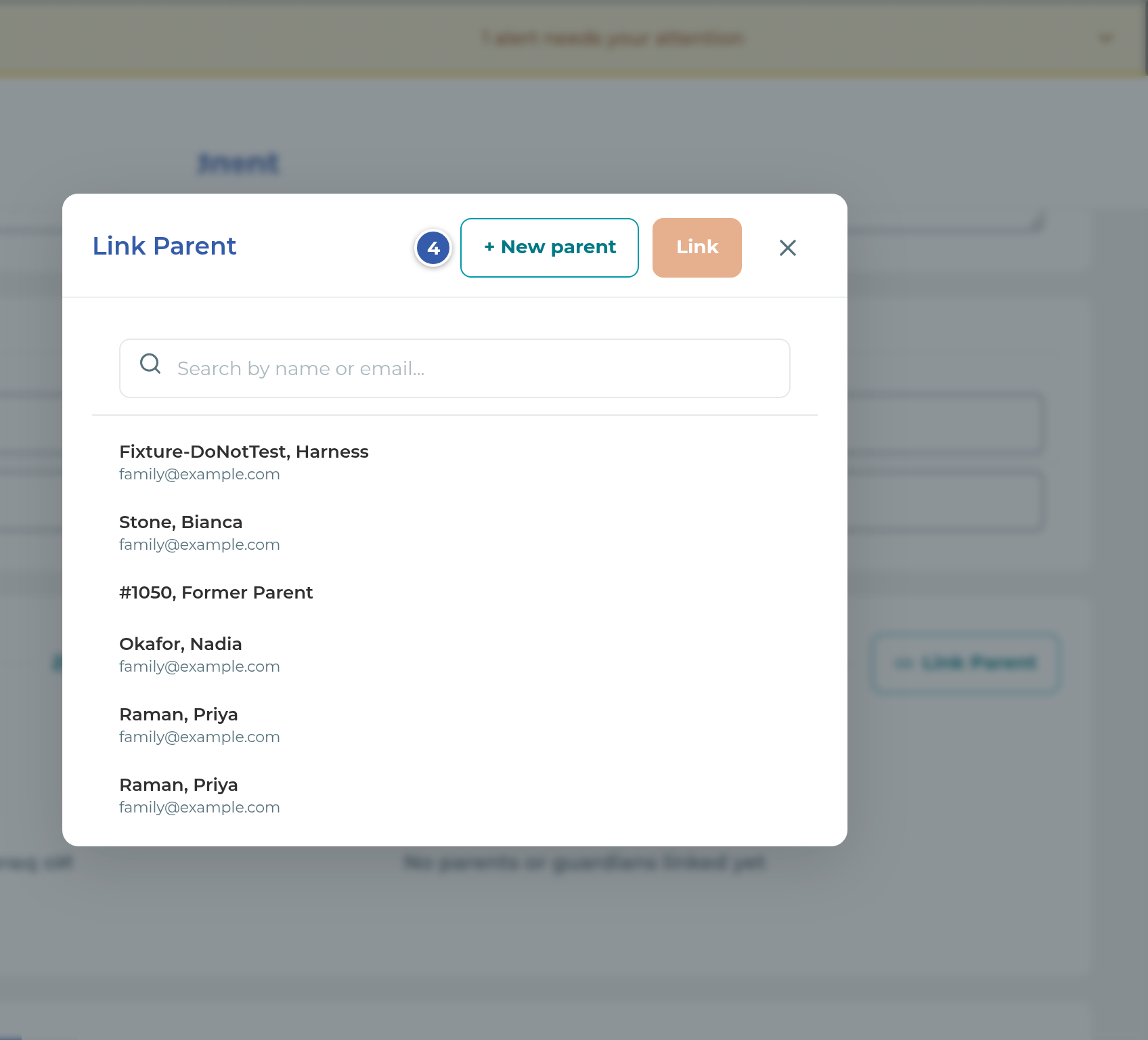
In Parents and Guardians, select Link Parent. Pick a parent already on file, or select + New parent.
Add anything else you have now, such as Medical, Permissions and Pickup or Current Levels.
Select Save at the top of the Personal section.
Tip: The first parent you link becomes the Primary Communication parent, unless you choose another.
What happens next
- The student's profile opens, on the Planning tab.
- They're on your roster. The Students list shows Active and Trial students, so a new Active student appears right away.
- They're on the Class Schedule and Attendance on the days in their schedule. A student with no class days won't show in Expected on Attendance until days are set.
- An Active student with no Enroll Date gets today's date, and starts on the progress meeting schedule.
- No Pipeline card is created. Adding a student here doesn't touch Pipeline.
Important: The student is saved first, then each parent link and permission answer, in order. If one of those fails, a message names what wasn't saved, and nothing after it is tried. The student still exists, so open their profile to finish, rather than adding them again.
If something goes wrong
"Choose a classroom position for this student.": pick a Classroom Position in Enrollment. If the one you need isn't listed, turn it on in Settings › Classroom › Layout under Classroom Positions and save.
"A student matching this name and date of birth already exists.": use the View … record link to check that record before adding a second one.
A message under Student ID or Folder Barcode: that number is already used by another student. Each one must be unique.
"Primary Communication parent without texts": the parent you made Primary has text messages off, so your center's texts won't reach them. Select Go back to choose a different Primary, or Save anyway.
"The family has not agreed yet": you answered permissions without recording the family's agreement. Read the terms with the family, select Family agreed, acknowledge in Permissions and Pickup, then save.
A room is full: one of the times you chose has no open seats in that student's room. Select Schedule anyway to save (your override is recorded), or Cancel to change the time. Cancel saves nothing.
You leave the page before saving: you're asked whether to save first, so nothing you typed is lost by accident.
Related
Last updated October 25, 2026