Set a student's class days
The student shows on the Class Schedule at those times every week, and in Expected on Attendance on those weekdays.
On this page
A family wants to switch from Tuesdays to Thursdays at 4:30. Their child's class days live on the student's profile, and everything else follows from them.
Steps
Open the schedule
On People › Students, select the student.
Select the Profile tab.
In the Schedule section, select Edit. Only one section can be edited at a time.
Set the days and times
Tap each day they come. A day you turn on starts at that day's first class time, for 60 minutes. Tap a day again to turn it off.
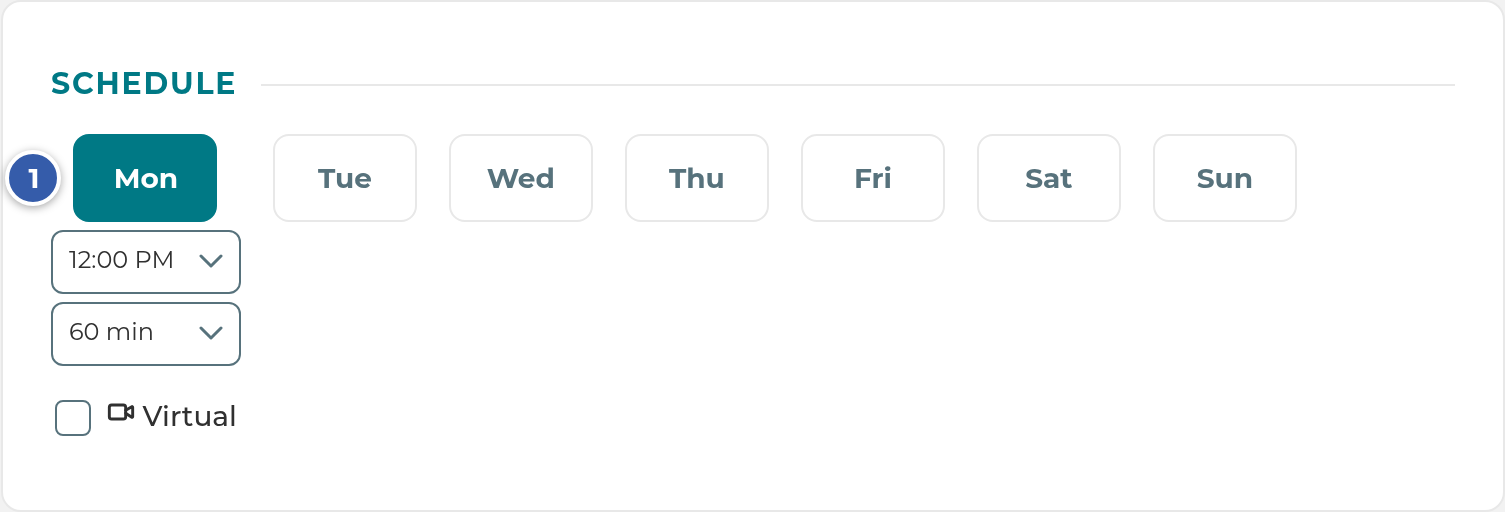
Choose the time for each day. Each day has its own time.
Choose the length: 30, 45, 60, 90 or 120 min.
Tick Virtual for a day they join remotely. They still count in that time, but don't take a seat.
Select Save.
Under each time you'll see how many seats are open in the student's room, such as "4 of 10 seats open".
What happens next
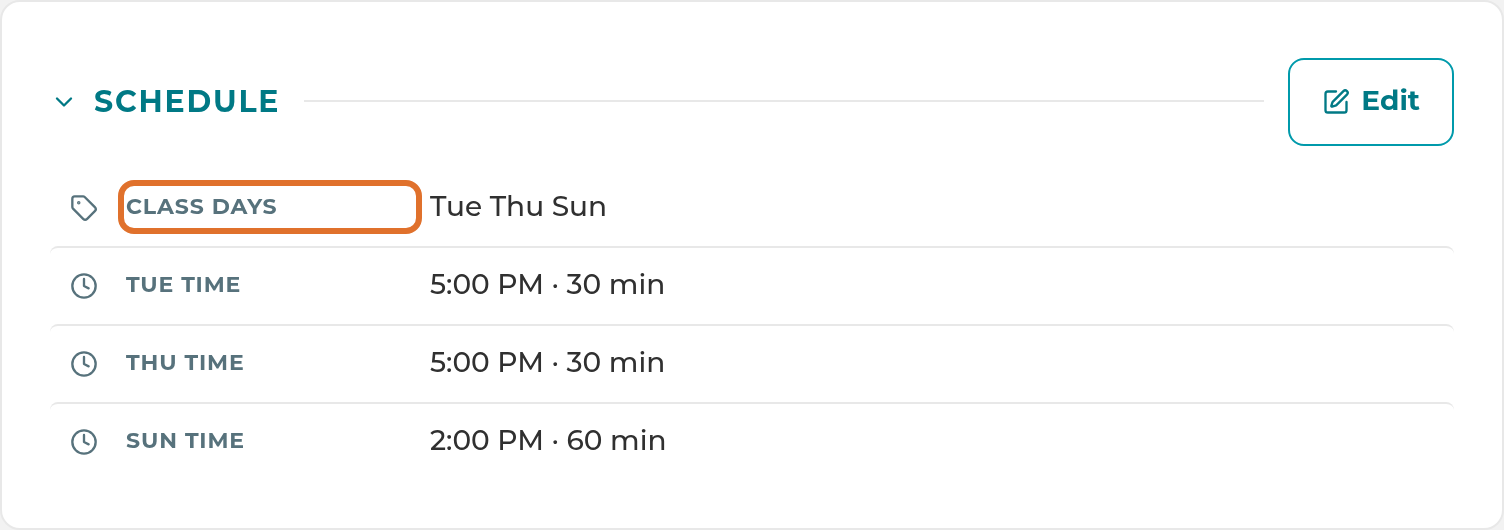
- Their profile shows Class Days (for example, "Mon Thu") and a time row for each day, such as "4:30 PM · 60 min".
- The Class Schedule counts them every week at those times, in every 15-minute slot their session covers. See Read the Class Schedule.
- Attendance lists them in Expected on those weekdays, sorted by time. If they haven't checked in by the No-Show Threshold (in Settings › General › Center Hours, under Attendance Timing), they move to No-Show.
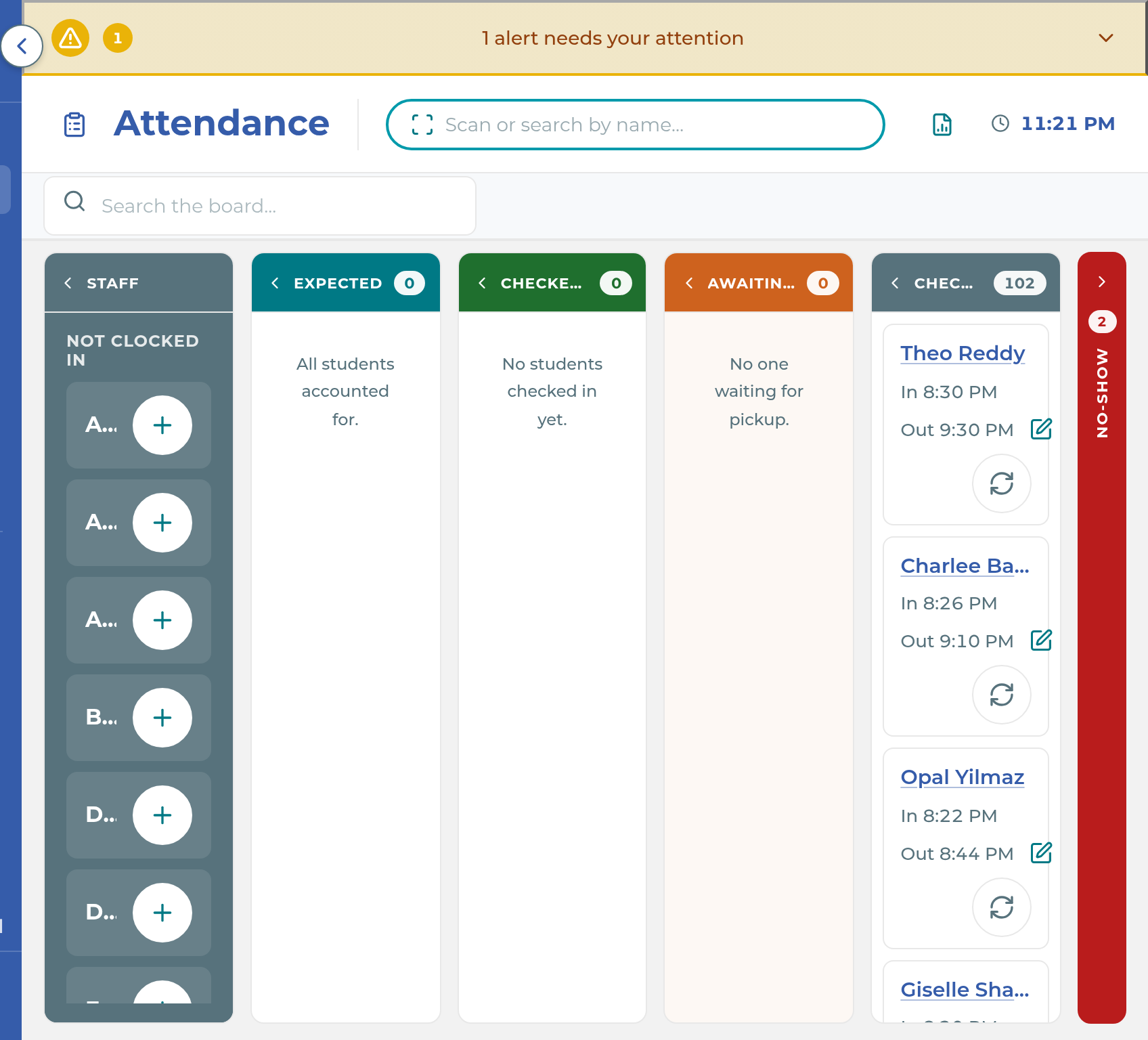
Important: Expected on Attendance follows the weekly class days only. It doesn't use one-date changes or closed days, even though the Class Schedule does. A student moved off today for one date still shows in Expected, and later in No-Show. A student added for just one date, such as a makeup, doesn't show in Expected, so check them in by searching their name in Scan or search by name… at the top of Attendance. On a day marked closed in Center Hours, every weekly student still shows as Expected.
Note: Changing a student's Subject(s) puts a banner on their Schedule section, such as "Subjects changed from Math to Math, Reading", as a reminder that their days or times may need to change. Select Mark Reviewed once you've checked.
If something goes wrong
A room is full: when you save, the app asks before putting the student in a full room. Select Schedule anyway to save (your override is recorded with your name and the time), or Cancel. Cancel saves nothing: "The schedule was not saved, because that room is full."
"(Day) isn't a day the center is open. Choose a day the center is open.": that day isn't one of your Student Days. Choose another day, or add it in Settings › General › Center Hours.
A red "Scheduled on (day), a day the center is not open.": the student still has a day your center no longer opens. Select Edit, turn that day off, and choose a day you're open.
"No center hours are set yet.": your center has no Student Days saved. Set them in Settings › General › Center Hours, then come back.
The day you want isn't offered: only your Student Days appear. Add the day under Student Class Hours in Center Hours.
No seat count under a time: the student has no Classroom Position, the day is Virtual, or their room has no seats in Settings › Classroom › Layout.
The student isn't in Expected on one of their days: check that their Enrollment Status is Active or Trial, and that they don't already have an attendance record or an excused absence today.
Related
Last updated October 25, 2026