Read the Class Schedule
You can see at a glance which hours are filling up, which rooms are full, and exactly who is coming at any time.
On this page
It's Monday morning and you want to know how the week looks before families start arriving: which hours are filling up, and where a new student would fit.
Steps
Check the week
Select Schedule in the menu. It opens on the Class Schedule tab, in Week.
Use the arrows beside the date to move a week at a time, and Today to come back to this week.
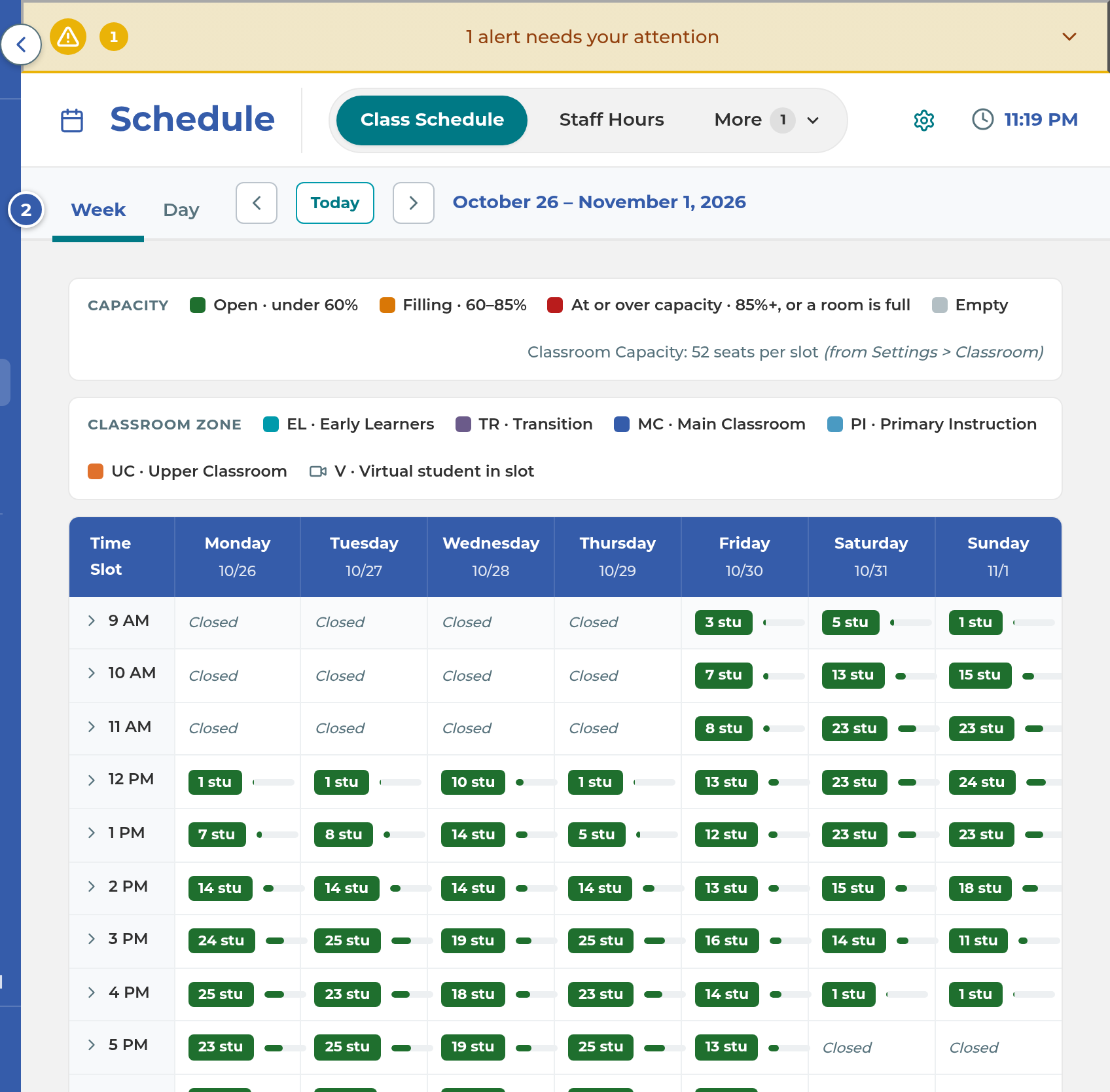
Read each hour's bar. It shows the busiest moment in that hour as a student count, such as "12 stu", in a color:
- Open (green): under 60% of your seats.
- Filling (yellow): 60 to 85%.
- At or over capacity (red): 85% or more, or any one room is full.
- Empty: no one is scheduled. Closed: the center isn't open then.
Select an hour to open its 15-minute slots. Each slot shows a chip for each room, such as MC:6/10 (6 students, 10 seats). A V chip counts students coming in Virtual, who don't take a seat.
Select a slot to see every student there, grouped by room.
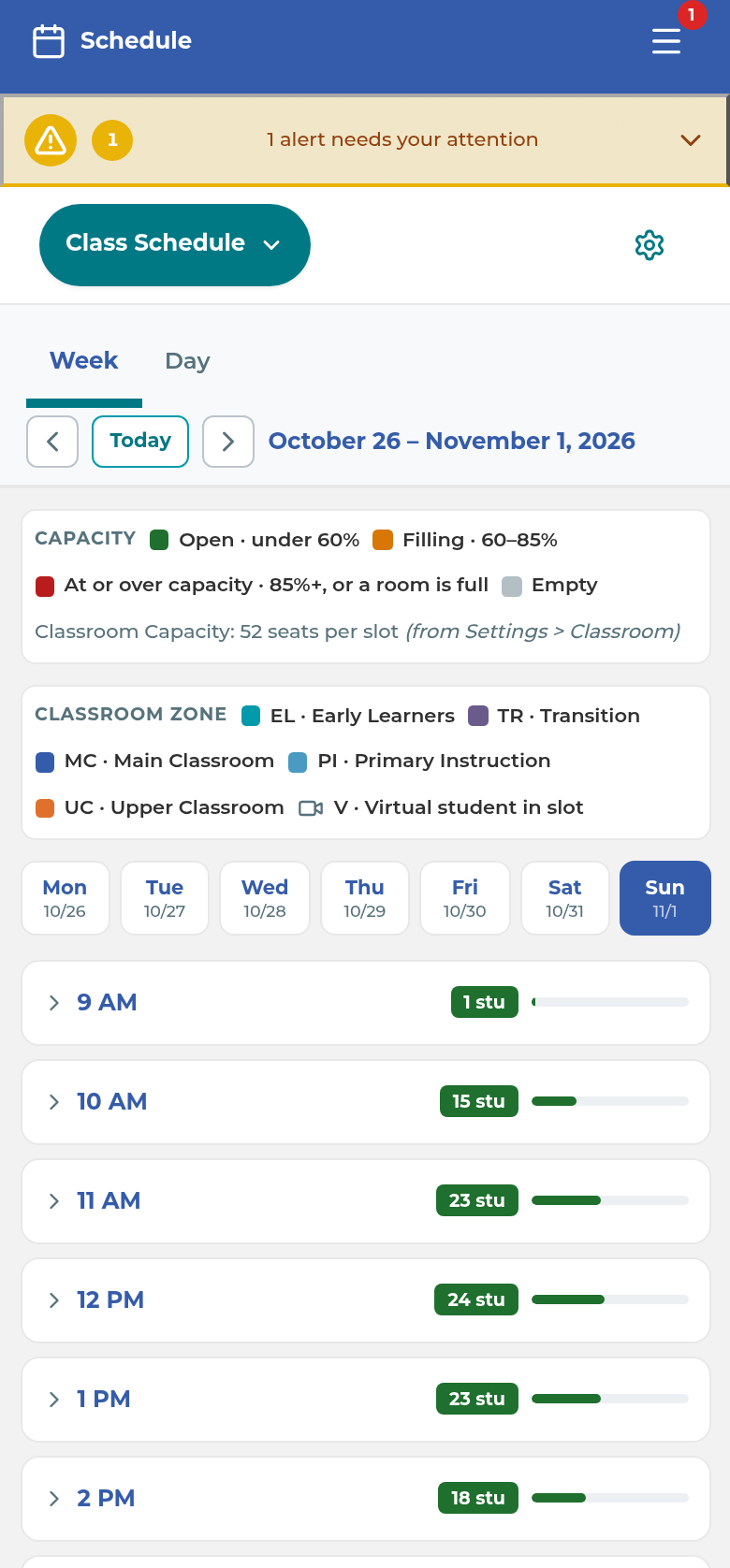
On a phone, the schedule shows one day at a time. Tap a day at the top, then tap an hour to open its slots.
See one day
Select Day. You see one day as a timeline, with a row for each room and a bar for each student from arrival to leaving.
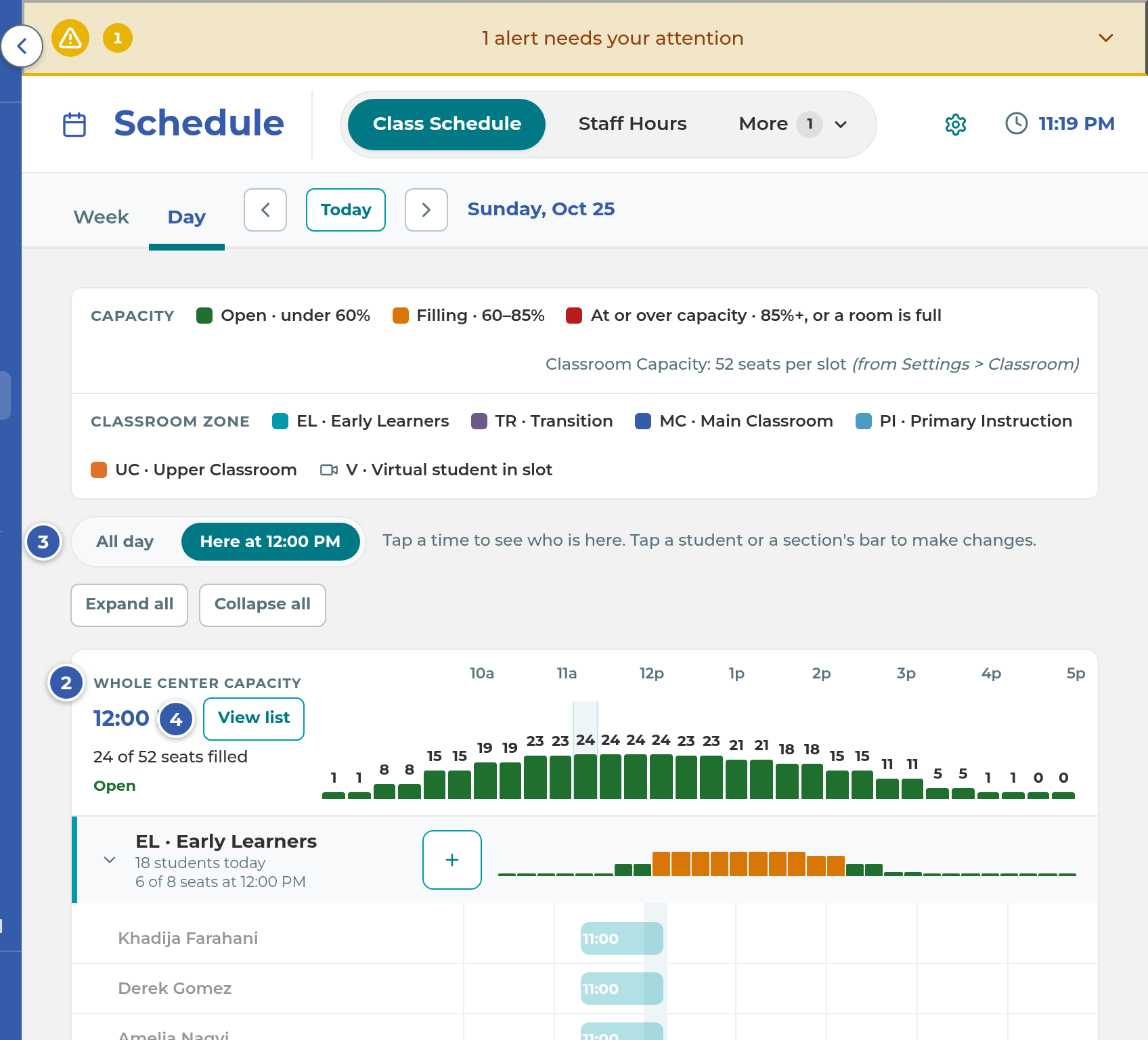
Look at Whole center capacity at the top. It opens on the day's busiest time. Tap any time to see "N of M seats filled" at that moment.
Switch between All day and Here at a time, to show everyone or only the students in the building then.
Select View list for that time's full list, or tap a student's bar to open their card with Open profile.
Use Expand all and Collapse all to open or fold the room sections.
What happens next
- Who is counted: students whose Enrollment Status is Active or Trial and who have that weekday and a time in their weekly schedule. Absent and Discontinued students are never counted.
- One-date changes count too. For a given date, the schedule adds students moved or added just for that date, and takes out students moved away, removed, or with an excused absence or vacation day.
- A student fills every slot their session covers. A 4:00 student with a 60-minute session counts at 4:00, 4:15, 4:30 and 4:45.
- From a slot's list, you can Schedule Student into that time, move a student to another day or time, or remove them from that weekday. Owners and managers also see Mark Absent.
Important: Schedule Student changes the student's weekly schedule, not just that date. It repeats every week, the same as setting it on their profile. If the room is full, you're warned and can choose Schedule anyway (your override is recorded) or Cancel.
Note: The Expected column on Attendance doesn't use one-date changes or closed days. It follows the weekly class days only, so it can differ from this schedule on those dates. See Set a student's class days.
If something goes wrong
"No center hours are set yet.": no open days or times are saved. Go to Settings › General › Center Hours, set your Student Days and Student Hours, and select Save Center Hours. The note's Open Center Hours link opens Center Info, so select Center Hours at the top.
A whole day says Closed: the date is listed under Days you're closed this school year. Hover the Closed tag to see the reason, if one was entered. In the Day view, a weekday that isn't one of your Student Days also reads Closed.
A weekday is missing from the Week view: only your Student Days get a column. Tick that day under Student Class Hours and save.
A student you expected isn't there: open their profile and check that their Enrollment Status is Active or Trial and that the day has a time in Schedule. Also check for an excused absence on that date.
"Excused absences couldn't be loaded": the counts may include students who are out. Refresh the page to try again.
A room chip has no seat number: that room has no seats in Settings › Classroom › Layout. Add seats to its rows and save.
The capacity number looks wrong: it's the total of the seats in your Classroom Layout rows. Testing seats and teacher seats don't count.
The + buttons are missing in the Day view: the + on each room, and + Schedule on a phone, only show for roles with the Appointments tab of Schedule in Settings › Permissions.
You don't see the Class Schedule tab: "You do not have access to any Schedule tabs" means your role has Schedule but none of its tabs. An owner or manager can change this in Settings › Permissions.
Related
Last updated October 25, 2026