Invite families to the Family Portal
The parent gets an email with a link to create their password. The moment they save it, they can sign in to the Family Portal.
On this page
A family just enrolled and you'd like them to be able to see schedules, send absence requests and book progress meetings from home. Sending their Family Portal invite takes a few seconds from their parent page.
Steps
Invite one parent
This is the everyday way to invite a family, and the one to start with.
Go to People › Parents and select the parent's name. You can search for them at the top of the list.
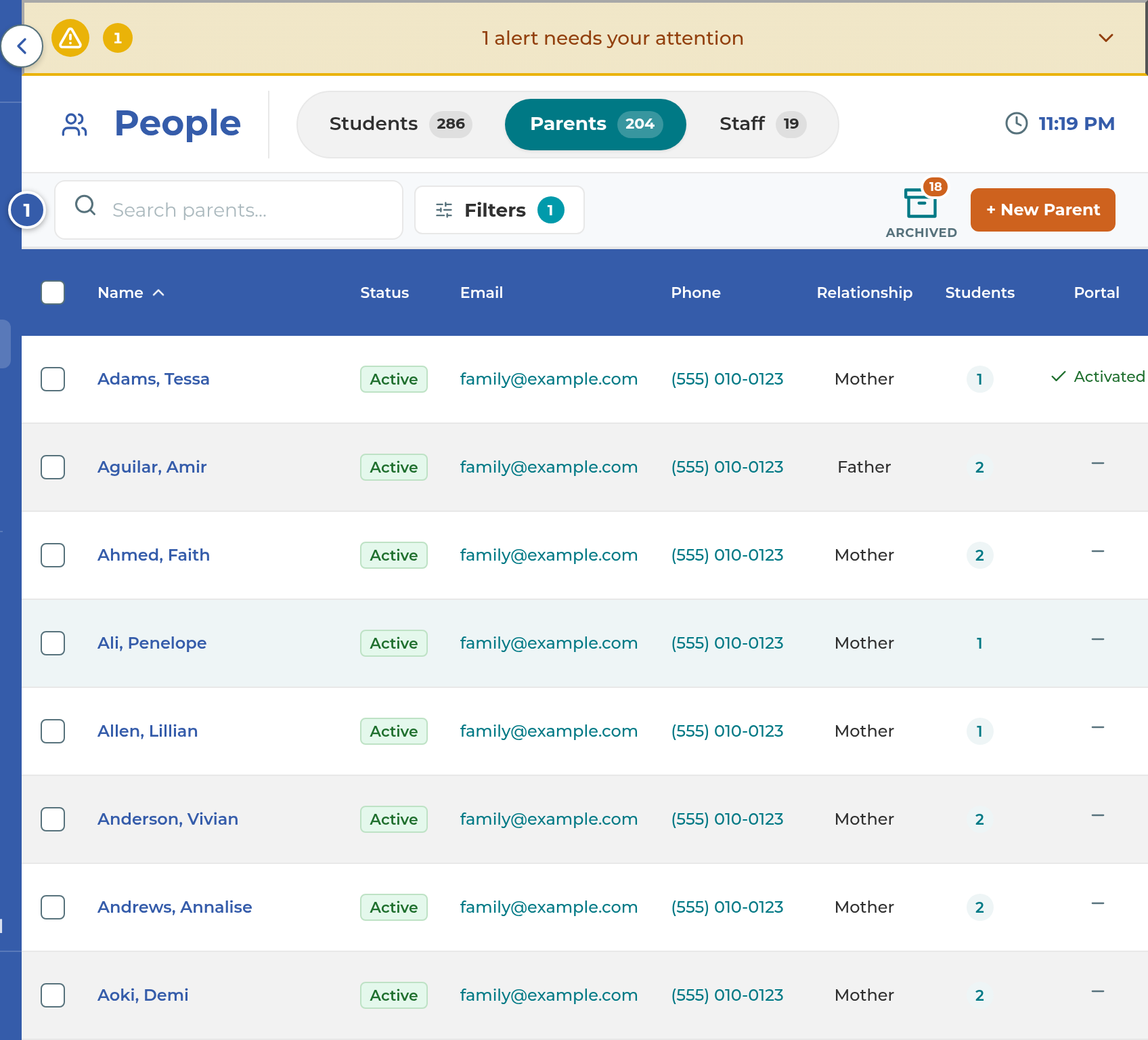
On their page, find the Family Portal card.
Select Send invite email.
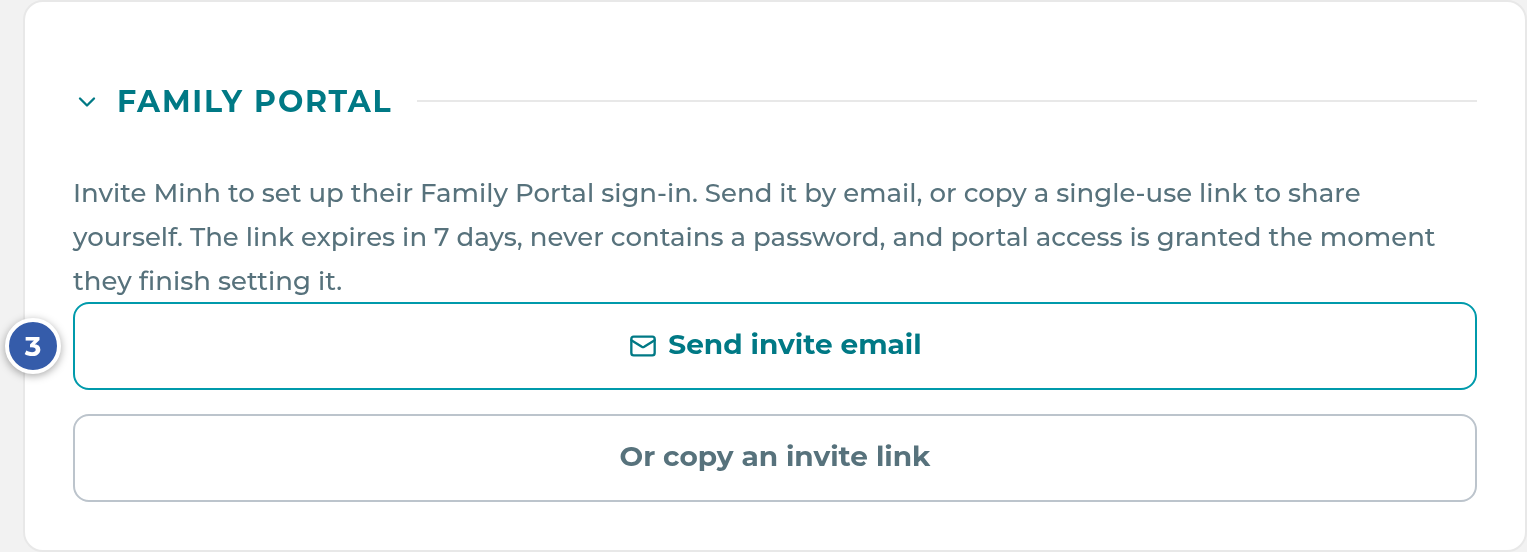
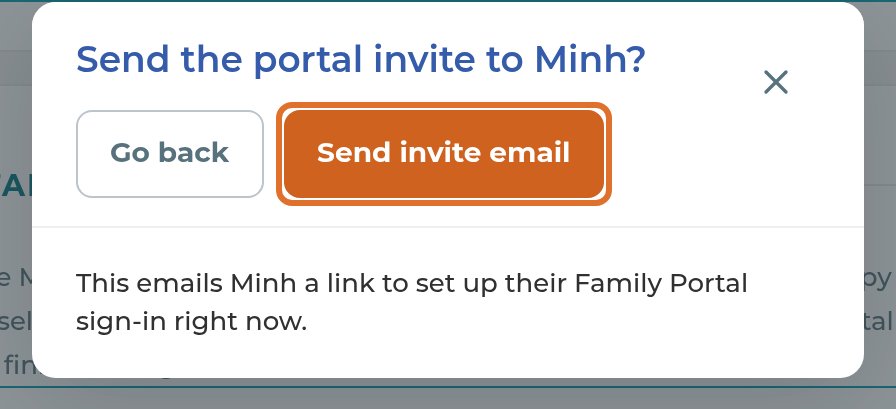
The app asks "Send the portal invite to" followed by their first name. Select Send invite email to send it, or Go back to send nothing.
You'll see "Invite email sent to" and their email address.
Each parent or guardian gets their own sign-in, so invite each adult in the family from their own page.
Tip: If a parent would rather get the link by text or in person, select Or copy an invite link instead. It makes a single-use link without emailing anything. Select Copy link and share it however you like. Treat it like a key: whoever opens it first sets the password.
Invite all families at once
Use this once, when your center first starts using the Family Portal. After that, invite families one at a time.
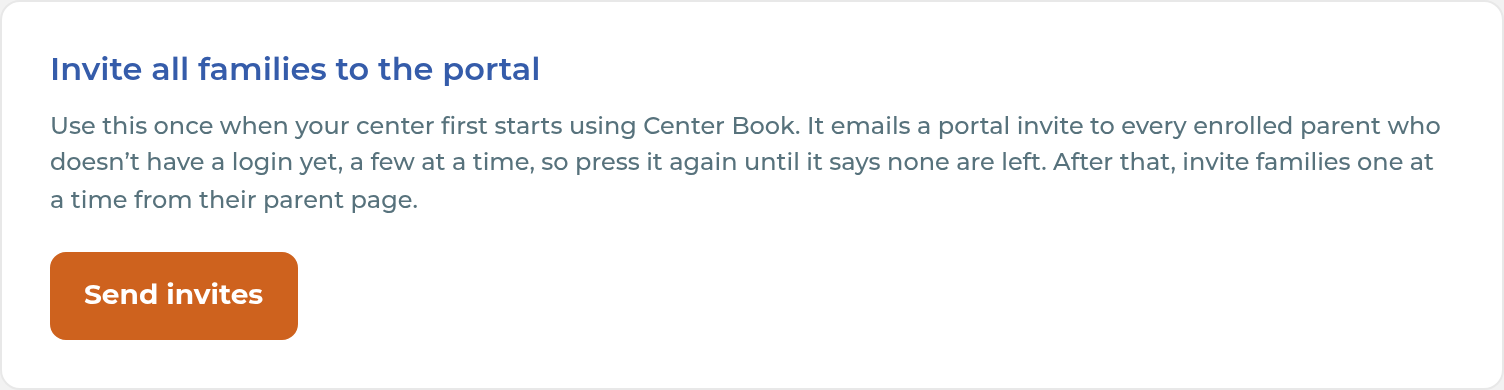
Go to Settings › General and select Set Up. Scroll to Invite all families to the portal.
Select Send invites. The app counts who would get one first.
Read the count in "Send family-portal invites?" and select Email followed by that number of parents to send, or Cancel.
Each press sends a small batch. Press Send invites again until it says nobody is left.
Important: Send invites emails more people than "every enrolled parent," which is what the screen says. Today it emails every active parent record that has an email address and no portal login yet, whether or not they have an enrolled child. That includes leads who have a parent record, parents whose children are only in a trial or not enrolled, and parent records with no student at all. This is a known bug (CB-394). Until it's fixed, check your People › Parents list first and archive anyone who shouldn't get an invite. The count in the confirm box is the number of people who will be emailed.
Note: If the confirm box says Invite sending is off and offers Count them, nothing will be emailed. It only counts the parents. Bulk sending is turned on for your center by The Center Book support, not in the app.
What happens next
The parent gets an email from your center's name, with the subject "Your Family Portal has a new home." It has a Set Up Your Sign-In button and tells them to use the same email address the message was sent to. Replies go to your center's email address. The link works once and expires in 7 days.
When they select the button, they see "Welcome," and their first name. They type a New password of at least 8 characters, type it again under Confirm password, and select Set Password. They see "You're all set" and a Go to Family Sign In button. Their portal access turns on the moment the password is saved.
Back on their page, the Family Portal card shows how the email did: sent, delivered, bounced, marked as spam, or blocked by their mail provider.
Note: The invite email was written for families moving from an older portal. It says "Your Family Portal has a new home" and that their "old password won't carry over." If your center is brand new to the Family Portal, you can change the wording in Settings › Parent Communication under Email: find Family Portal invite in the Portal Login group and select its pencil.
Note: The Welcome Email card on the same page sends your enrollment email, which has the same set-up button inside. A family who got the welcome email can use that instead of a separate invite.
If something goes wrong
The card says "The Family Portal is not enabled for this center yet." The portal hasn't been turned on for your center. Contact The Center Book support.
The card shows a lock. The Family Portal isn't part of your center's plan. Contact The Center Book support.
There's no Family Portal card at all. Your access level doesn't have People › Parents. Ask an owner or manager to send it.
"Add an email to this parent first." Edit the parent's record, add their email, and save. Then send the invite.
"Restore this parent to send an invite." The parent is archived. Restore them first.
"No student linked to" the parent "can receive this yet." Their children are all discontinued, in a trial or not enrolled. Invite them once a child is enrolled.
The parent "is a staff member and uses their staff sign-in." Staff who are also parents use their staff sign-in for the portal. No invite is needed.
"Invite email bounced. The address may be wrong." Check the email on their record for typos, fix it, and send again.
"No parents are currently eligible, so there is nobody to invite." Everyone with an email already has a portal login or an unused invite that hasn't expired.
Some invites are listed under "Needs attention: issued but not sent." Those emails didn't go out. Select Retry beside each one.
The parent sees "This link was already used" or "This link has expired." Send a new invite from their page.
Related
Last updated October 25, 2026