Add a staff member
The new staff member is on your staff list right away. Once you send the login invite, they choose their own password from an email and can sign in.
On this page
You've hired a new teacher who starts next week. Adding them now puts them on your staff list for scheduling and timecards, and lets them sign in on day one with a password they chose themselves.
Steps
Add them to your staff list
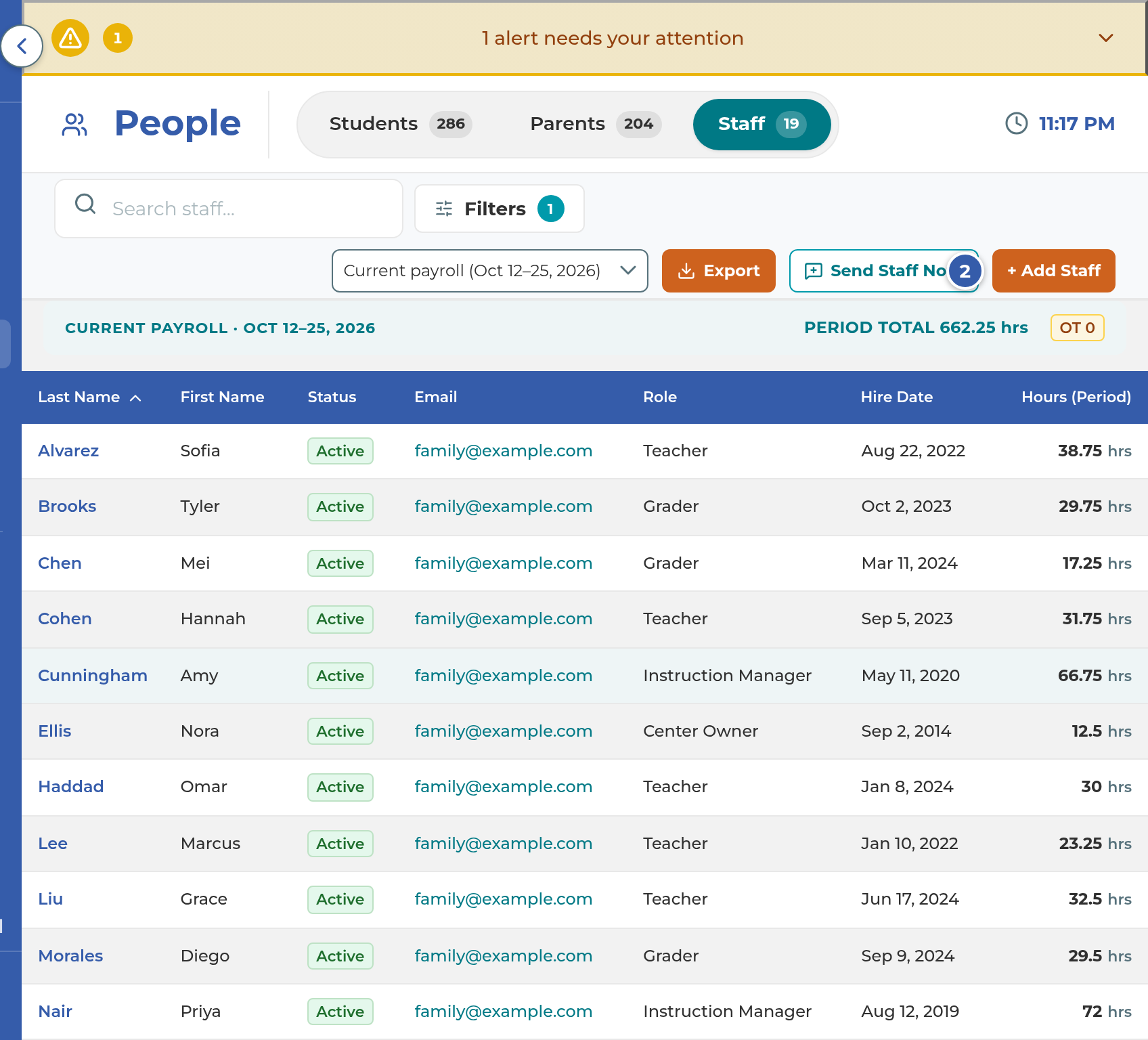
Go to People › Staff.
Select + Add Staff. A window titled Add New Staff Member opens.
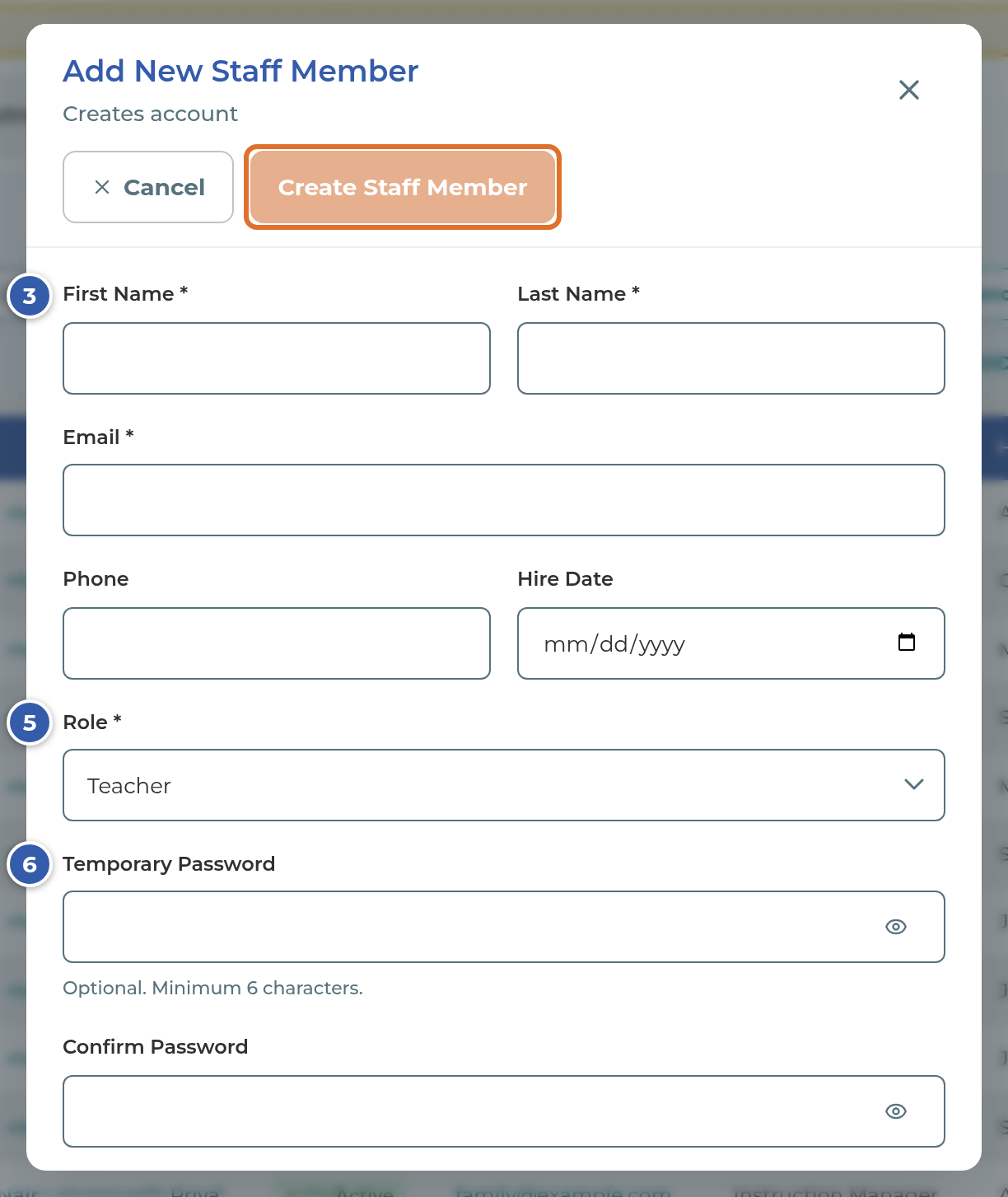
Type their First Name, Last Name and Email. All three are required.
Add their Phone and Hire Date if you have them. Both are optional.
Choose their Role. It starts on Teacher. The role decides what they can open in the app; see Roles and permissions.
Leave Temporary Password and Confirm Password empty. The login invite below is the better way in.
Select Create Staff Member. The window closes and they appear on the staff list.
Note: Creating a staff member doesn't email them anything. Nothing goes out until you send the login invite.
Send the login invite
On People › Staff, select the new staff member's name to open their profile.
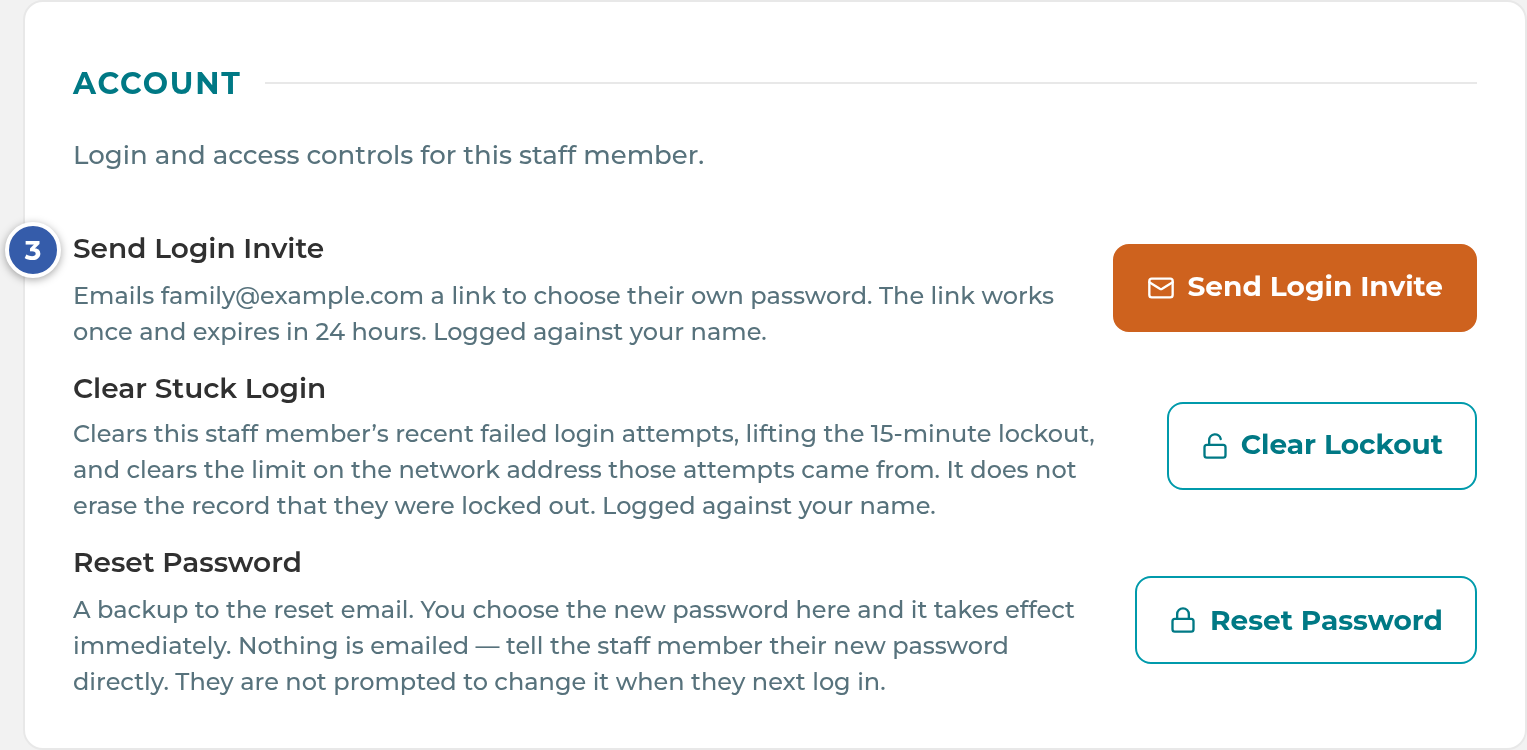
Scroll to the Account card. The first row is Send Login Invite, and it shows the email address the invite goes to.
Select Send Login Invite.
The app asks "Send the login invite to" followed by their name. Select Send login invite, or Go back to send nothing.
You'll see "Reset email sent to" their email address, and that the link works once and expires in 24 hours.
Important: The login invite is the same email as a password reset, word for word. Your new staff member gets a message with the subject "Choose a new password for" your center's name, saying your center "sent you a link to choose a new password for Center Book," and that "Your current password keeps working until you choose a new one." They don't have a password yet, so that line can be confusing. Let them know it's coming and that it's how they set up their sign-in.
What happens next
The email comes from your center's name, and replies go to your center's email address. It has one link, Choose my password.
When they select it, a page greets them by first name ("Hi," and their name). They type a New password of at least 8 characters, type it again under Confirm password, and select Save Password. They see "You're all set" and a Go to Staff Sign In button, where they sign in with their Email and new Password.
The link works once and expires 24 hours after you send it. Sending is logged against your name.
After they've signed in once, the same row on their Account card reads Send Reset Email. It sends the same email, for a forgotten password.
You can change someone's role later. Open their profile, select Edit on the Employment card, choose a new Role, and select Save.
Tip: If they can't get the email, the Account card also has Reset Password. You type a password for them and it works right away. Nothing is emailed, so tell them in person, and they aren't asked to change it later.
If something goes wrong
Create Staff Member stays gray. First Name, Last Name, an Email with an @ in it, and a Role are all required. If you typed a temporary password, it needs at least 6 characters and must match in both boxes.
"Forbidden" when you select Create Staff Member. Your role isn't at the Full Access or Manage level. Ask an owner or manager to add them.
"Only an owner or manager can send a reset email." Same reason. An owner or manager needs to send the invite.
"No email address is on file for this staff member." Select Edit on their Personal card, add the email, save, then send the invite.
"Email isn't set up for this center yet, so no reset email was sent." Email sending hasn't been set up for your center. Contact The Center Book support.
"…is not an active staff member, so there is no login to reset." The staff member is marked Discontinued or archived. Login invites are only for active staff.
They see "This link has expired" or "This link was already used." Each link works once, for 24 hours. Send a new one from their Account card.
They never got the email. Check the address on their profile for typos and ask them to look in spam, then send it again.
Related
Last updated October 25, 2026