Set roles and permissions
Each staff member sees only the parts of the app their access level allows. A change applies to every job title at that access level.
On this page
You've hired someone to run the front desk, and they need to take attendance and see the Inbox but shouldn't see Business or Settings. Here's how The Center Book decides what each person can open, and where you change it.
How it fits together. Every staff member has a job title (their Role, like Teacher or Center Manager). Every job title belongs to one of four access levels: Full Access, Manage, Operate or View Only. The access level is what decides what they can open. So you don't set permissions person by person, or even job title by job title. You set them per access level, and every job title at that level follows.
Your center starts with these job titles:
| Job title | Access level |
|---|---|
| Center Owner | Full Access |
| Center Manager, Instruction Manager, Project Manager | Manage |
| Teacher | Operate |
| Grader | View Only |
Steps
Change a job title's access level
Go to Settings › Permissions and select Job Titles.
Find the job title and choose a new level from the dropdown beside it. It saves the moment you choose. There's no Save button.
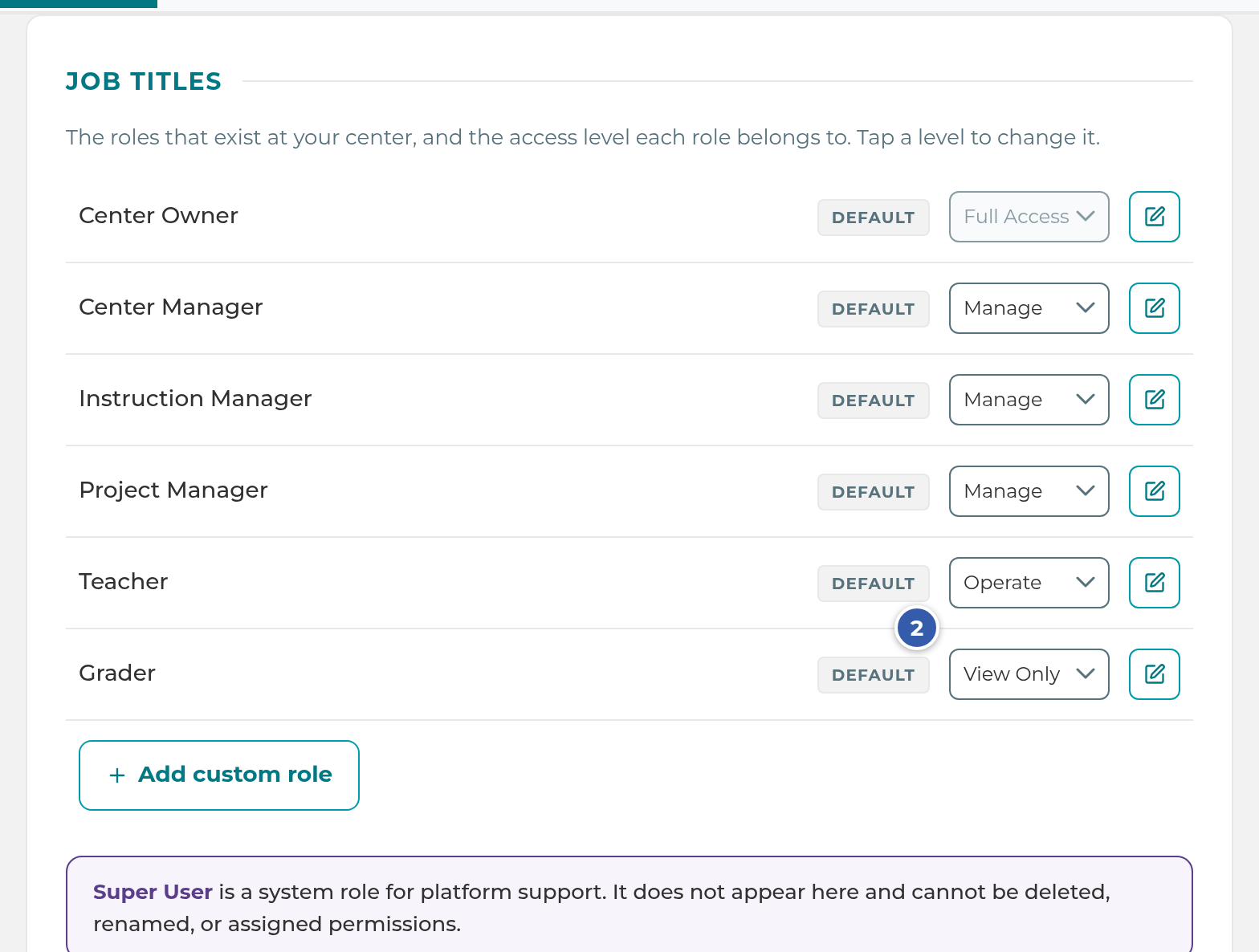
Everyone with that job title moves to the new level.
Add your own job title
On Job Titles, select Add custom role.
Type its name, for example "Front Desk Lead".
Choose an Access level…. You have to pick one.
Select Add.
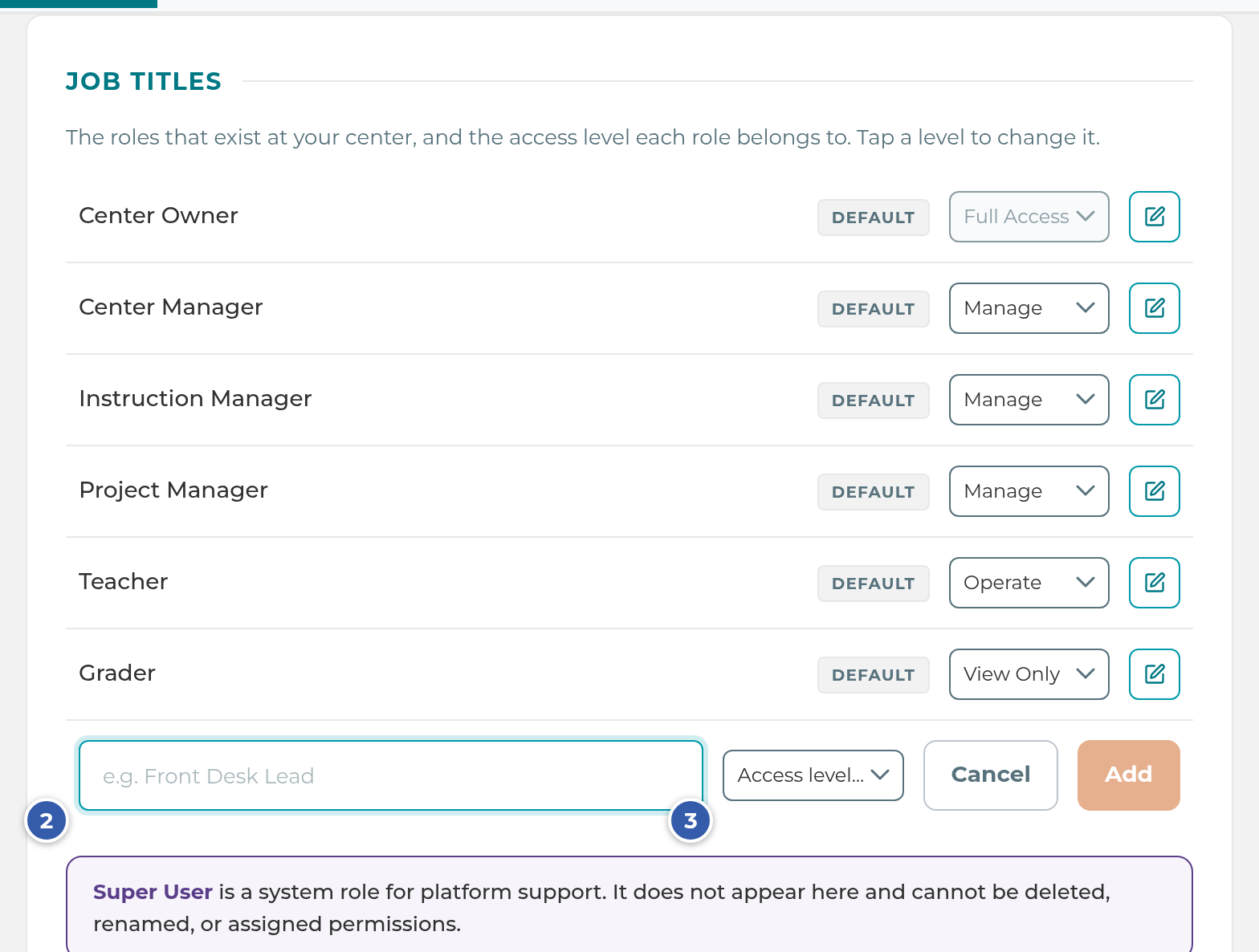
The new job title has a CUSTOM tag and shows up in the Role list when you add a staff member. To rename any job title, select the pencil beside it, type the new name, and select Save. To delete a custom one, select the trash can beside it, then Delete.
Choose what an access level can open
Go to Settings › Permissions and select Permissions.
Find the row for the part of the app, and tap the cell under the access level to switch it on or off. A check mark means Has access.
A bar shows how many changes aren't saved yet. Select Save Changes, or Discard to undo them.
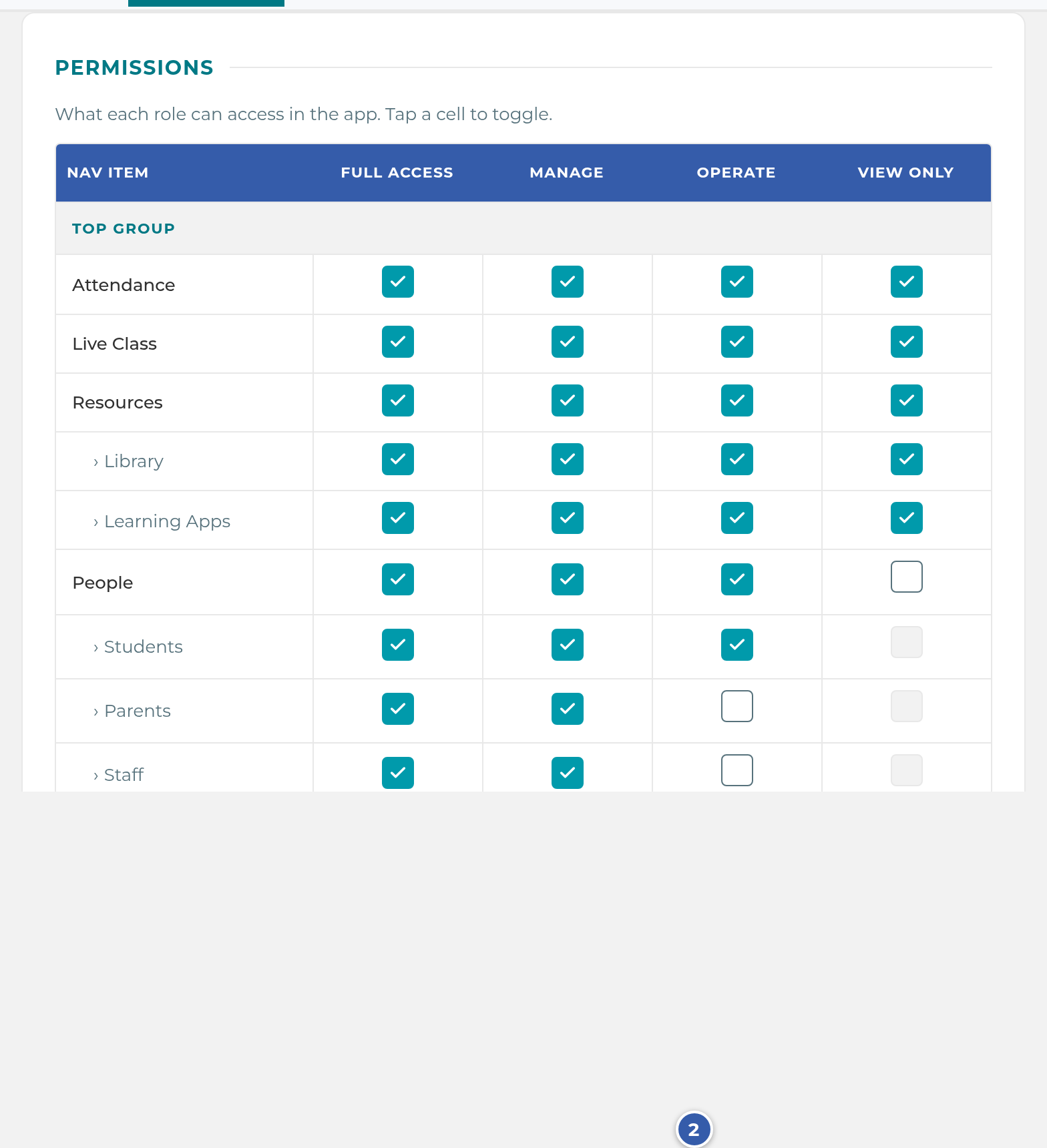
Important: The grid's columns are access levels, not job titles, even though the text above it says "What each role can access." Turning a cell on under Manage turns it on for Center Manager, Instruction Manager, Project Manager and any custom job title at the Manage level, all at once. If you need one person to see something their coworkers at the same level shouldn't, give them a custom job title at a different level instead.
What happens next
Each row of the grid shows or hides one part of your menu. A few rows use different words from the menu: the Attendance row controls both Today and Attendance, and the Scheduler row controls Schedule.
Rows that start with › are tabs inside the row above them, like › Staff under People. A tab only works when its main row is on too. When the main row is off, the tab's cell is grayed out (Parent nav off) and says "Enable" followed by the main row's name "to set sub-tab access."
A new center starts like this:
| Row | Full Access | Manage | Operate | View Only |
|---|---|---|---|---|
| Attendance, Live Class, Resources, Inbox, Me | Yes | Yes | Yes | Yes |
| People › Students | Yes | Yes | Yes | No |
| People › Parents, People › Staff | Yes | Yes | No | No |
| Scheduler, Pipeline, Business, Settings | Yes | Yes | No | No |
Note: For Operate, the › Class Schedule and › Staff Hours cells are stored as on, but they're grayed out because Scheduler is off. If you turn Scheduler on for Operate, your teachers get both of those tabs straight away.
Some permissions can't be changed here. These are set by access level and aren't on the grid:
- Only Full Access and Manage can add staff, send login invites and reset emails, reset staff passwords, open Settings › Appointments, and use Invite All Families.
- Every level can clock themselves in and out and see their own hours. Clocking other people in or out, entering, editing or deleting time, seeing other people's hours, and exporting timecards are Full Access and Manage only.
- Every level can send messages, manage appointments and events, and record classroom observations. Editing anyone's tasks, managing announcements and portal content, test results, and alert routing are Full Access and Manage only.
If your center needs one of these set differently, contact The Center Book support.
Note: Center Owner is always Full Access. Its dropdown is locked, and it can't be given to someone from the Add New Staff Member form. The six job titles your center started with have a DEFAULT tag and can be renamed but not deleted. Super User is a system role for The Center Book support and never appears on this screen.
If something goes wrong
"Remove your own access?" appears when you save. You turned off Settings for your own access level. If you select Yes, remove my access, only another admin can give it back. Select Cancel to keep it.
"This change would remove your own access to manage roles." You tried to move your own job title to a level without Settings. Pick a level that keeps Settings, or ask another owner or manager to make the change.
"The owner role's access level is locked and cannot be changed." Center Owner always stays at Full Access.
"Role is in use by" a number of staff members. Move those staff to another job title on their profile's Employment card, then delete it.
"Default roles cannot be deleted." Only custom job titles can be deleted. You can rename a default one.
"Choose an access level for the role." A new job title needs a level before Add works.
"Save aborted: the permission matrix is missing data." Nothing was changed. Refresh the page and try again.
A cell won't switch on. It's a tab whose main row is off for that level. Turn the main row on first.
A staff member's profile shows their job title under Permissions Level. That's expected for now. The profile shows the job title in that spot, not Full Access, Manage, Operate or View Only. Check their level on Job Titles.
Related
Last updated October 25, 2026