Sign in as a staff member
The staff member is signed in and the app opens on Attendance.
On this page
It's your new teacher's first afternoon, and they need to be signed in before families start arriving.
Steps
Sign in
- Open your center's Ops app address in a browser. It's the address that starts with
ops.. You'll see a card titled Sign In, with "The Center Book Operations" under it. - Type your Email and Password.
- Select Sign In, or press Enter.
Set up a new staff member's first password
New staff choose their own password from an email. An owner or manager sends it.
Go to People › Staff and select the staff member's name.
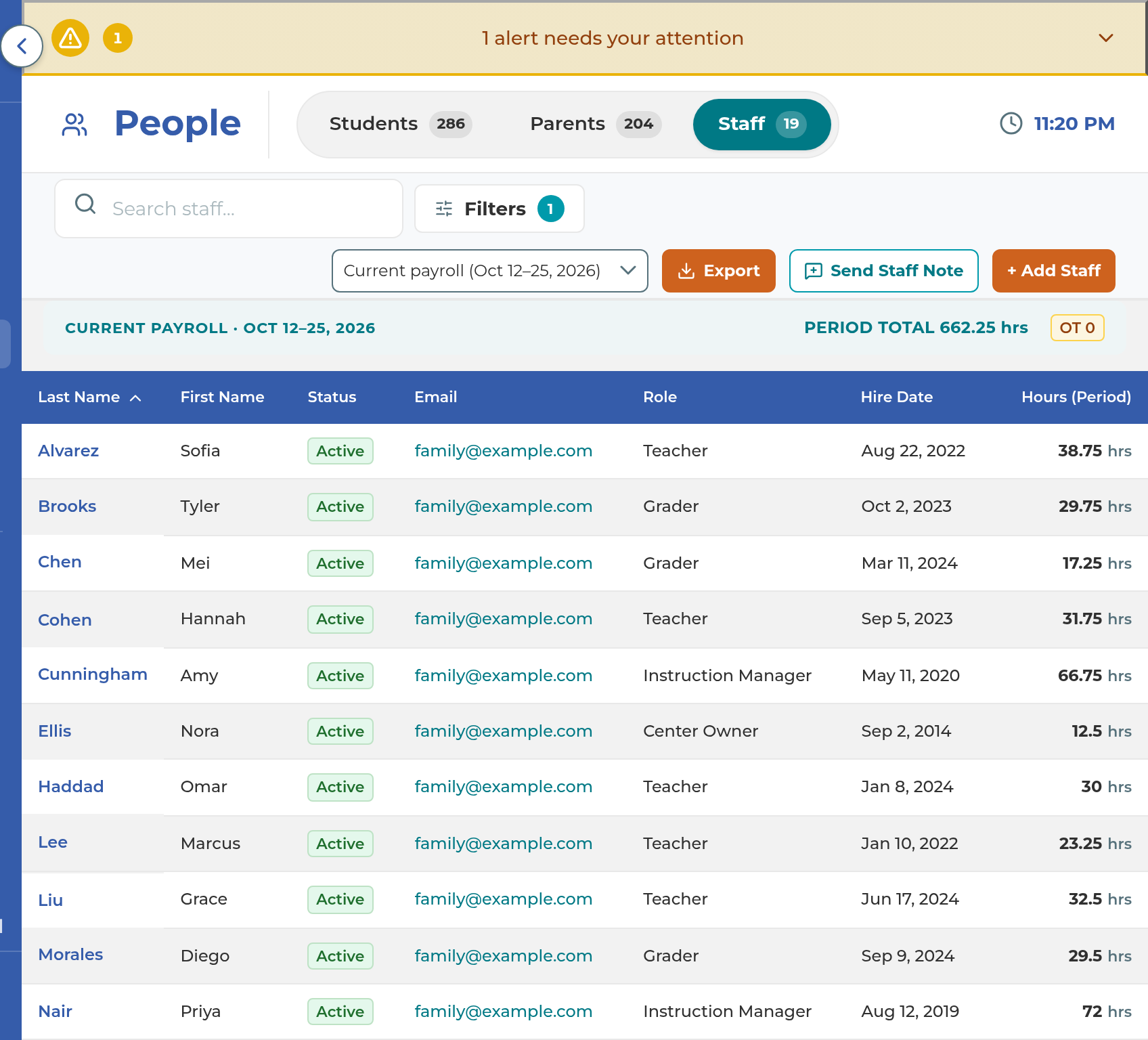
In the Account card, select Send Login Invite. This button shows until the person has signed in once.
The app asks "Send the login invite to" followed by their name. Select Send login invite. You'll see "Reset email sent to" followed by their email address.
The staff member opens the email and follows the link.
They type a New password (at least 8 characters), type it again under Confirm password, and select Save Password.
They'll see "You're all set." Go to Staff Sign In takes them to the sign-in card.
When someone forgets their password
The staff sign-in card has no "forgot password" link. The staff member asks an owner or manager, who sends a fresh link.
Go to People › Staff and select the staff member's name.
In the Account card, select Send Reset Email.
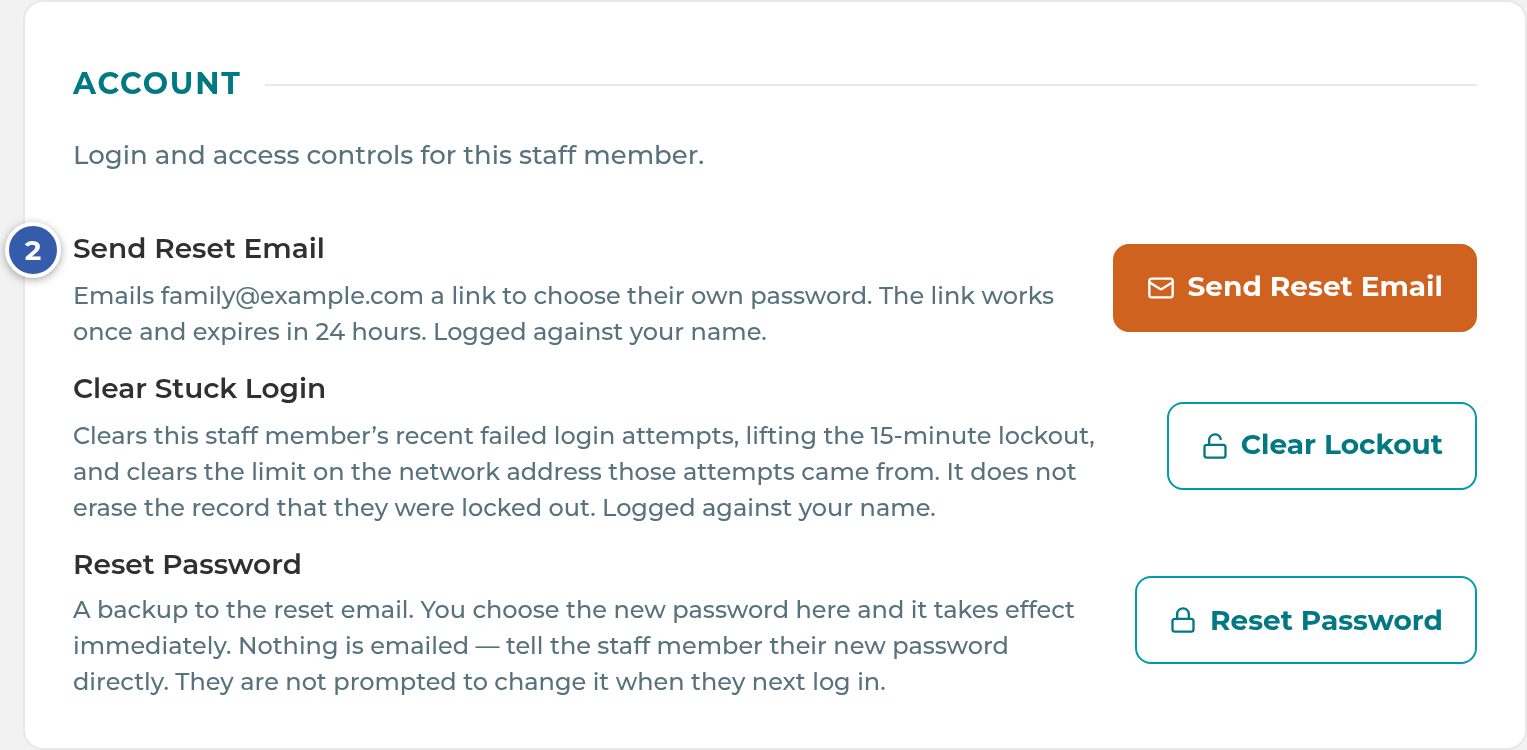
Select Send reset email to confirm.
The staff member follows the emailed link and chooses a new password, the same way as their first one.
Tip: If the staff member can't get to their email right now, the same card has a backup, Reset Password. You type the new password yourself and it works right away. Nothing is emailed, so tell them the new password in person. They won't be asked to change it the next time they sign in.
Note: Families never use the Ops app. They sign in separately at your Family Portal address, the one that starts with
portal., and a family's email and password can't open the Ops app.
What happens next
- After signing in, the app opens on Attendance.
- A login invite or reset link works once and expires after 24 hours. It goes to the email address on the staff record.
- Once someone has signed in, their Account card shows Send Reset Email in place of Send Login Invite. It sends the same kind of link.
If something goes wrong
"Invalid email or password": the email or password doesn't match. Check for typos, then ask an owner or manager to send a reset email.
"Too many failed attempts. Please wait (a number of) minutes and try again.": five wrong tries within 15 minutes pauses sign-in for up to 15 minutes. Wrong tries are counted by email address and also by network, so on shared center Wi-Fi, other people's wrong tries can count too. An owner or manager can lift it right away: open the staff member's record and, in the Account card, select Clear Lockout.
"Link unavailable": the link was already used, has expired, or isn't valid. Ask an owner or manager to send a new one.
"Only an owner or manager can send a reset email.": your role can't send links. Ask an owner or manager.
You land on Attendance instead of the page you opened: after signing in, the app always opens on Attendance. Open the page you wanted from the menu.
"Please sign in again to finish loading your account.": the app couldn't tell who was signed in. Sign in again.
Related
Last updated October 25, 2026