Clock in and out for your shift
You're listed under Clocked In with your clock-in time, and your seat for the shift is attached to the clock-in.
On this page
You've just walked in for your shift and families will be arriving soon. Clocking in at the front desk records your start time and shows you where you're seated and anything management wants you to know today.
Steps
Clock in
- On Attendance, scan your staff badge. You don't need to click anything first. To search instead, type your name in Scan or search by name… and pick the row with the Staff tag.
- The Welcome window opens. Check Your Seat Today and read any Notes from Management.
- Tap Confirm Clock-In.
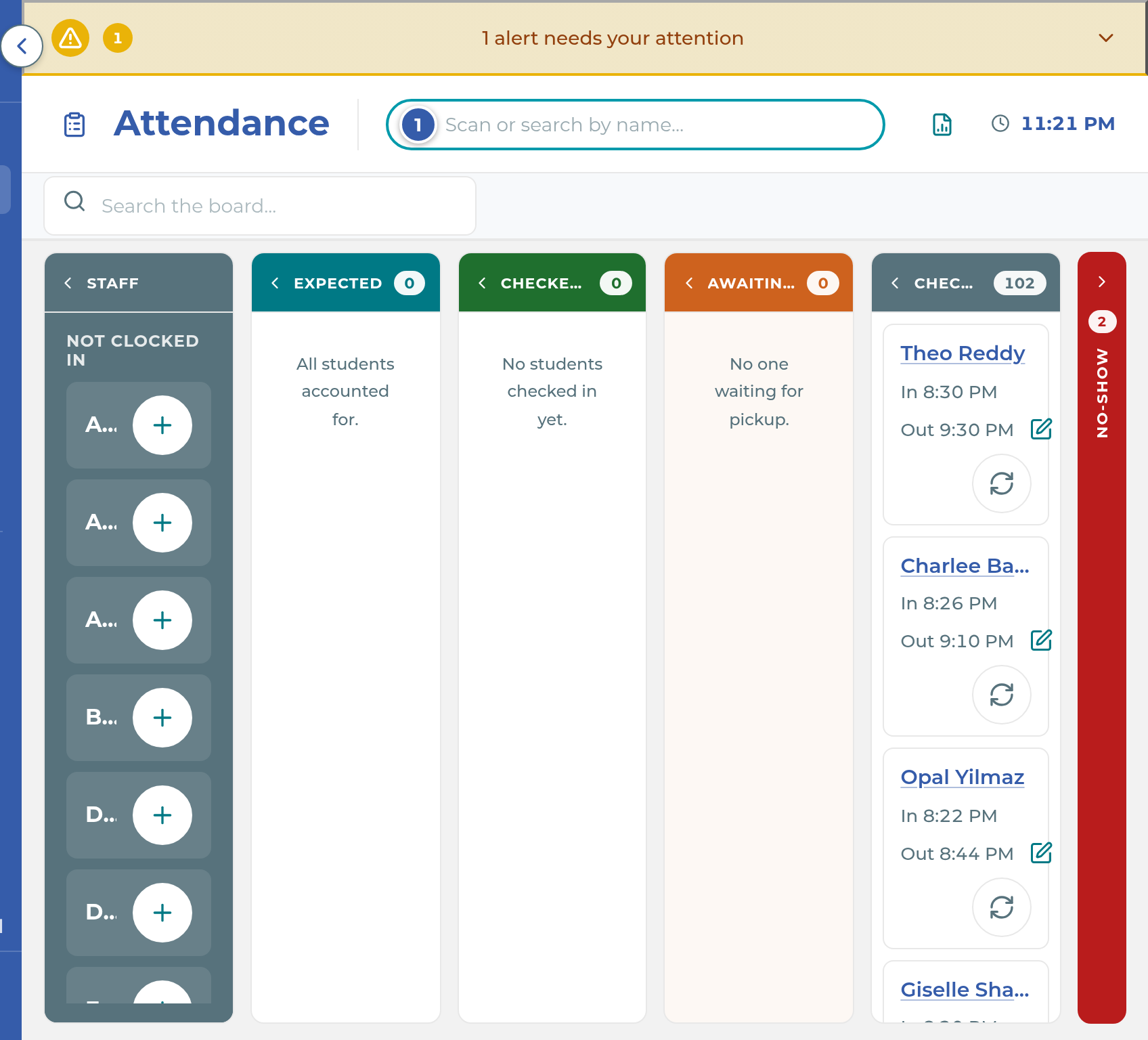
You can also open the Staff column and tap the + beside your name under Not Clocked In. This clocks you in straight away, with no confirm step, then shows the same welcome window. Tap Got it when you've read it.
Clock out
- At the end of your shift, scan your badge again, or open the Staff column and tap the clock-out button beside your name under Clocked In.
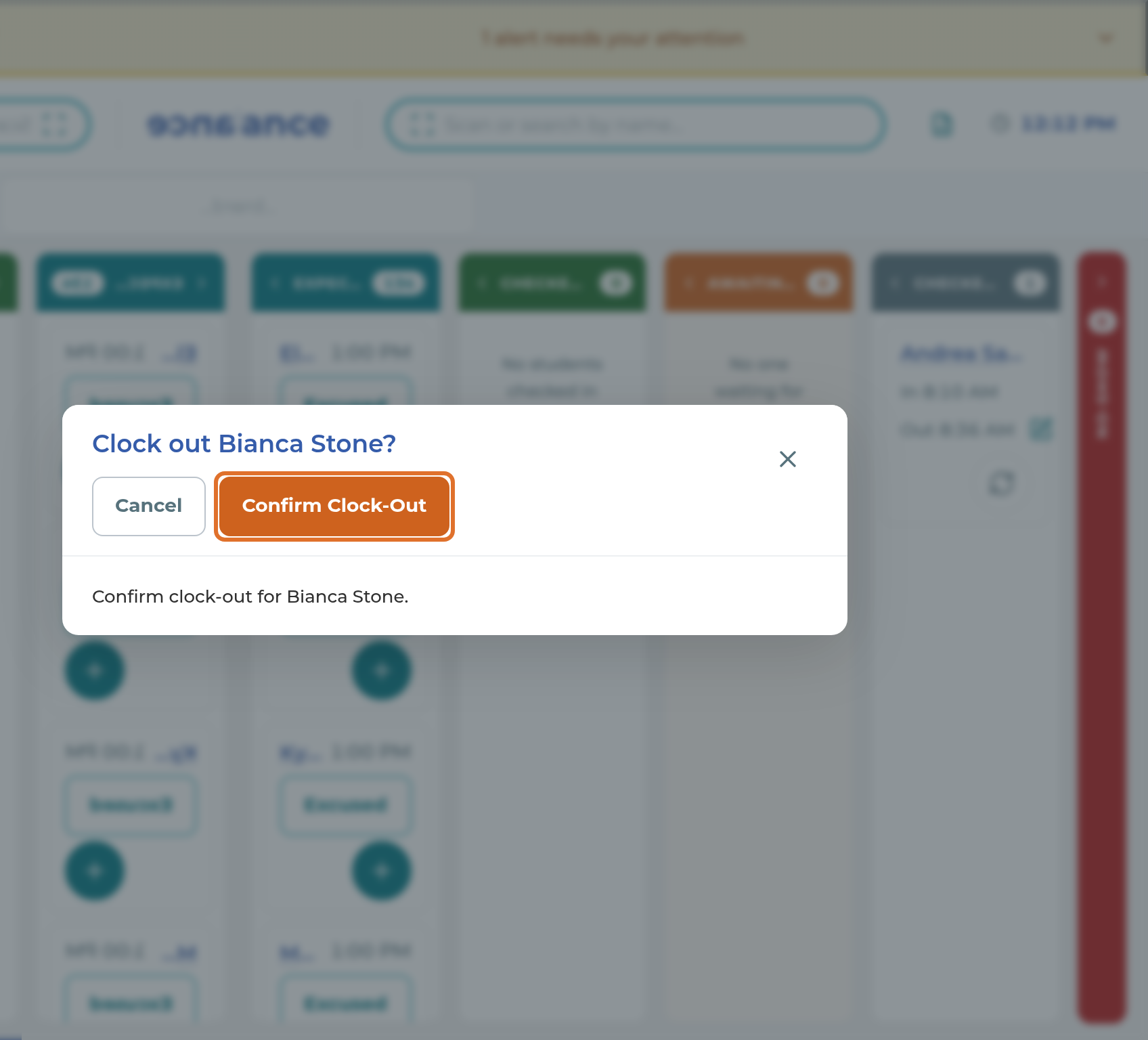
- The window asks Clock out with your name. Tap Confirm Clock-Out.
What happens next
You move to Clocked In with your clock-in time beside your name. If you have a shift in Schedule › Staff Hours that covers the current time, your seat shows on your card and is saved with your clock-in.
Notes from management are marked as read once you confirm your clock-in or tap Got it. If you tap Cancel instead, they stay unread and show again next time.
When you clock out, you move back to Not Clocked In.
Note: A scan always asks before clocking anyone in or out. Tapping + in the Staff column clocks in at once, so tap carefully on a shared screen. Clocking out always asks first.
Tip: Badge codes that start with "E-" are looked up as staff first. A badge made with Generate is a plain number, which the app checks against students first and then staff. It still works, but if a scan ever opens a student instead of you, ask a manager to give your badge a different code.
If something goes wrong
"No shift is scheduled for you right now." There's no shift in Schedule › Staff Hours covering the current time. You can still clock in; check with management for your seat.
"Student or staff not found" under the scan box. Your badge code isn't saved on your staff record. Search your name instead, and ask a manager to add the Barcode.
A red message says the clock-in or clock-out failed. Read the reason. For example, you may already be clocked in. Check the Staff column for your name.
A scan does nothing. Another window is open on the board, so the scan was ignored. Close it and scan again.
Your name isn't in the Staff column. You may be archived or marked Discontinued. Ask a manager to check your record in People › Staff.
Your clock-in or clock-out time is wrong. The Attendance board can't edit a past time. Ask a manager to correct it.
Related
Last updated October 25, 2026