Why is my Class Schedule empty?
Each open day and time shows the students who are really coming, and Closed shows only where your center is closed.
On this page
You open the Class Schedule to see how the week looks, and it's a note, a column of Closed, or a row of Empty. Each of those has one cause, and each cause has one fix. Work through the checks below in order.
Steps
Check what the screen is telling you
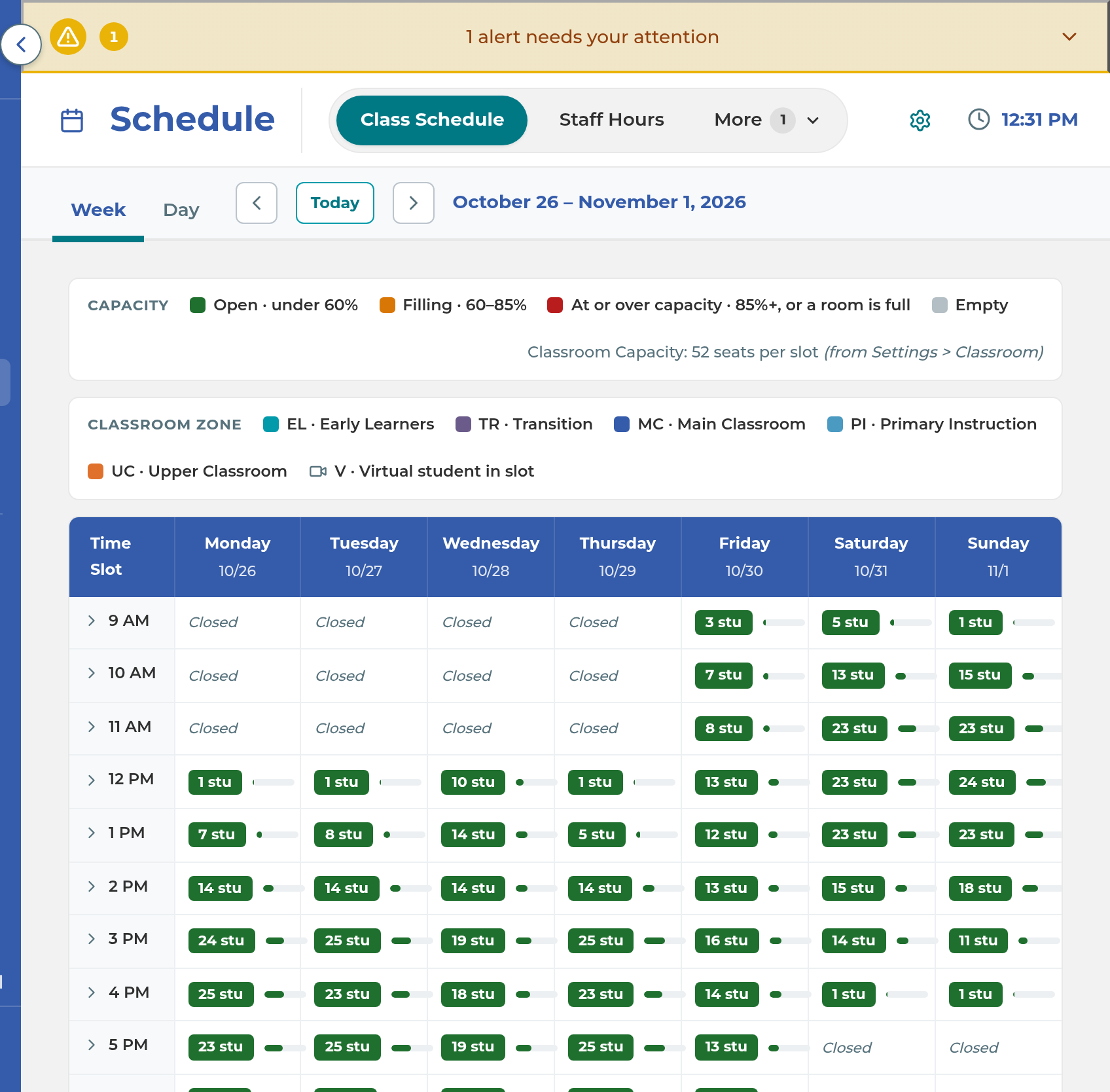
Select Schedule in the menu. It opens on Class Schedule, in Week.
Look at what's there:
- A yellow note that starts "No center hours are set yet.": go to step 3.
- Closed on a whole day or on some hours: go to "If a day or time says Closed".
- Empty on hours you expected students: go to "If an open time says Empty".
The note means your center has no Student Days or no class hours saved. Go to Settings › General › Center Hours. Under Student Class Hours, tick each day students come in under Student Days, set that day's start and end under Student Hours, and select Save Center Hours. See Set your center info and hours.
Note: The note's Open Center Hours link opens Center Info, not Center Hours. Select Center Hours at the top of General once you're there.
If a day or time says Closed
- The day isn't one of your Student Days. In Week, that weekday has no column at all. In Day, it reads Closed. Fix: tick the day under Student Days in Settings › General › Center Hours and select Save Center Hours.
- The date is on your closed list. The day's column carries a Closed tag and every hour reads Closed. Hover the tag to see the reason, if one was entered. In Day, it reads "Closed" followed by the reason. Fix: if the date shouldn't be closed, go to Settings › General › Center Hours, find it under Days you're closed this school year, select the trash button (Delete) on that row, and select Save Center Hours. You can't open or close a day from the schedule itself.
- The time is outside that day's Student Hours. Each day has its own start and end, so a 6:00 row can read Closed on Tuesday and open on Monday. Fix: widen that day's hours under Student Hours and select Save Center Hours.
If an open time says Empty
- You're looking at a different week. Once this week's open hours are over, the schedule opens on next week. Check the date beside the arrows, and select Today to come back to this week.
- No student has that day and time. Only students with that weekday ticked and a time set in the Schedule section of their profile are counted. Fix: on People › Students, open the student, select Profile, and select Edit on Schedule. Turn the day on, choose a time, and select Save. See Set a student's class days.
- The student isn't Active or Trial. Students whose Enrollment Status is anything else, such as Absent or Discontinued, are never counted, even with days set. Fix: check their Enrollment Status on their profile.
- The student's time is outside your hours. If you changed your Student Hours after setting their schedule, their old time may no longer fall on the schedule, so they aren't counted anywhere. In their Schedule editor, the time reads "(outside center hours)". Fix: choose a time inside your hours and select Save.
- The student's day is a day you're not open. Their profile shows a red "Scheduled on (day), a day the center is not open." They aren't counted on any day. Fix: select Edit on Schedule, turn that day off, and choose a day you're open.
- They're out on that date only. The schedule takes a student out for one date when they have an excused absence or vacation day, or were moved or removed just for that date. Their weekly schedule is unchanged, so use the arrow to check they're back the next week. Select the slot to see who is there now.
What happens next
The Class Schedule is drawn from your saved hours, closed days and student schedules, so the next time it loads it shows your fix. A saved day gets its column, a widened day loses its Closed rows, and each student you schedule counts in every 15-minute slot their session covers.
Important: If the schedule stays as a gray outline and never fills in, the student list or the week's changes didn't load. The page doesn't say so; it keeps waiting. Refresh the page. If it still doesn't fill in, contact The Center Book support team.
If something goes wrong
"Excused absences couldn't be loaded, so counts may include students who are out.": the schedule is showing, but students with an excused absence haven't been taken out. Refresh the page to try again.
A student shows in Week but has no bar in Day: they have no Classroom Position, and the Day view only draws students in a room. Open their profile and choose one.
A day you closed still shows students in Attendance: Expected on Attendance follows weekly class days only and ignores closed days. See Set a student's class days.
You don't see the Class Schedule tab: "You do not have access to any Schedule tabs" means your role has Schedule but none of its tabs. An owner or manager can change this in Settings › Permissions.
You can't change Center Hours: your role doesn't have Settings. Ask an owner or manager.
Related
Last updated October 26, 2026