Set your center info and hours
Your center's details show across the app and to families, and the Class Schedule is laid out from your open days and class hours.
On this page
Before your first family is scheduled, The Center Book needs to know who you are and when you're open.
Steps
Center Info
Center Info is how your center introduces itself across the app: header bars, the lobby board, and text messages to families.
Select Settings in the menu, then General, then Center Info.
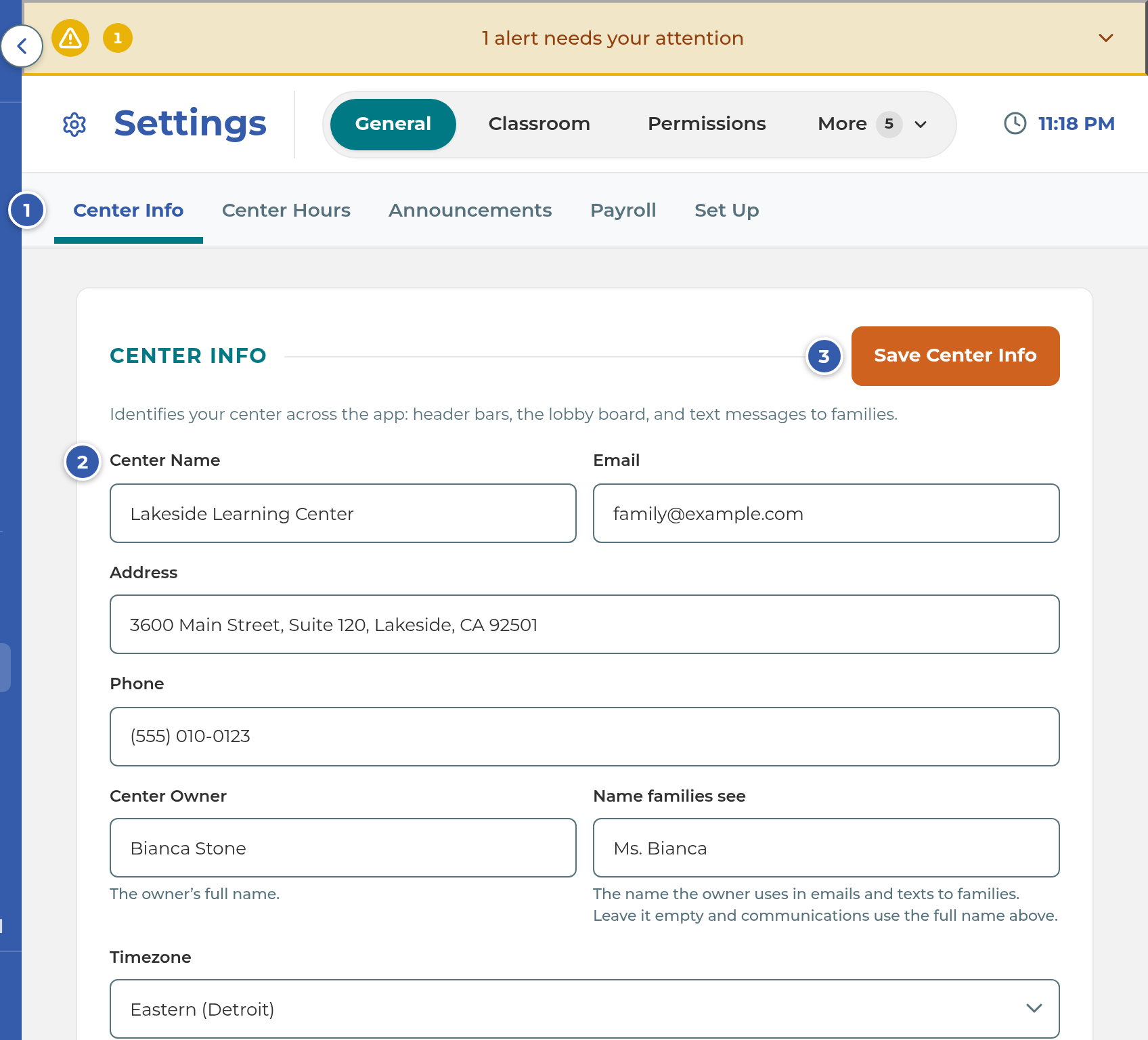
Fill in the fields:
- Center Name: required. Used in headers, the lobby board and texts to families.
- Email and Phone: how families reach you. They show in family emails and texts and on your Family Portal and public page. This is the one place they're kept.
- Address: your street address, shown on your public page.
- Center Owner: the owner's full name.
- Name families see: the name the owner uses in emails and texts to families, such as "Ms. Jane". Leave it empty to use the full name.
- Timezone: your center's time zone. What counts as "today" in the app follows it. Until you choose one, the box reads "Choose a time zone".
Select Save Center Info. You'll see "Saved" beside the button.
Center Hours
One Save Center Hours button saves everything on this page at once.
Select Center Hours at the top of General.
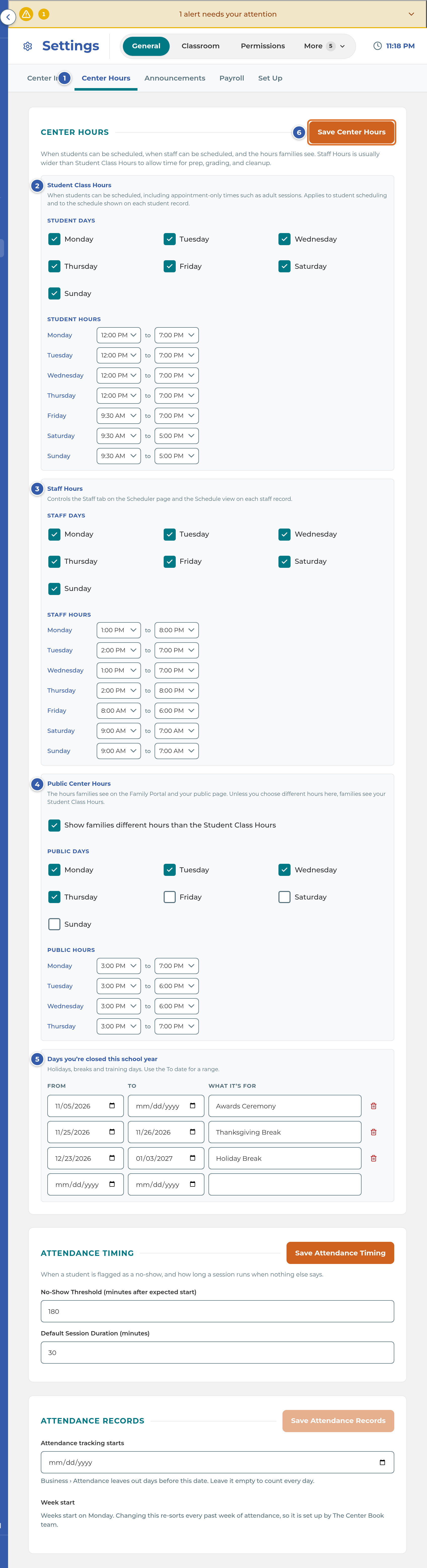
Under Student Class Hours, tick each day students come in under Student Days, then set that day's start and end under Student Hours. A new day starts at 3:00 PM to 6:00 PM, and times run from 7:00 AM to 9:00 PM in half-hour steps. Include appointment-only times, such as adult sessions.
Under Staff Hours, tick Staff Days and set Staff Hours the same way. These are usually wider than class hours, to leave time for prep, grading and cleanup.
Under Public Center Hours, leave it as it is if families should see your Student Class Hours. To show something different on the Family Portal and your public page, tick Show families different hours than the Student Class Hours and set Public Days and Public Hours.
Under Days you're closed this school year, add holidays, breaks and training days: a From date, a To date for a range, and What it's for. A new empty row appears each time you start one.
Select Save Center Hours. You'll see "Saved" when it's done.
Tip: Attendance Timing and Attendance Records sit lower on the same Center Hours page. They have their own Save buttons.
What happens next
- The Class Schedule shows one column for each Student Day and a row for each 15-minute step of your class hours. Days you marked closed carry a Closed tag. See Read the Class Schedule.
- Student schedules only offer your Student Days and the times inside them. See Set a student's class days.
- The Staff Hours tab under Schedule, and each staff record's schedule, use your Staff Days. Until you save Staff Hours, that tab uses your Student Days.
- Families see your Public Center Hours if you set them, and your Student Class Hours if you didn't. They also see your Email, Phone and Address on your Family Portal and public page.
Note: The Staff Hours description on this page mentions "the Staff tab on the Scheduler page". In the menu, that's the Staff Hours tab under Schedule.
If something goes wrong
"No center hours are set yet. Add your open days and times in Settings › General › Center Hours.": no Student Days or class hours are saved. The note's Open Center Hours link opens Center Info, so select Center Hours at the top, add your hours, and select Save Center Hours.
"Center Name is required.": the Center Name box is empty. Type your center's name and save again.
"(Day) isn't a day the center is open. Choose a day the center is open." when saving a student's schedule: that day isn't ticked under Student Days. Tick it and save Center Hours, or choose a day you're open.
A day is missing from the Class Schedule: tick it under Student Days and select Save Center Hours.
Families see the wrong hours: check Public Center Hours. If the box to show different hours is ticked, families see those instead of your Student Class Hours.
Related
Last updated October 25, 2026