Emails to families
Families get the emails you've switched on, from your center's name, in the wording you've chosen. Every change applies to the next email that goes out.
On this page
A new family just enrolled, and you want to be sure the welcome email reaches both parents and that any reply lands in your inbox. Here's how The Center Book decides who gets each email, and how to make an email sound like your center.
Steps
Make sure a parent gets emails
- Go to People › Parents and open the parent.
- On the Communication Preferences card, look under Receives. Emails should be on, and the parent needs an email address.
- To change it, select Edit on that card, tick or untick Emails, and save.
Note: The Emails box decides the emails that go to every parent of a student, like Welcome Email 2, progress meeting invitations and birthday emails. Emails meant for one particular parent still go to them with the box off: the parent on an appointment, the parent who asked to cancel, and a lead's parent.
Change an email's wording
Go to Settings › Parent Communication and choose Email. The emails are grouped the way you'll meet them, starting with Welcome Onboarding.
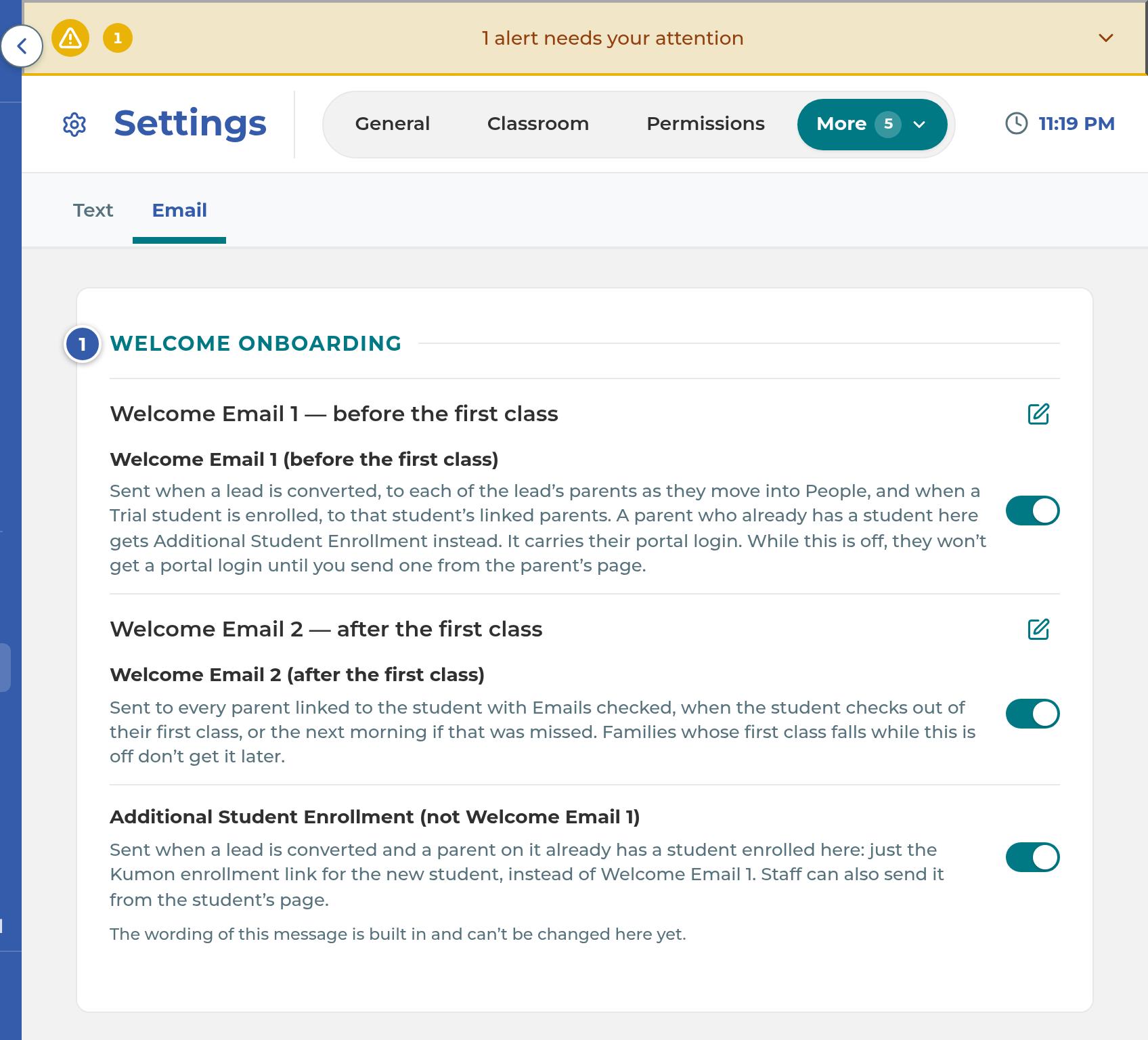
Select the pencil beside the email you want to change. Only emails with a pencil can be reworded; the others show The wording of this message is built in and can't be changed here yet.
Change any line right in the message. A preview of the finished email redraws beside it as you type, or select Preview to bring it into view.
Leave the words in curly brackets, like
{parent_first}, exactly as they are. They fill in for each family.Select Save Email.
A changed line shows Your wording. To go back to ours, select Reset to our wording on that line, then Save Email.
Set where replies go
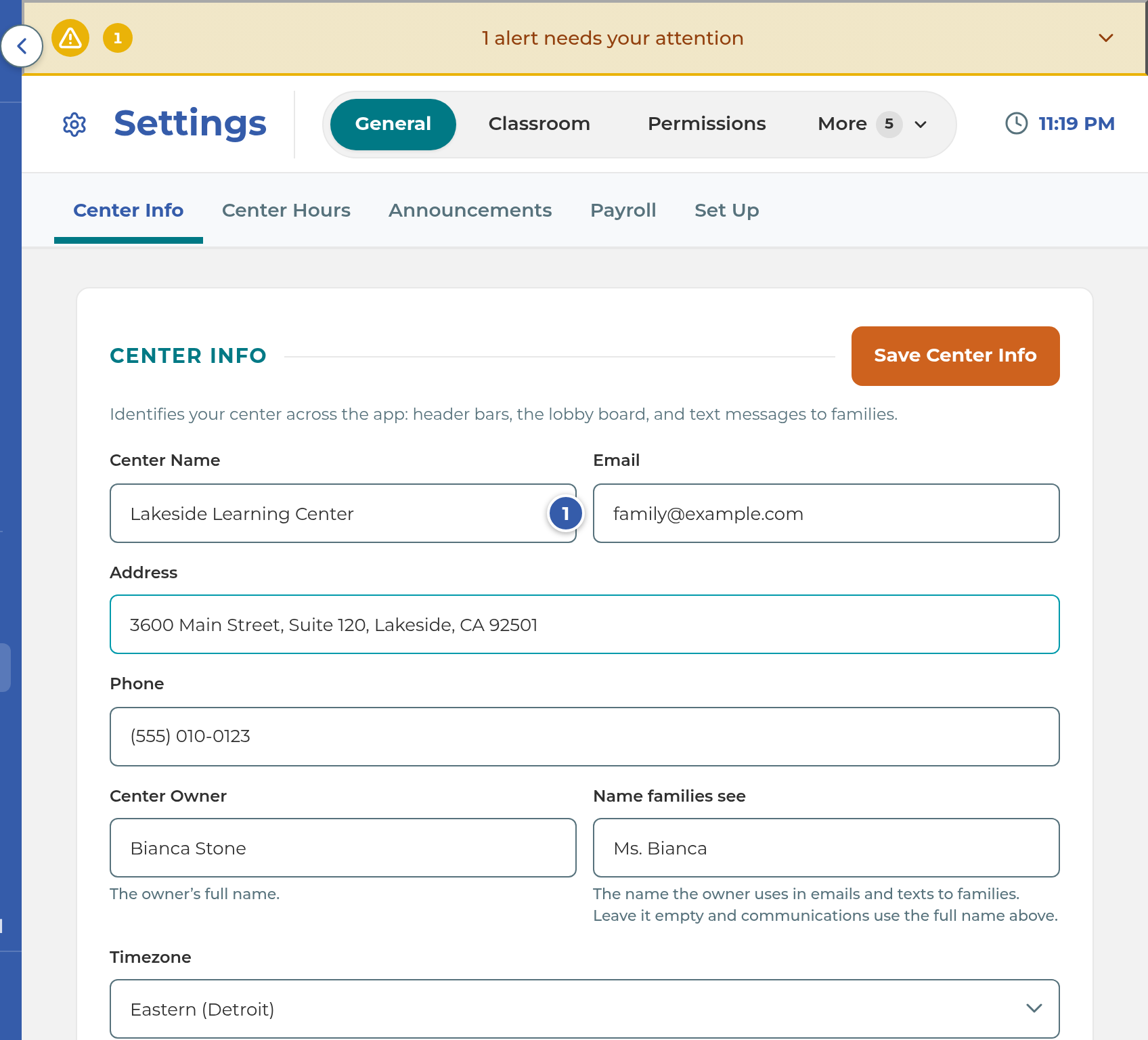
Go to Settings › General › Center Info and check the Email field.
Select Save Center Info if you changed it.
What happens next
Every email to a family comes from The Center Book's sending address with your center's name as the sender, so families see your name in their inbox. For the birthday email, the cancellation emails, Additional Student Enrollment and the Family Portal invite, a parent who replies reaches the Email in your Center Info.
A switch saves the moment you flip it, and a days box saves when you click out of it. The next email that's due follows the new setting.
Each email's switch, who it goes to and when it goes are listed in Parent communication and automations.
Important: Lead Nurture 1, 2 and 3 go to families who haven't enrolled yet, so their wording can't include your franchise brand name. A save that includes it is refused.
If something goes wrong
A sentence ending "Nothing was saved." The wording breaks a rule: a line is empty, contains HTML, or adds, changes or removes a curly-bracket word. The line is marked and scrolled into view. Fix it and select Save Email again.
"That switch didn't save. Try again." or "Those days didn't save. Try again." The change didn't reach the server. Flip the switch or retype the days again.
"The emails couldn't load. Refresh to try again." Refresh the page.
A parent says they never get emails. Check their email address and the Emails box on their Communication Preferences card, then check the email's switch in Settings › Parent Communication › Email.
An EMAIL GAVE UP alert. We tried twice to email a parent and both failed, and nobody will try again unless someone acts. Check the parent's email address, then resend from their profile if the email has a send button there.
A "Family messages not sent" alert. An automatic message to families is switched off, so it isn't going out. Turn it on in Settings › Parent Communication, or leave it off if that's what you want.
Related
Last updated October 25, 2026