Text a parent
Your text goes to the parent's phone from your center's number, and the whole conversation stays in Inbox › Parent texts, where anyone on the PARENT TEXTS row can see replies.
On this page
A class is wrapping up and a parent is still on the road. A quick text lets them know when to arrive, without anyone stepping away to make a call. Here's how to get texting ready for your center and send a text yourself.
Steps
Turn texting on for your center
An owner or manager does this once, after The Center Book team tells you your texting number is ready.
Go to Settings › Parent Communication and choose Text.
Read the box under Outbound texts. It tells you plainly whether your center is sending real texts right now. Flip the switch to Sending is ON.
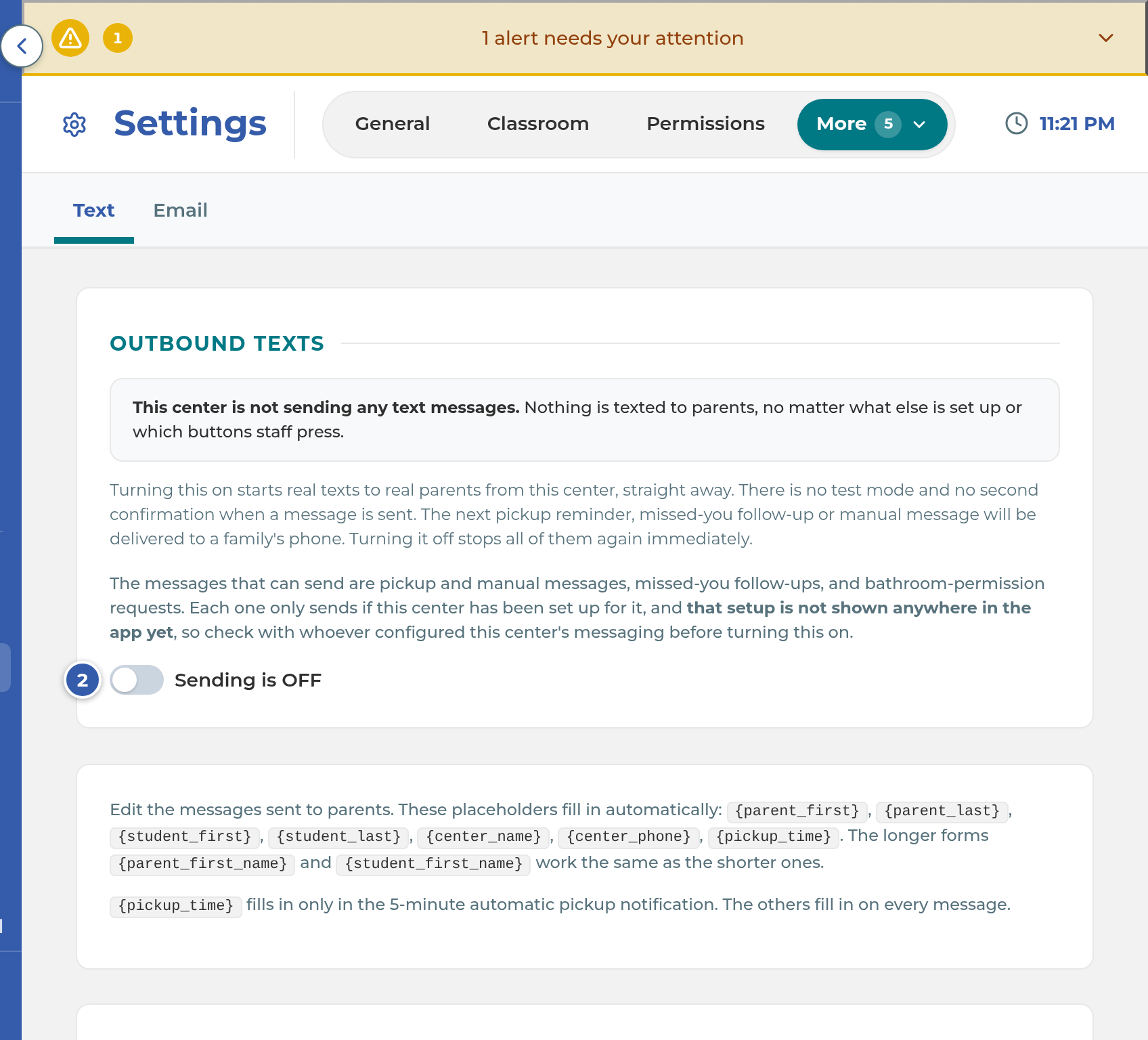
Important: There's no test mode. Once the switch reads Sending is ON, the next text goes to a real family's phone. Flipping it back to Sending is OFF stops every text at once, including the automatic ones.
Choose who handles parent texts
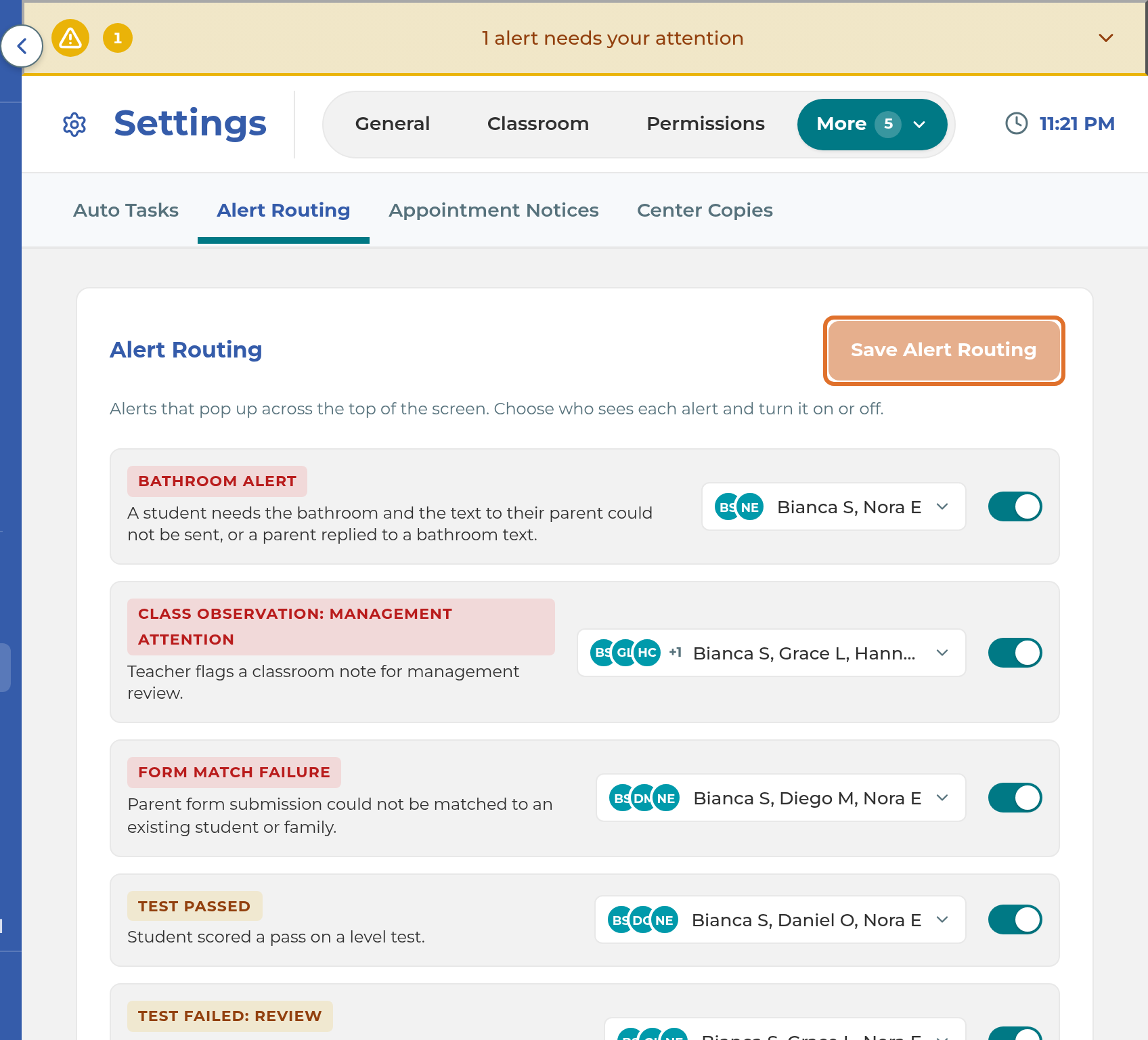
Go to Settings › Staff Automations and choose Alert Routing.
On the PARENT TEXTS row, pick the staff who should see parent replies and text families. Select Save Alert Routing.
Text a parent
Open Inbox and choose the Parent texts tab. You'll see Conversations from the last 30 days.
To start a new conversation, select New message.
In Search parents or students, type at least two letters of a parent's or student's name. A parent who can't be texted shows why, for example Has not agreed to receive texts yet.
Pick the parent. If you already have a conversation with them, that same conversation opens.
If the parent has more than one student, choose one under Which student is this reply about?
Type your message and press Enter, or select the send arrow. Shift+Enter starts a new line.
When the conversation needs nothing more, select Mark handled. This clears it for the whole team.
Tip: You can also start from a profile. The Text button at the top of a parent's profile opens their conversation, and Text parents at the top of a student's profile lets you text that student's parents.
Important: A text you type yourself checks only the parent's text consent (Text on) and phone number. It doesn't check the Text messages box on their Communication Preferences card. A parent with Text on but that box unchecked still gets your text, even though automatic texts like progress meeting invitations and birthday texts skip them. If a parent asks not to be texted, change their consent, not just the box.
What happens next
The parent gets your text from your center's texting number. Their reply lands in Inbox › Parent texts for everyone picked on the PARENT TEXTS row.
If a parent replies STOP as the whole message (or UNSUBSCRIBE, CANCEL, END, QUIT or STOPALL), their consent changes to Opted out and no more texts go to them. Replying START turns texts back on. A parent can also ask your staff: open their profile, find Communication Preferences, select Edit, and choose How was consent captured? before saving.
Automatic texts, like pickup reminders, appointment texts and progress meeting invitations, each have their own switch. See Parent communication and automations.
If something goes wrong
"Texting is turned off for this center, so the text wasn't sent. Let a manager know." Outbound texts is off. An owner or manager can turn it on in Settings › Parent Communication › Text.
"The text couldn't be sent right now" and "Please try again in a few minutes": the text didn't go. Try once more. If it fails again, the cause may be one a retry can't fix: your texting number isn't connected yet, the parent replied STOP, or their number can't get texts. Check the parent's profile, then contact The Center Book support team.
Important: A text you type shows the same "try again in a few minutes" message whatever the reason, even when trying again won't help. Only the We Missed You text names the reason, for example "This center has no texting number set up" or that the parent "has turned off this center's texts by replying STOP."
The Text button is grayed out on a parent's profile. The reason shows beside it: No mobile number on file, Opted out of texts, Has not agreed to receive texts yet or Not linked to a student yet. Fix that on the parent's profile, then try again.
"Cannot send: parent has not opted in to texts." The parent's consent isn't Text on. Ask them, then record their answer in Communication Preferences.
"You do not have permission to send messages." Your job title isn't allowed to send texts. Every job title can send texts unless that was changed, and this permission isn't on the Settings › Permissions screen, so contact The Center Book support team.
You don't see Parent texts in the Inbox, or the Text button. You aren't picked on the PARENT TEXTS row in Alert Routing. Ask a manager to add you.
A We Missed You text says the parent "has turned off this center's texts by replying STOP." The phone company is refusing texts to them. They can text START to get texts again.
A TEXT NOT DELIVERED alert. A text to a parent couldn't be delivered. Check the phone number on their profile.
Related
Last updated October 25, 2026