Set up your center: a new owner's first weeks
Your hours, classroom, staff, students and family messages are in place, families can sign in to the Family Portal, and you're ready to take tuition payments.
On this page
Your first families start soon, and you want everything ready before they walk in. Here's the order to set up your center in The Center Book. Each step builds on the one before, so it's worth taking them in order.
Steps
Your center
Sign in. Open your center's Ops app address in a browser. It's the one that starts with
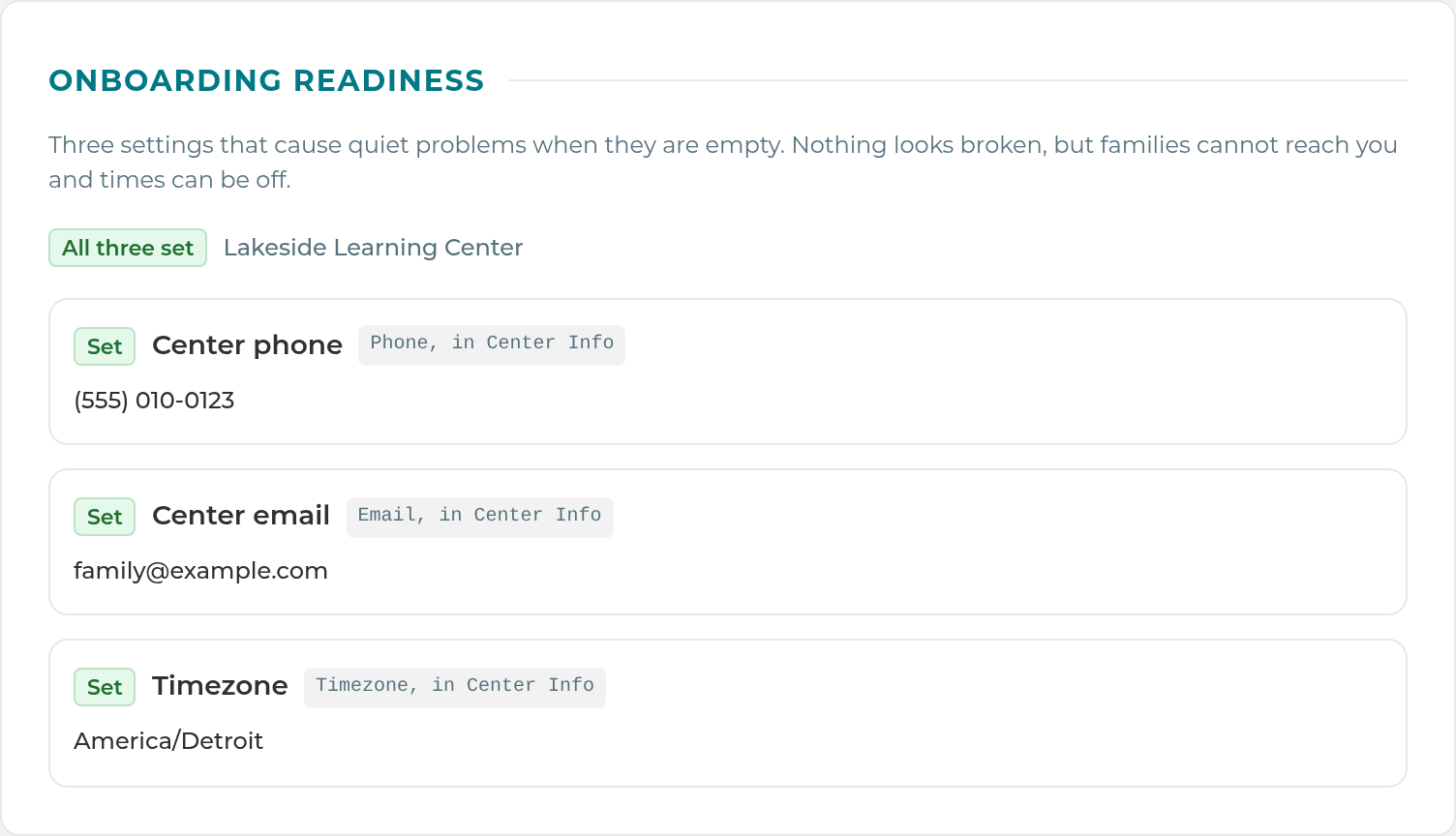
ops.. Type your Email and Password and select Sign In. If you were sent an email to choose your password, use its Choose my password button first. See Sign in as a staff member.Center Info and Center Hours. Everything that's scheduled is built from your hours, so this comes first. In Settings › General › Center Info, enter your Center Name, Email, Phone, Address and Timezone, then select Save Center Info. Families see your email and phone in messages and on the Family Portal, and the time zone decides what counts as "today". Then in Settings › General › Center Hours, tick your Student Days, set Student Hours for each day, add the days you're closed, and select Save Center Hours. Until you do, the Class Schedule is empty and the app won't save a student's class days. When you're done, open Settings › General › Set Up and check that Onboarding readiness shows all three settings as Set. See Center Info and Center Hours.
Classroom setup. Every Active student needs a classroom position, and the Class Schedule counts open seats from your layout. In Settings › Classroom › Layout, tick the classroom positions you use, then lay out your sections, rows and seats and select Save Classroom Layout. See Set up your classroom.
Your people
Staff. Add each person in People › Staff with + Add Staff. Adding someone doesn't email them. Open their record and select Send Login Invite in the Account card, and they'll get a link to choose their own password. The link works once and lasts 24 hours. What each person can see comes from their job title's access level: Full Access, Manage, Operate or View Only. Set these in Settings › Permissions › Job Titles and Settings › Permissions › Permissions. See Add a staff member and Roles and permissions.
Students and their class days. In People › Students, select + New Student. Fill in the student's name, choose their Classroom Position, link their parents with Link Parent, and set their class days and times under Schedule. A student shows as Expected on Attendance only on their class days, and the Class Schedule counts them in each time slot they attend. See Add a student and Set a student's class days.
Appointments and meetings
Services and Appointment Hours. Families and staff can only book times you've opened. In Settings › Appointments › Services, turn on each service, set its Length and Buffer after, choose whether Parents can schedule, and select Save Services. In Available for Appointments, tick the staff who take appointments. In Appointment Hours, give each of them weekly hours and select Save Weekly Hours. Someone with no hours is offered no times. See Services and Appointment Hours.
Connect Google Calendar. This keeps double bookings away. Each person on Available for Appointments opens Me, finds My Calendars, and selects Connect Google Calendar. Their busy times then block appointment times, and new appointments are added to their calendar. See Connect Google Calendar.
Progress meetings. Each enrolled student's progress meeting schedule starts from their Enroll Date. Progress meetings come built in as services, in person or virtual. In Settings › Parent Communication › Email, under Progress Journey, look at Send progress meeting invites automatically. Make sure the switch shows the way you want it, and set how many days before each meeting is due the invite goes out. Staff can also book one with Schedule › Appointments › + New appointment, or Schedule Now on the student's progress meeting card. See Book a progress meeting.
Note: The screen may still say "Zoom" for the virtual progress meeting.
Families
Parent Communication and automations. Decide what families receive before your first family arrives. In Settings › Parent Communication › Email, each email has its own switch. Most start on, such as Welcome Email 1 (before the first class), which carries the family's portal sign-in, Welcome Email 2 (after the first class) and the Level Up Email. Lead emails, Cancellation Request Received (email) and the birthday email start off until you turn them on. Settings › Parent Communication › Text holds the texts (see step 11). In Settings › General › Set Up › Family Onboarding, add the two links your franchisor gives you, which the buttons in parent and lead emails open. Settings › Staff Automations decides what your staff get: Alert Routing, Appointment Notices and Center Copies. See Parent Communication and automations.
The Family Portal. There's no switch for the Family Portal in the app. The Center Book team turns it on for your center, so contact The Center Book support when you're ready. Until then, each parent's Family Portal card says "The Family Portal is not enabled for this center yet, so there is no invite to send." Once it's on, invite families one at a time: open the parent in People › Parents and select Send invite email in their Family Portal card. The link lasts 7 days. See Invite families to the Family Portal.
Important: Invite All Families (in Settings › General › Set Up, the Send invites button) says it emails every enrolled parent. Today it emails every active contact with an email address and no portal sign-in, including leads and parents whose children are only Trial or Not Enrolled (CB-394). Invite families one at a time until this is fixed.
Tip: The standard invite email is written for a center moving from an older portal. You can change its wording in Settings › Parent Communication › Email, under Portal Login.
Texting. Texts need three things in place. First, a texting number: The Center Book team sets it up and has it approved by the phone carriers. Approval can take a while, and it isn't shown in the app, so check with support before you start. Second, Settings › Parent Communication › Text › Outbound texts reads Sending is OFF for every new center. Turning it on sends real texts to real parents straight away, with no test mode. Third, each parent needs a mobile number and text consent showing Text on. To choose who answers parent texts, use the PARENT TEXTS row in Settings › Staff Automations › Alert Routing. See Texting basics.
Billing. If you'll take tuition through The Center Book, open Settings › General › Set Up and find Payments. Leave Bill families in The Center Book ticked. In the Payments card, select I already have a Stripe account to connect yours, or I need a Stripe account to create one. When the card says "Stripe is connected. Payments are on.", select Edit on the Tuition card, enter your prices and fees, and select Save. Then Set up family billing opens Business › Billing › Setup New for each family. If you bill outside the app, untick Bill families in The Center Book. See Set up billing.
What happens next
When you convert a lead or enroll a Trial student, their parents get Welcome Email 1 with their portal sign-in, as long as that switch is on. After a student's first class, their parents get Welcome Email 2. Progress meeting invites go out on each student's schedule while that switch is on. Once Outbound texts is on, pickup reminders and the other texts you've turned on start going to parents who have agreed to texts.
Tip: Come back to Settings › General › Set Up › Onboarding readiness any time. It flags the three settings that cause quiet problems when they're empty: your center phone, center email and time zone.
If something goes wrong
"No center hours are set yet. Add your open days and times in Settings › General › Center Hours." Your Student Days or Student Hours aren't saved. Finish step 2.
"Choose a classroom position for this student." An Active student needs a Classroom Position. If the one you need isn't offered, tick it in Settings › Classroom › Layout (step 3).
Settings › Appointments isn't there. It's for owners and managers, and your plan needs to include Appointments.
A parent's Family Portal card says the portal isn't enabled. The Center Book team hasn't turned it on yet. Contact support.
"Texting is turned off for this center, so the text wasn't sent. Let a manager know." Outbound texts is off. An owner or manager can turn it on in Settings › Parent Communication › Text.
"This center has no texting number set up, so the text wasn't sent. Let a manager know." Your texting number isn't in place yet. Contact support.
The Payments card says "Payments are not set up for The Center Book yet." Payments haven't been set up for your center on The Center Book's side. Contact support.
Related
Last updated October 25, 2026