Check a student out at pickup
The student moves to Checked Out with their check-out time saved, and the visit is finished for the day.
On this page
Class is wrapping up, cars are lining up outside, and every child needs to go home with the right adult. The Attendance board shows who is finishing, who is waiting, and who has gone.
Steps
Check a student out
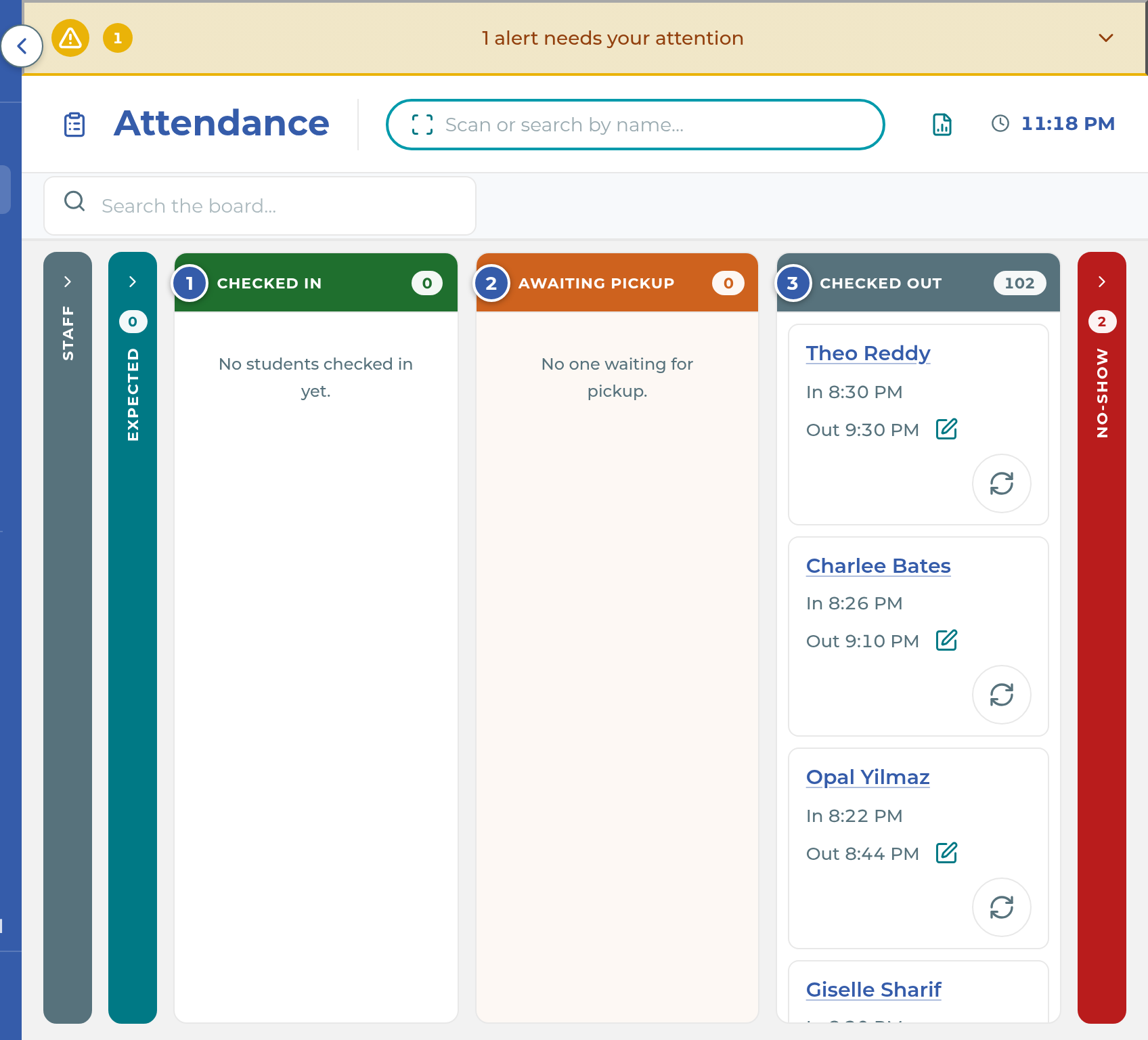
- On Attendance, watch the Checked In column. Each card counts down the minutes left in the session, turns amber at 5 minutes, and turns red when the student is over time.
- When a student finishes, move them to Awaiting Pickup. Their teacher can do this from Live Class, or you can tap the circular arrows on the card and choose Move to Awaiting Pickup.
- When their adult arrives, tap the check-out circle on the card. You can also scan the student's folder again; a window shows their time here, and you tap Confirm Check-Out. The student moves to Checked Out.
Send a pickup reminder by hand
- On the student's Awaiting Pickup card, tap Text and choose Send pickup reminder.
- Check the name under PICKUP PARENT, read the message preview, and tap Send Text.
Fix a check-in or check-out time
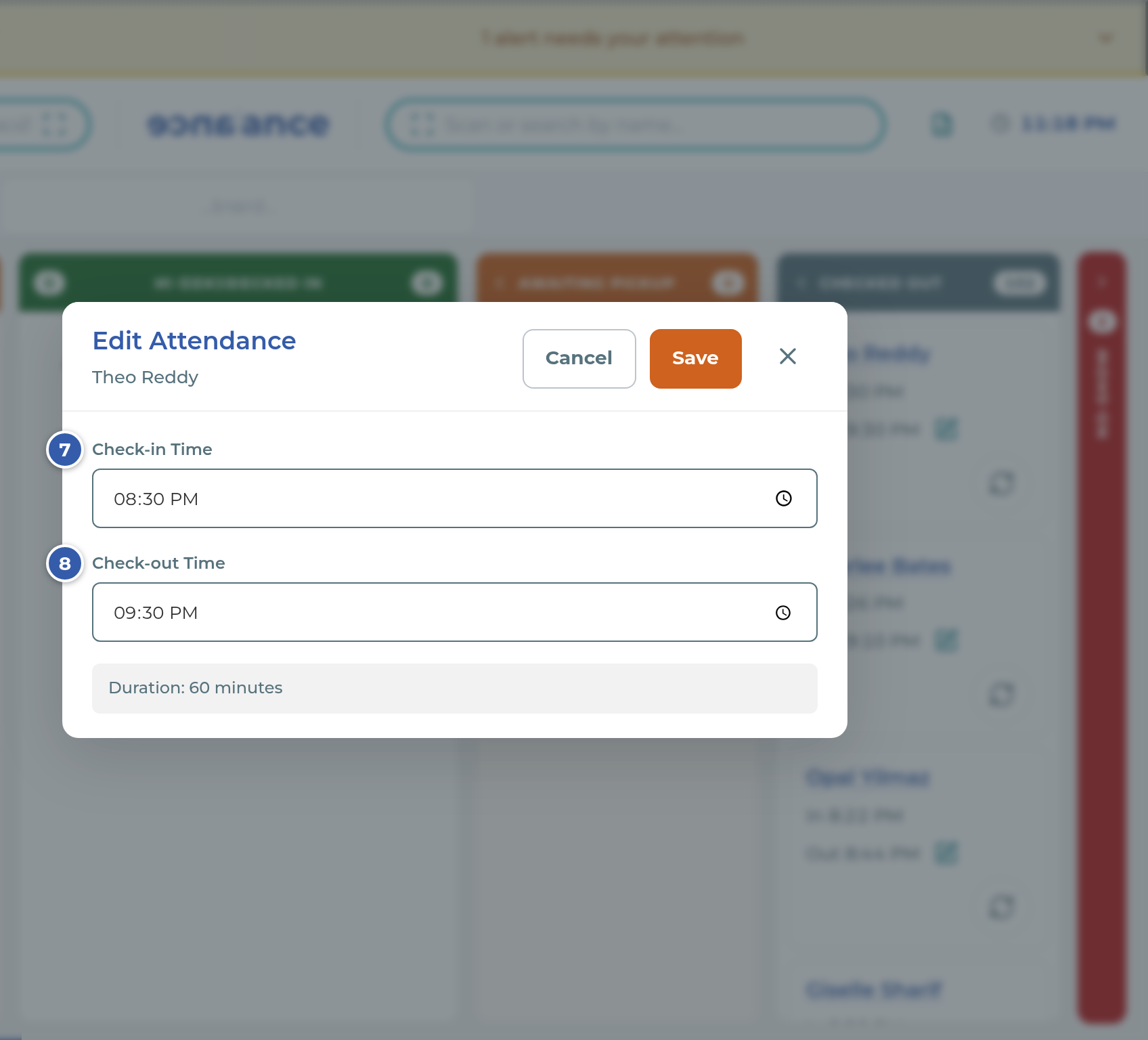
- Tap the pencil beside In (or beside Out on a Checked Out card). The Edit Attendance window opens.
- Change the Check-in Time if needed.
- Change the Check-out Time if needed, then tap Save. Clearing the check-out time on a finished visit reopens it.
What happens next
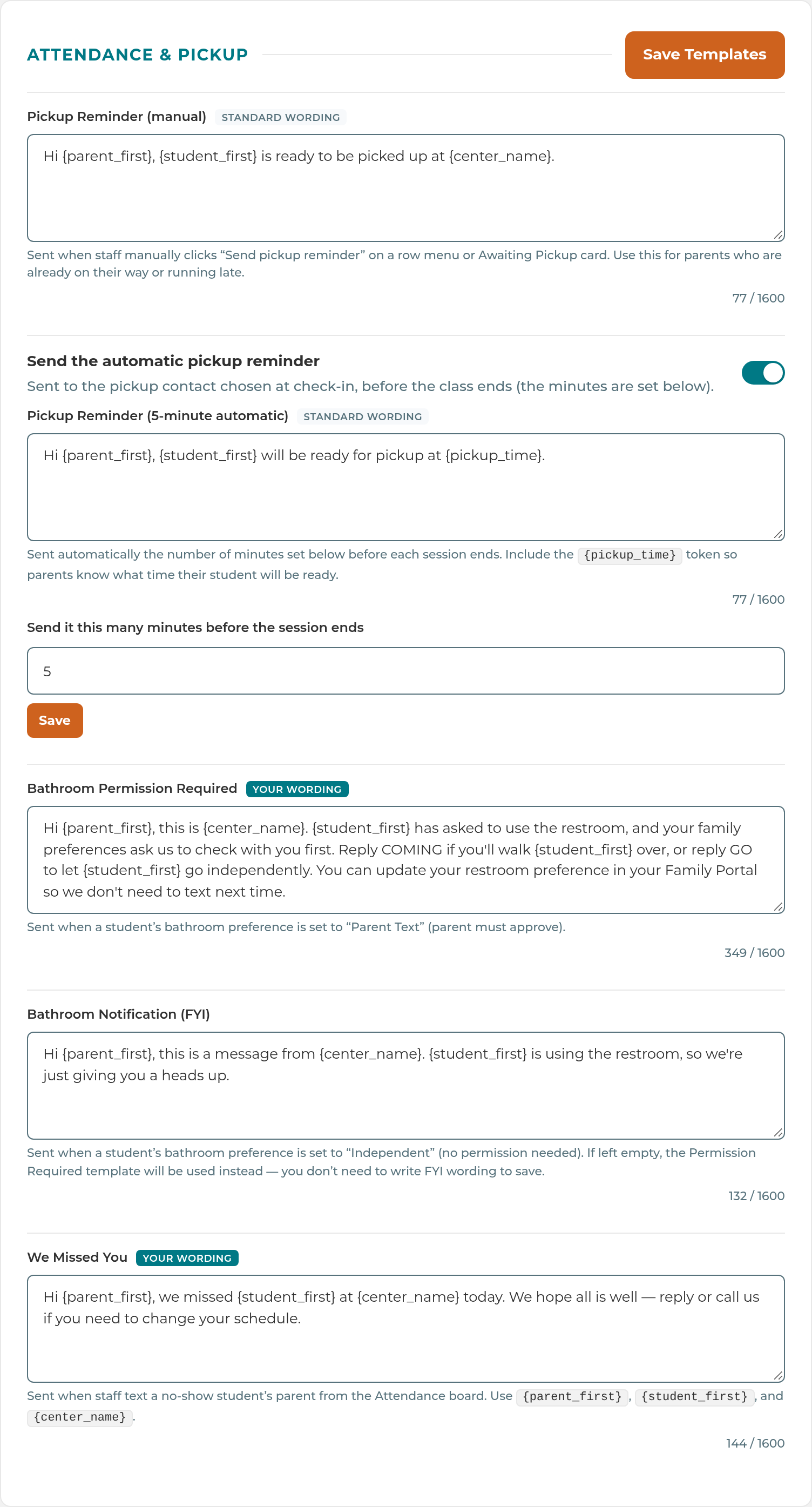
The automatic pickup text is based on time, not on the column. Every minute the app looks for open visits whose session ends within your Send it this many minutes before the session ends setting, and texts the pickup contact chosen at check-in. It goes out whichever column the card is in, so moving a student to Awaiting Pickup does not send a text by itself. The session end is the check-in time plus the Session Time chosen at check-in. When the text has gone, the card shows Sent with the time, or Not delivered if the carrier couldn't deliver it.
The automatic text only goes to Active and Trial students' adults, and only while the visit is still open. If a session ended more than 30 minutes ago, the app skips it rather than texting late.
A student whose checkout preference is Checks out independently is checked out automatically when moved to Awaiting Pickup, and lands in Checked Out. Their card there shows Send pickup reminder for up to 30 minutes after their session ends.
When you check a student out with the circle, there's no confirm step. A message with Undo shows for a few seconds if you tapped the wrong card.
Important: Send pickup reminder texts the Primary Communication parent, not the pickup contact chosen at check-in, even though the window labels them PICKUP PARENT (CB-394). If a different adult is collecting today, call them instead.
Important: Move to Checked In and Move to Checked Out on a No-Show card open a window with time fields, but the times you type are ignored and the current time is saved (CB-394). Fix the times afterwards with the pencil.
Note: On a No-Show card, Text offers Send "We Missed You" text, once per student per day. The window may name a different parent from the one who actually gets it: the app texts today's custody parent, otherwise the Primary Communication parent (CB-394).
Note: The automatic pickup template is labeled Pickup Reminder (5-minute automatic), but it follows your minutes setting.
Tip: Remove from board in a card's circular-arrows menu is for a wrong scan or wrong button. It deletes today's visit and doesn't change the student's schedule.
If something goes wrong
A parent says they didn't get the pickup text. Check Outbound texts and Send the automatic pickup reminder in Settings, then check that the pickup contact chosen at check-in has a phone and shows Text on. If nobody was chosen under Pickup contact today, no automatic text goes out.
"Texting is turned off for this center, so the text wasn't sent." Outbound texts is off. Ask an owner or manager.
"The text couldn't be sent right now" and "Please try again in a few minutes": the text didn't go. If it fails again, your center's texting number may not be connected yet, or the parent's number can't get texts. A retry won't fix either one, so call the parent and contact The Center Book support team.
The text window shows "We don't have text consent on file yet." The parent hasn't agreed to texts. Call them from the office phone. The Get text consent button only closes the window today (CB-394).
"Text failed:" at the bottom. The text didn't go. Read the reason, then try again or call the parent.
The Edit Attendance window won't save. The window shows the reason, such as a time that hasn't happened yet or a check-out before the check-in. Fix the time and tap Save again.
Related
Last updated October 25, 2026