Read your Business reports
You can read your center's attendance, enrollment and student progress for any period, and open the list of students behind each number.
On this page
It's the end of the month and you want to know how many students came, how many you gained and lost, and who needs attention. Business puts those numbers in one place.
Steps
- Select Business in the menu. It opens on Insights. Choose a tab at the top: Billing, Attendance, Enrollment or Insights.
- On Attendance or Enrollment, pick a period: Week, Month, Quarter, Year, All Time or Custom. Use the arrows beside the period name to step back one week, month, quarter or year at a time. Both tabs open on the current month.
- Check Include trials to count trial students. It's off unless you turn it on, and the app remembers your choice. It changes every tab except Billing.
- Select any number card to open the list of students behind it.
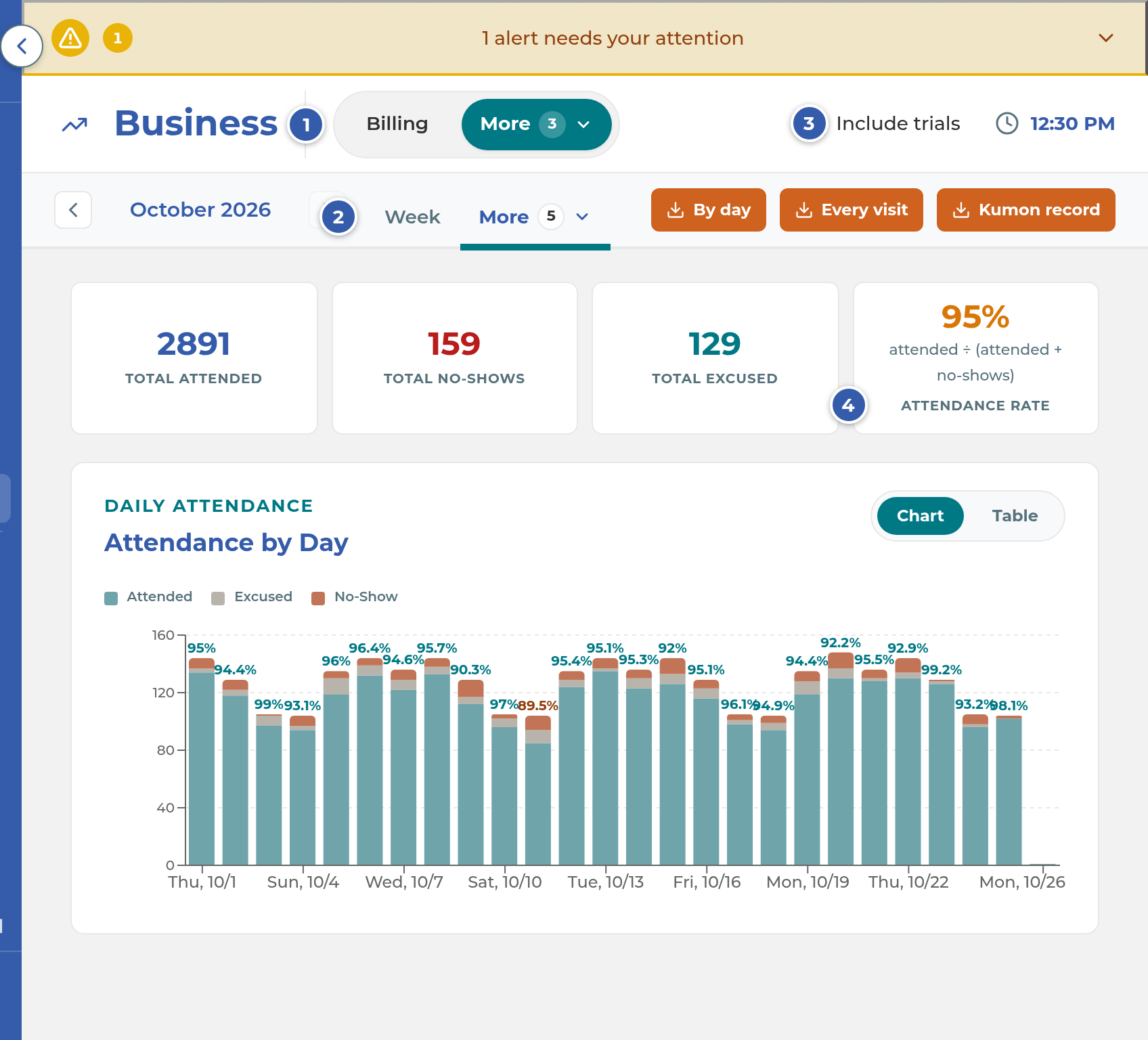
Attendance
The four cards cover the whole period you picked:
- Total Attended: every visit, including visits on a day the student wasn't scheduled, such as a Saturday make-up.
- Total No-Shows: scheduled students who didn't come and weren't excused.
- Total Excused: scheduled students with an excused absence.
- Attendance Rate: attended ÷ (attended + no-shows). Excused absences are left out of the rate, so it won't match attended ÷ expected.
Below the cards, Attendance by Day shows a bar for each day, split into Attended, Excused and No-Show, with that day's rate on top. Select a bar to open that day. Switch to Table for Attendance Breakdown: Date, Expected, Attended, Excused, No-Show and Rate. It shows the last 6 days; select View all (it names the number of center days) to see every day. Select a row to open that day.
The day window lists who attended, who was excused and who was a no-show. You can select Mark excused beside a no-show, choose a reason and Save.
Important: The table and the day bars count only scheduled students under Attended. Visits on a day a student wasn't scheduled are added only to the Total Attended card. So the days in the table can add up to less than the card. The Export summary by day file shows these visits in their own column.
Important: The Total Attended list can be longer than the card. It also lists sessions that were made up on another day, which the card doesn't count. Its Export CSV leaves those out again.
Today isn't over until the last class ends, so the table shows a dash for today's no-shows and rate, and its no-shows aren't counted yet.
Enrollment
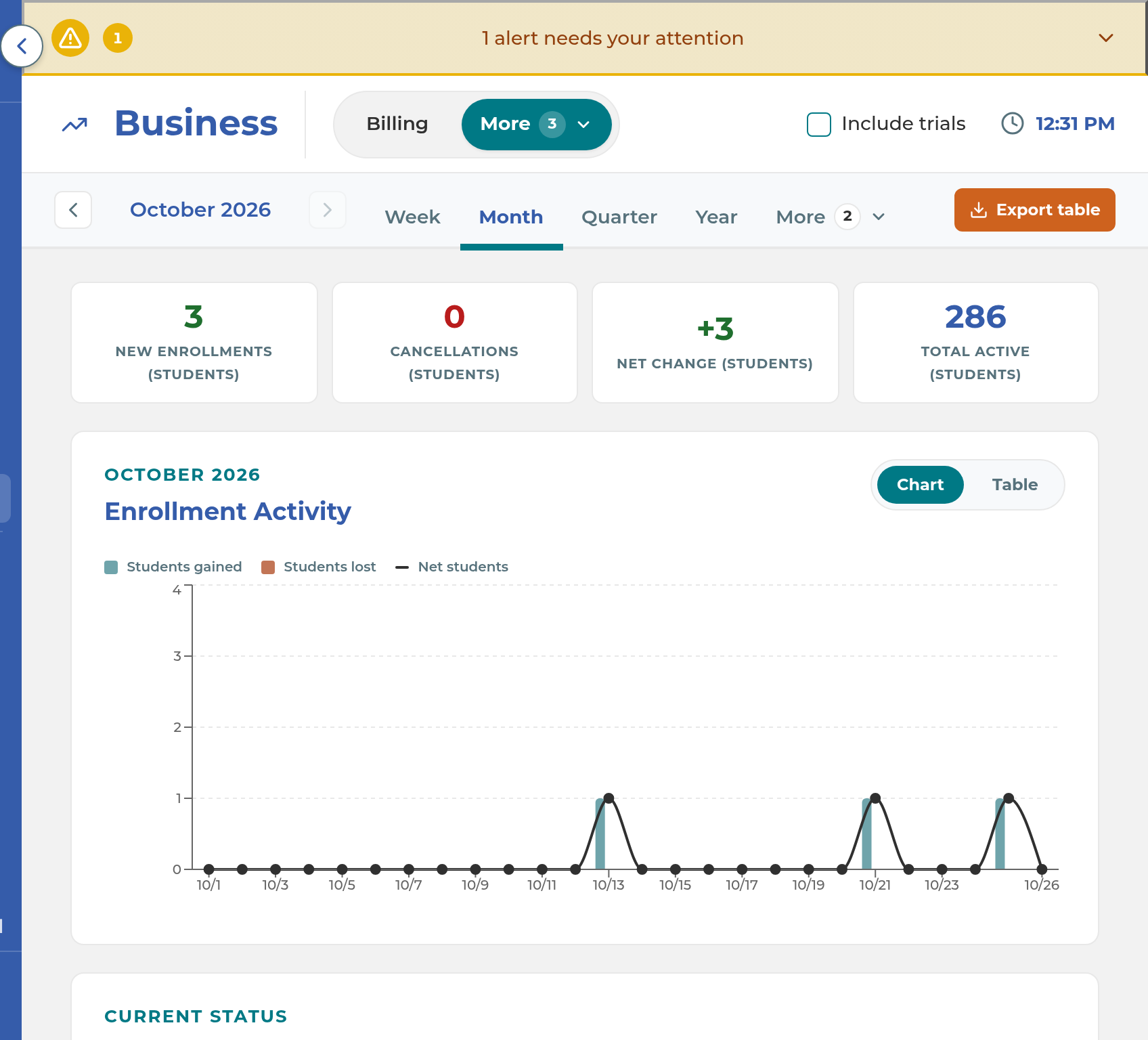
- New enrollments (students): students whose enrollment date falls in the period.
- Cancellations (students): students who left, dated by their last class (or their cancellation date if there's no last class).
- Net change (students): new enrollments minus cancellations.
- Total active (students): your Active students today. It doesn't change with the period.
Enrollment Activity charts Students gained, Students lost and Net students, by day for periods up to about two months and by month for longer ones. Student Status Breakdown shows today's count for Active, Trial, Absent, Not Enrolled and Discontinued. Trial shows only when Include trials is checked. Select a chip to see those students.
Table shows the same numbers with a Running total (students) column, and Export table saves it.
Important: Running total (students) always starts from today's Active count and works backward. For a period that ended in the past, it's an estimate, not the count you had then.
Insights
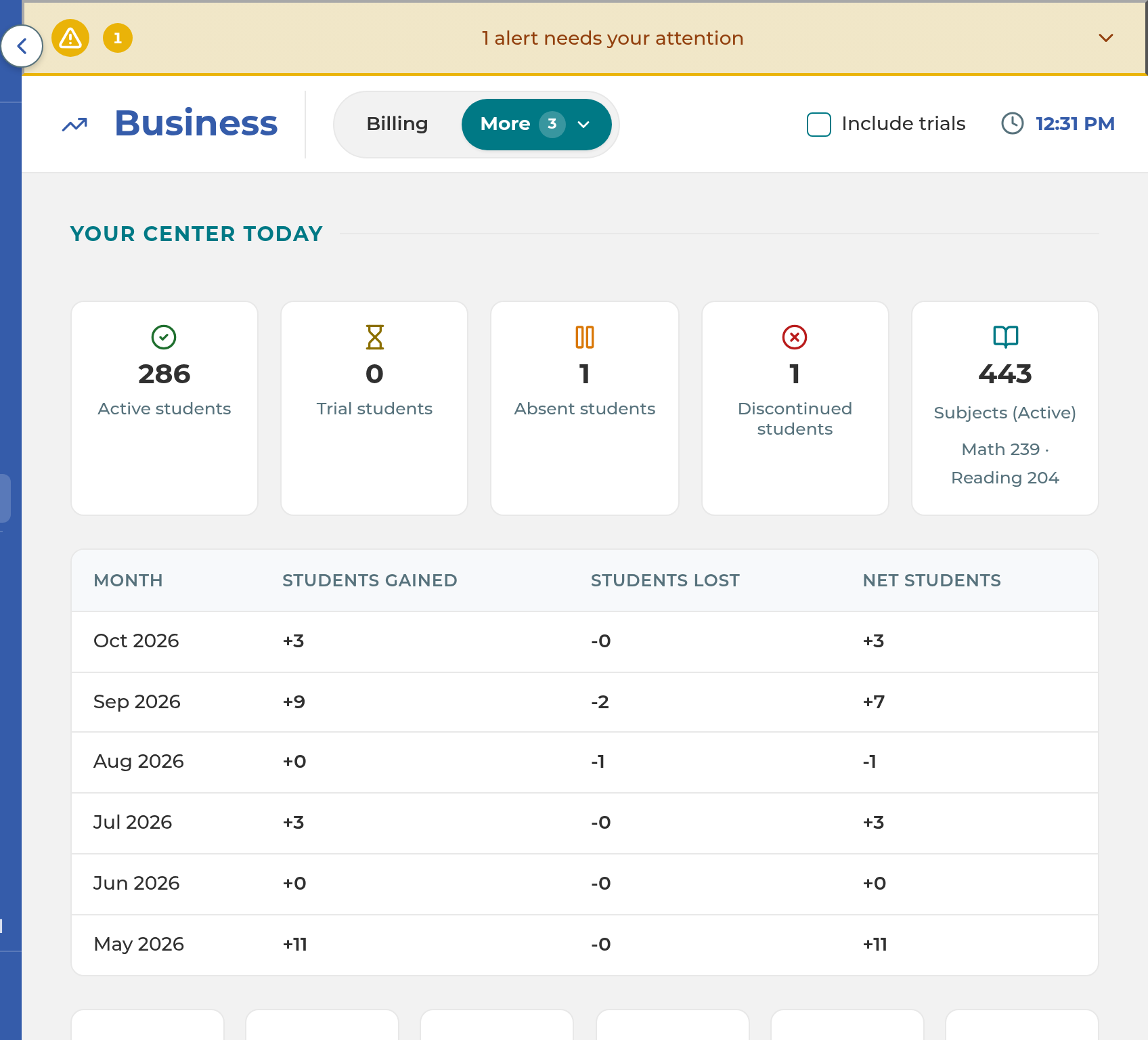
- Your Center Today: Active students, Trial students, Absent students and Discontinued students right now, plus a subjects tile with Math and Reading counts. Select a card to list those students and Export CSV. Below is a month-by-month table of Students gained, Students lost and Net students.
- A row of counts: Total Students, Students in Math, Students in Reading, Students below grade (24mo+), Star students (Platinum) and Students in both subjects.
- Advanced Study Honor Roll (ASHR): Math ASHR Rate and Reading ASHR Rate, the share of students above grade level (Silver, Gold, Platinum), then the tiers by grade, by length of study and across both subjects.
- Students to Watch: Below Grade Students (below grade level after 24 or more months) and Stars / Platinum Students.
Note: ASHR here is a live snapshot from each student's current level and school grade. A student's official award can differ.
These figures leave out adult learners. Trial students are left out unless Include trials is checked. The four Your Center Today cards always count trials on their own card.
Billing
Billing shows Active Schedules, This Month Revenue, Failed Payments and Pending Setup, with tabs for Transactions, Recurring Schedules, Failed and Setup New. To connect Stripe first, see Set up tuition payments with Stripe.
What happens next
Nothing here changes a student's record, except Mark excused in a day window, which saves an excused absence for that student. Each list has its own export. To send a file for a whole period, see Export attendance for a period.
Note: Test students are left out of the attendance, enrollment and Insights numbers.
If something goes wrong
Business isn't in your menu. Ask an owner to turn on Business for your job title in Settings › Permissions › Permissions.
A tab is missing. Its row under Business is off for your job title. Insights shows if any of Overview, Achievement, Retention, Grade Bands, At Risk, Action Items or Progress is on. The row named Insights doesn't control it.
Insights shows a lock instead of numbers. Your plan doesn't include Insights. Attendance, Enrollment and Billing still work.
Early days in a period are blank. They're before Attendance tracking starts in Settings › General › Center Hours.
Billing reads "Billing isn't set up for this center yet." Finish Stripe setup.
Billing reads "This center bills families outside The Center Book." Bill families in The Center Book is unchecked in Settings › General › Set Up.
Related
Last updated October 26, 2026