Check a student in
The student moves to Checked In with today's session time, and the adult you chose becomes the one who gets today's automatic pickup text.
On this page
It's a few minutes before class and families are coming through the door with folders in hand. Checking each child in as they arrive tells your teachers who is here, starts their session clock, and makes sure the pickup text goes to the right adult.
Steps
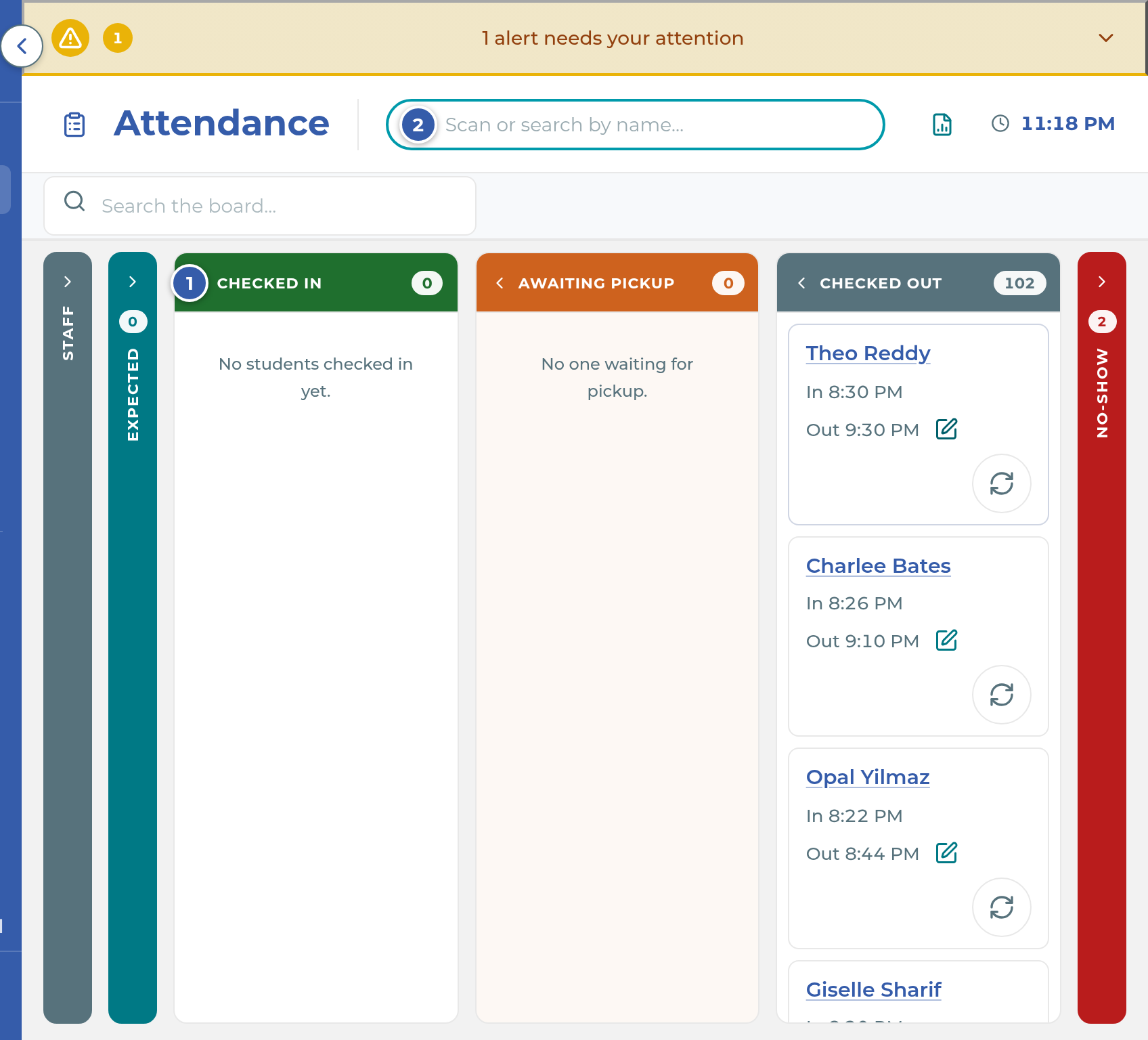
- Open Attendance. The board shows the day in columns: Staff, Expected, Checked In, Awaiting Pickup, Checked Out and No-Show. Tap a column's heading to open or close it. The board remembers your choice on this device.
- Scan the student's folder barcode. You don't need to click anything first, because the scanner works anywhere on the board. To search instead, type a name, nickname or student ID in Scan or search by name… and pick the student from the list.
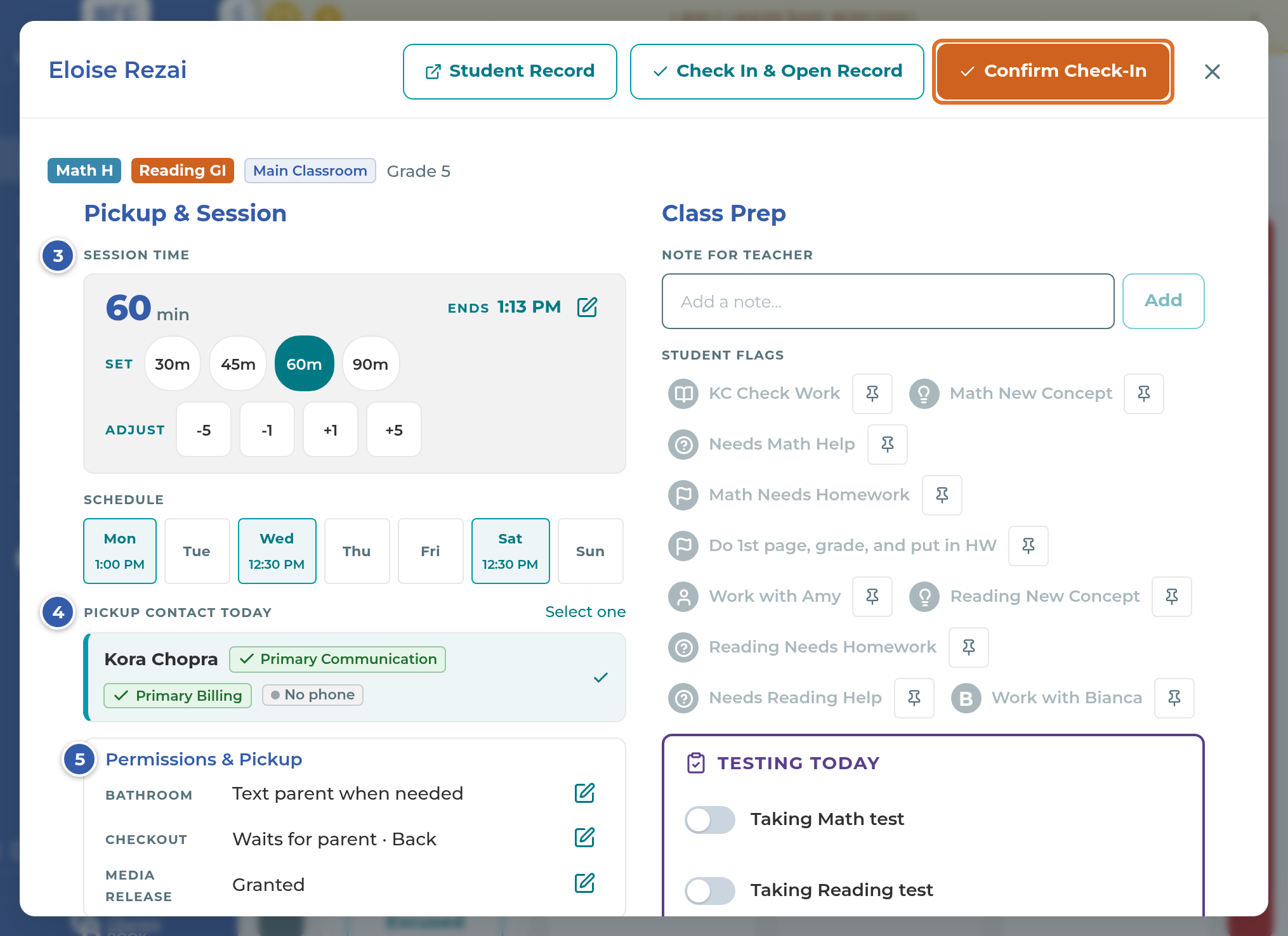
- The check-in window opens with the student's name at the top. Check Session Time. It starts at the student's scheduled length for today, and you can change it if they're staying longer or shorter.
- Under Pickup contact today, make sure the right adult is selected. This is who gets today's automatic pickup text. Tap a different adult to change it.
- Look over Permissions & Pickup. If a row says Not on file, tap its + and ask the parent while they're standing with you.
- If your center uses Class Prep, add a Note for Teacher, turn on any Student Flags, set Testing Today, and tick items on the Teacher Checklist.
- Tap Confirm Check-In. To check in and go straight to the student's record, tap Check In & Open Record instead.
You can also check in from the Expected column: tap the round + on a student's card and the same window opens.
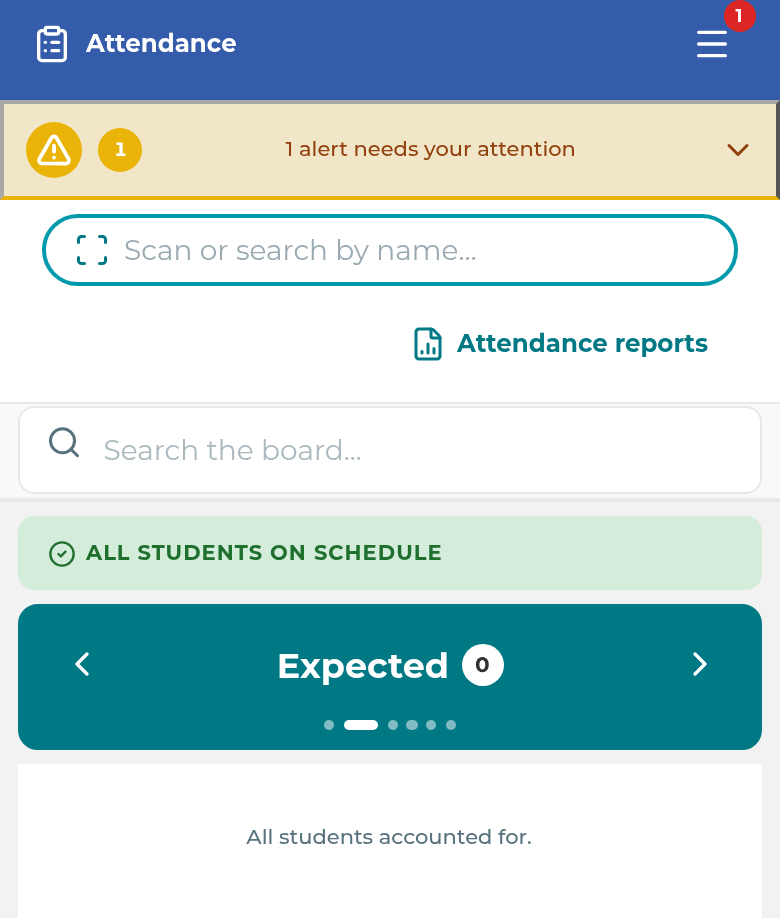
On a phone, the board shows one column at a time and opens on Expected. Use the column name at the top to move between columns.
What happens next
The student moves to Checked In and a message with Undo shows for a few seconds, in case you picked the wrong child. Their card counts down the minutes left in their session.
The app pre-selects today's pickup contact for you. It picks today's custody parent when the student has a custody schedule, otherwise the Primary Communication parent. If the Primary Communication parent can't receive texts and exactly one other parent can, it picks that parent. A few minutes before the session ends, that adult gets the automatic pickup text, as long as texting is on for your center. See Check a student out for the timing and settings.
To change class prep, the pickup contact or the session time after check-in, tap the student's card in Checked In, make your changes and tap Update Class Prep.
Important: The pickup contact you choose here is used for the automatic pickup text only. The Send pickup reminder button on an Awaiting Pickup card texts the Primary Communication parent, even when you chose someone else at check-in (CB-394). If another adult is collecting today, call them instead.
Important: A student on the No-Show column can be checked in with Move to Checked In, but the time you type in that window is ignored and the check-in is saved at the current time (CB-394). Correct it afterwards with the pencil beside In.
Note: Expected lists students scheduled today who haven't arrived yet, earliest first. Tap Excused on a card to record an excused absence, so they won't become a no-show. When everyone is here or excused, the column reads All students accounted for.
Tip: Use Search the board... to find a student who is already on the board. The scan box is only for checking in.
Checking in a student marked Absent
Students on extended leave still show in the name search with an Absent tag. When you confirm their check-in, the app asks Reactivate student? Tap Confirm to check them in and return them to Active (or Trial, if they were mid-trial), or Cancel to leave everything as it was.
If something goes wrong
"Student or staff not found" under the scan box. The code didn't match a folder barcode, student ID, name or staff badge. Check the barcode on the student's record, or search by name.
A scan does nothing. A window is already open, so the scan was ignored. Finish or close that window and scan again. If your cursor is in Search the board..., the scanner types there instead; click an empty part of the board and scan again.
"Not scheduled today · makeup" in the window. The student isn't on today's schedule. You can still check them in as a makeup visit.
Nobody is selected under Pickup contact today. The student has no Primary Communication parent and no custody parent for today, so the app doesn't guess. Pick the adult who is collecting the child. If you leave it empty, no automatic pickup text goes out for this visit.
"Opted Out" or "Primary Communication Not Reachable By Text" shows. The selected adult won't get texts. Pick another adult, or plan to call. To record a new answer, tap the pencil beside their name, ask the question shown, and tap Save.
Class Prep or Checked Out Items is locked. Those sections come with plans that include Live Class and the Library. Check-in still works.
"Check-in failed for…" at the bottom. Nothing was saved. Read the reason in the message and try again.
Related
Last updated October 25, 2026