Export attendance for a period
A spreadsheet file (CSV) for the period you picked downloads to your computer, ready to open in Excel, Numbers or Google Sheets, or to send on.
On this page
The month just ended and you need to send your attendance record, with exact check-in and check-out times for every student. Business makes the file for you.
Steps
- Select Business in the menu, then the Attendance tab. From the Attendance board you can also select Attendance reports at the top.
- Pick the period: Week, Month, Quarter, Year, All Time or Custom. Use the arrows beside the period name to go back, for example to last month. For Custom, choose the from and to dates.
- Check Include trials if trial students should be in the file. Leave it unchecked to leave them out.
- Select the export you need:
- Kumon attendance record: every student enrolled during the period, with each visit.
- Export summary by day: one row per day, with a total.
- Export every visit: one row per student per day.
- The file downloads. Open it from your browser's downloads.
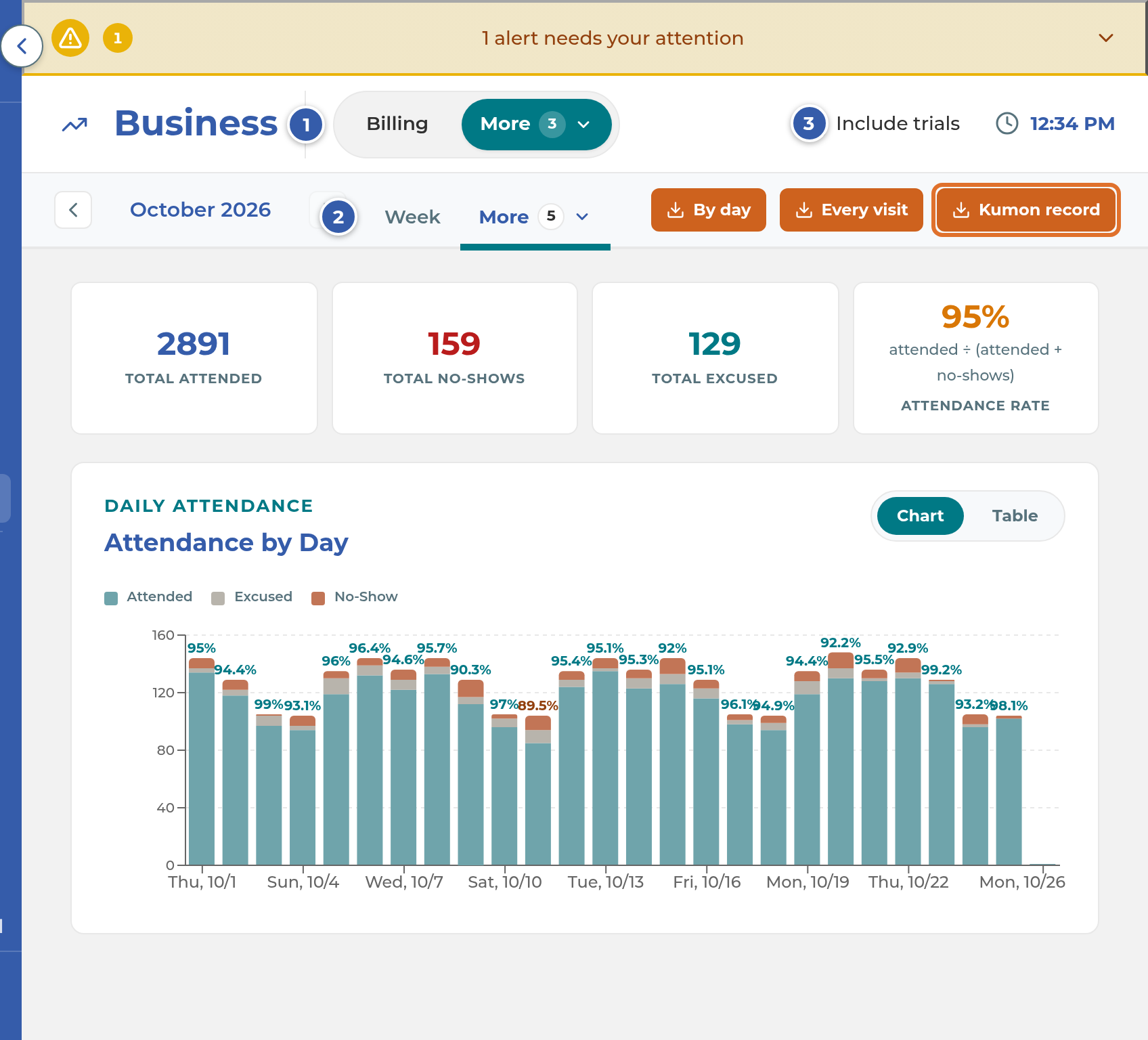
On a smaller screen the buttons read Kumon record, By day and Every visit.
What's in each file
Kumon attendance record lists every student enrolled at any point in the period, sorted by last name. Each visit is its own row. A student with no visits gets one row that says No visits in period. Names are legal names, not nicknames, so they match your Kumon records.
Export every visit has the same columns, but only for students with a record that day: Date, Student name, STU number, Subjects, Status (attended, excused, no-show or made up), Check-in, Check-out, Minutes and Off-schedule. Times are your center's local time, in 24-hour format.
Export summary by day has Date, Expected, Attended, Off-schedule visits (in Attended), Excused, No-show, Made up, Rate % and Center closed, and ends with a Total row that matches the cards on screen.
Note: Each student has one row per day. If a student checked in more than once that day, the file shows the first check-in and its check-out only.
Important: The Kumon attendance record can include students marked Not Enrolled who have no enrollment date, each with one No visits in period row. Check the file and remove anyone who shouldn't be there before you send it.
Export one number's list
- Select a card, such as Total Attended. A window lists the students behind it for the period.
- Select Export CSV in the window.
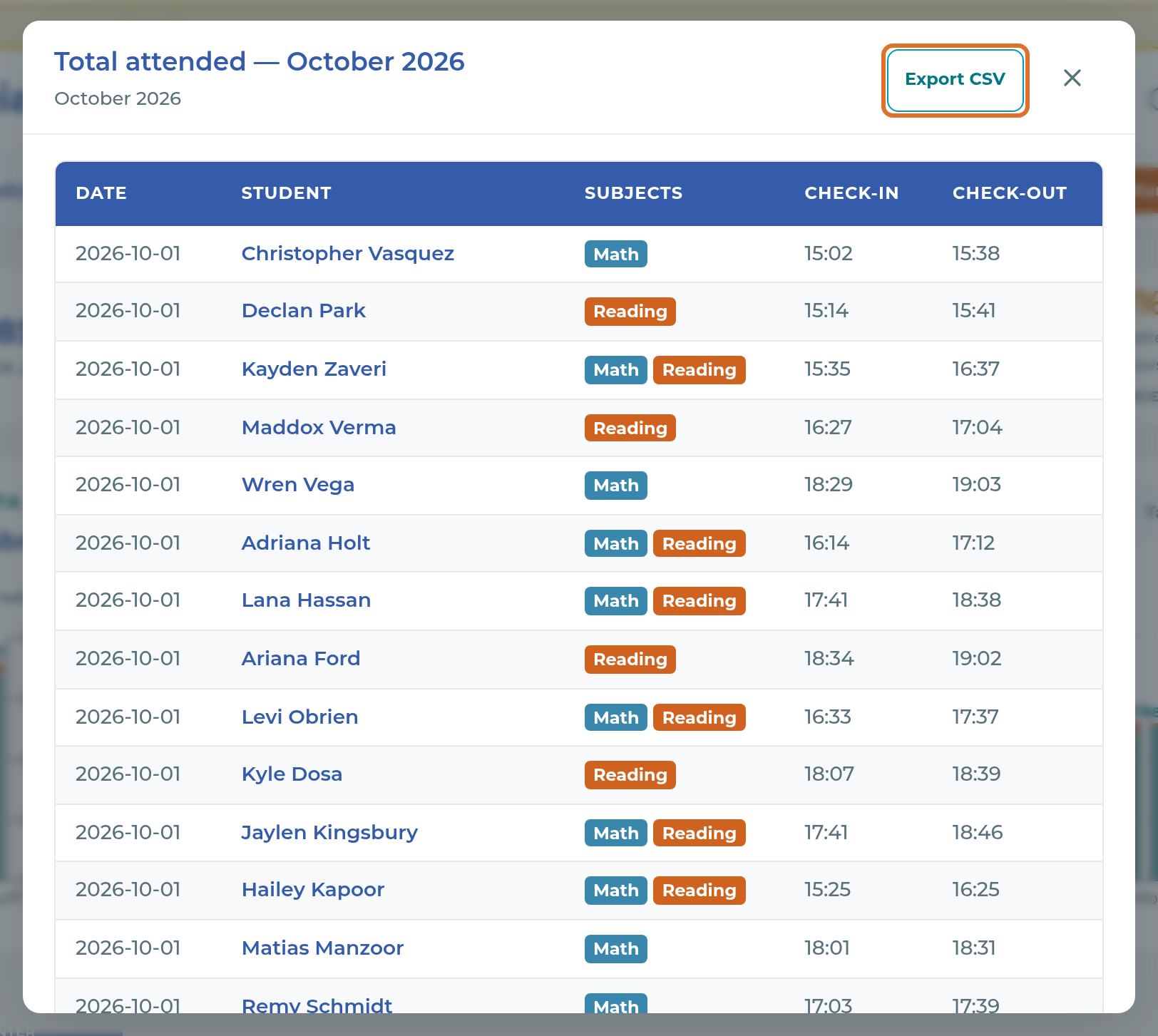
You can do the same for a single day: select its bar, or its row in Table, then Export CSV.
What happens next
Nothing in the app changes. The file name starts with your center's short name and includes the dates, for example "Attendance 2026-09-01–2026-09-30 summary". Test students are never in the files.
Tip: If the current month isn't over, the file runs only to today. Wait until the month ends, or step back to last month with the arrow, before you send a monthly record.
Note: Today's no-shows aren't counted until the last class of the day ends.
If something goes wrong
The export buttons are grayed out. There are no center days in the period you picked, or another export is still running. Pick a different period, or wait for Exporting… to finish. The Kumon attendance record button works even with no attendance.
"The export couldn't be made. Please try again." The file couldn't be made this time. Select the button again.
Days at the start of the period are missing. They're before Attendance tracking starts in Settings › General › Center Hours.
A trial student is missing, or shouldn't be there. Check or uncheck Include trials at the top and export again.
A visit has no check-out time. No check-out was recorded for that visit, so Check-out and Minutes are blank.
Related
Last updated October 26, 2026