Set up your classroom
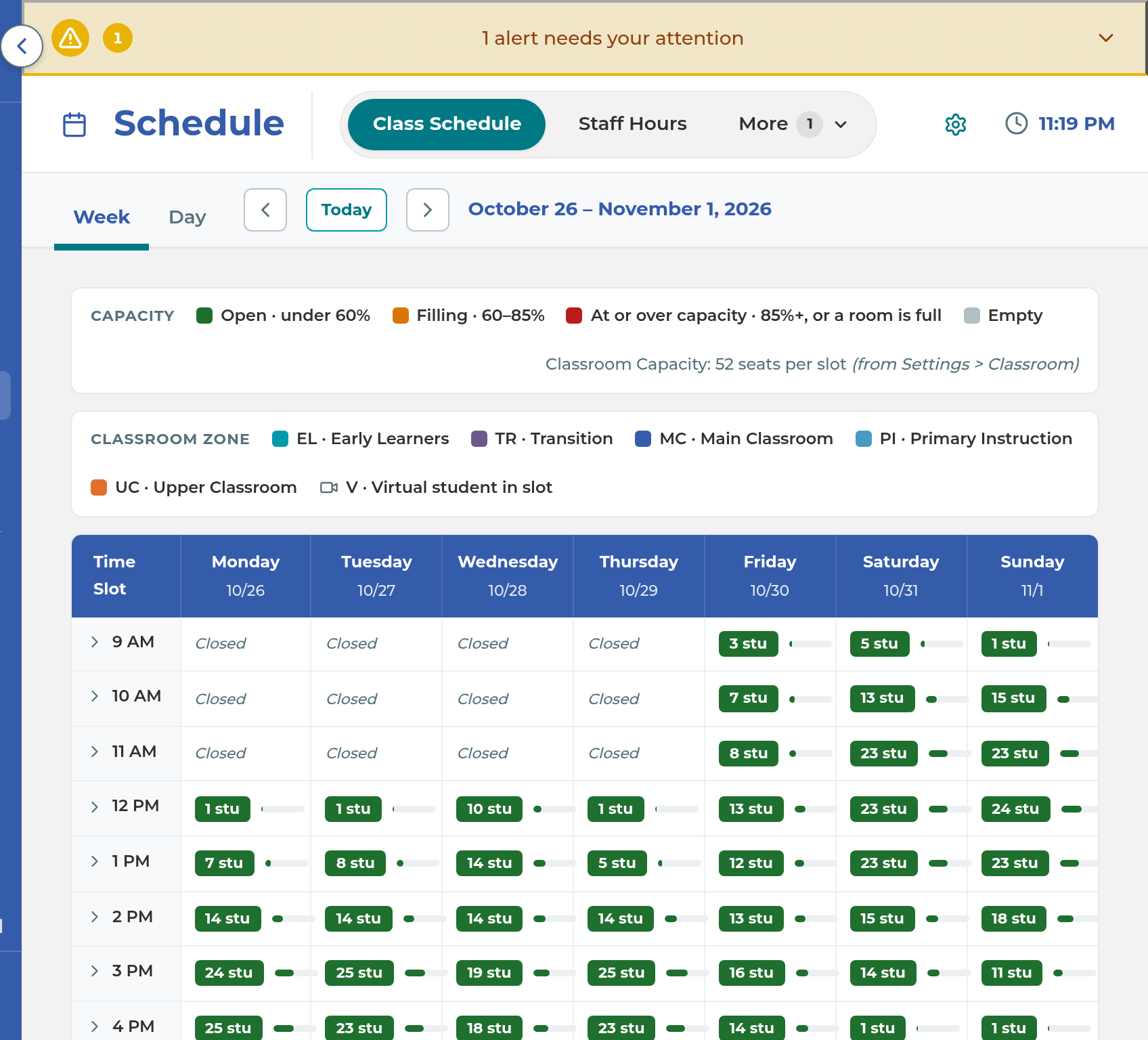
Live Class shows your rows, seats and testing tables, and the Class Schedule counts open seats in each room from the seats you set here.
On this page
Before your first class, The Center Book needs to know how your room is set up: which classroom positions you use, and how many students each row seats.
Your room is laid out in sections. Each section belongs to one classroom position, such as Main Classroom, and holds rows, the tables your students sit at. Each row has student Seats, optional Testing seats for a testing table, and Teacher seats.
Steps
Choose your classroom positions
Select Settings, then Classroom, then Layout. Classroom Positions is at the top.
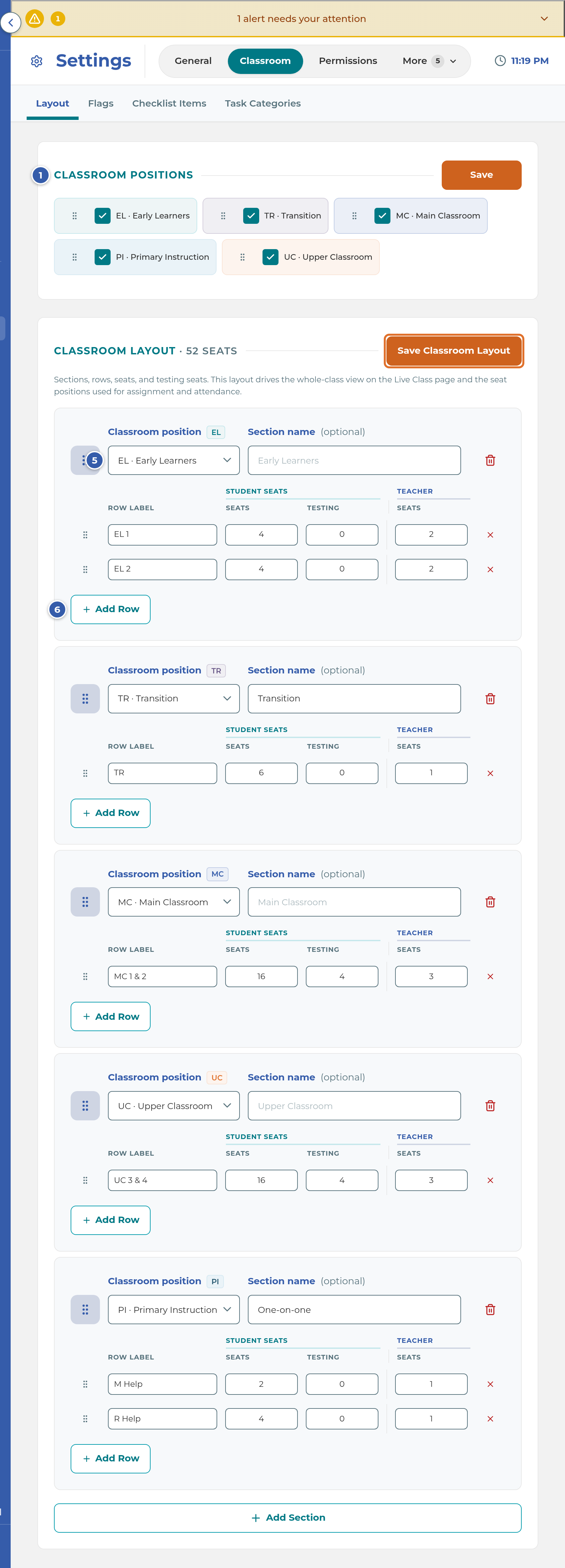
Tick each position your center uses: EL · Early Learners, PI · Primary Instruction, TR · Transition, MC · Main Classroom and UC · Upper Classroom. All five start ticked.
To change their order, drag a position by its grip. On a phone, press and hold the grip first. The Class Schedule and the room chips follow this order.
Select Save beside Classroom Positions. You'll see "Saved".
Lay out your room
A new center starts with a sample layout: Early Learners with one row of 6 seats, Main Classroom with four rows of 10, and Upper Classroom with one row of 8. Change it to match your real room.
- Under Classroom Layout, choose each section's Classroom position. If your staff call the area something else, type it under Section name (optional). For example, a Transition section can show as "One to one". To add a section, select Add Section.
- In each section, select Add Row for each table. Type the Row Label your staff use.
- Under Student Seats, set Seats (1 to 20) and Testing (0 to 10, the seats at that row's testing table). Under Teacher, set Seats for how many teachers can work that row.
- To rearrange, drag a section or a row by its grip. You can drag a row into another section. If that section has a different position, the app asks "Move this row to another section?", because its seats will then count toward the other room. Select Move row.
- Select Save Classroom Layout. You'll see "Saved successfully." The heading shows your total, for example "Classroom Layout · 54 seats".
Note: Nothing in the layout is saved until you select Save Classroom Layout. If you try to leave first, the app asks whether to save.
Flags, checklist items and task categories
The other tabs under Settings › Classroom are optional and each has its own Save button.
- Flags (Save Flags): the colored dots teachers can turn on for a student's seat in Live Class. Add Flag adds one.
- Checklist Items (Save Checklist): items staff mark off for a student during check-in.
- Task Categories (Save Categories): the choices staff pick from when they create a task themselves.
What happens next
Live Class shows each row as a card, in your section order. Each card has a + Student button and one + Teacher choice for each teacher seat, plus a count of students against its seats and testing seats together. A row with testing seats has its own Testing Table. Checked-in students sit in a row only when staff put them there. The gear at the top of Live Class, Classroom Setup, opens this same layout.
The Class Schedule adds up the Seats in every row of every section with the same position. That's the room's capacity. Testing seats and teacher seats don't count. Each time slot shows chips such as MC:6/10, which means 6 students scheduled in Main Classroom out of 10 seats. The key under the grid shows "Classroom Capacity: 54 seats per slot (from Settings > Classroom)" with your own number. When a room's scheduled students fill its seats, staff see a warning when they schedule another student there, and they can choose Schedule anyway. Virtual students are counted in the slot but don't take a seat.
New students can only be given a position that's ticked under Classroom Positions. Every Active student needs one.
Important: Deleting a row that has students seated in it today asks "Delete and unseat" followed by the number of students. Once you save, they're no longer seated on Live Class. Renaming a row is safe. Its students stay seated.
Note: Turning a position off doesn't change the students or sections that already use it. Their position stays until you change it.
If something goes wrong
"Pick a position for every section." A section has no Classroom position. Choose one, then save again.
"Add at least one section." or "Add at least one row." The layout needs at least one section with at least one row.
"Row in section needs a label." A row's Row Label is empty. Type a name for it.
A message that a row "needs at least 1 seat." Set that row's student Seats to 1 or more.
"Failed to save. Please try again." The layout didn't save. Try again in a moment. Your changes are still on screen.
A room never shows as full on the Class Schedule. No section with that position has student seats. Add a section for it, or check that its rows have Seats set.
A position is missing from the New Student form. It's unticked under Classroom Positions. Tick it and select Save.
Classroom isn't in Settings. It needs the Settings permission and a plan that includes Live Class. Contact The Center Book support to check your plan.
Related
Last updated October 25, 2026