Run Live Class during a session
Each student sits in a row with a live count of the minutes they have left, and when you tap Done they leave the row and move to Awaiting Pickup on the Attendance board.
On this page
Students are checked in at the front desk and heading to their tables. Live Class is where you seat each one, see who has how many minutes left, and send them on to pickup when their work is finished.
Steps
See the whole class
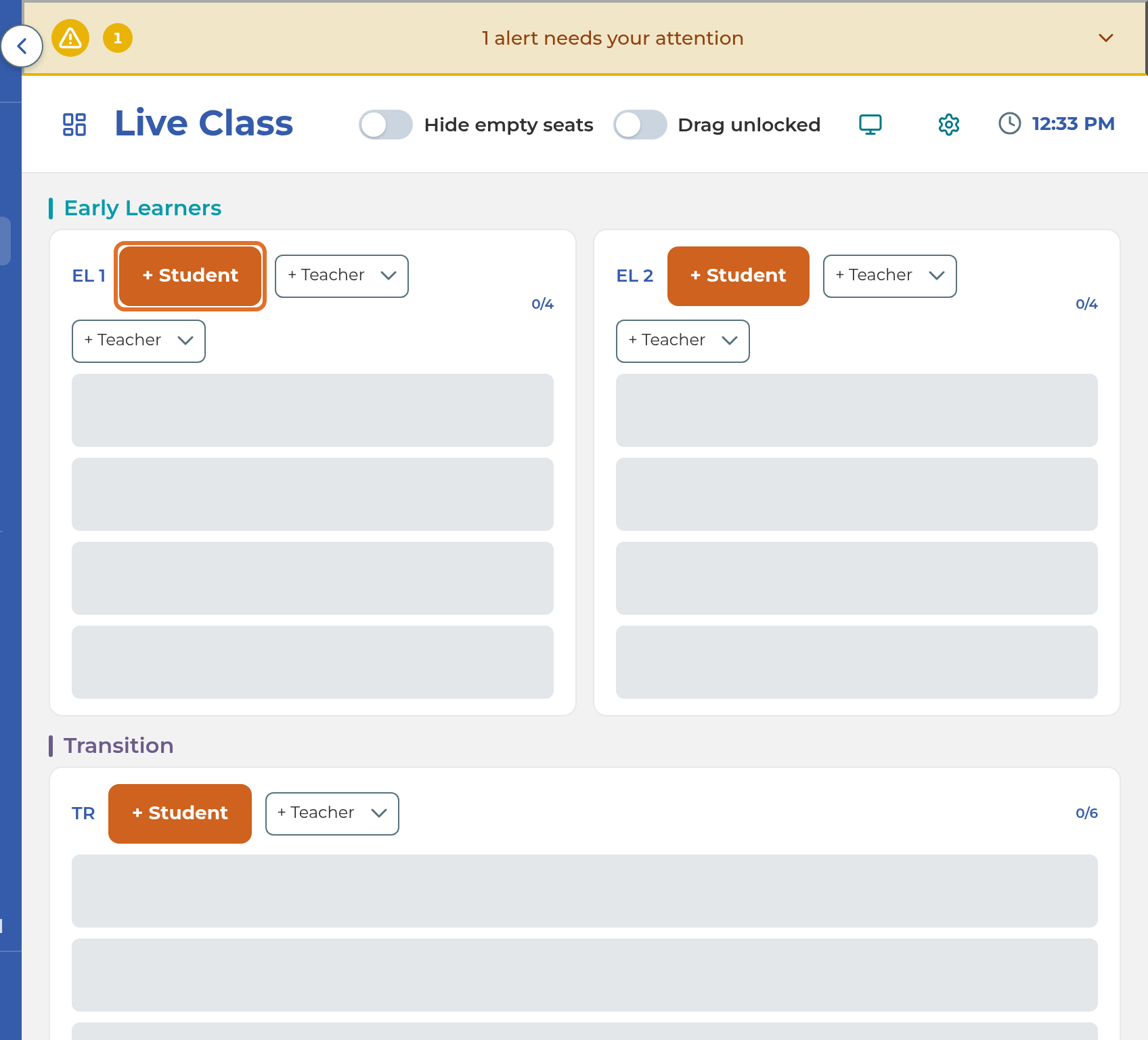
- Select Live Class in the menu. You see every section of your room, each with its rows. Each row shows its students, its open seats, and a count such as 6/10 (students seated out of seats, testing seats included).
Seat students and teachers
- On a row, tap + Student, or tap one of the row's empty seats. The Assign Student window opens.
- Find the student. Students are grouped by their classroom position, and you can type in Search students... to narrow the list. Tap the student's name to seat them.
- To add a teacher, use the + Teacher dropdown on the row and pick a name. Staff who are clocked in are listed first, with a ● after their name. A row has one dropdown for each teacher seat. To take a teacher off, choose + Teacher in their dropdown.
Work in one row
- Tap a row's name or empty space to open it. Only that row's students show, as larger cards. Tap another row's name along the top to switch rows, or swipe left and right on a tablet. Tap Back to Whole Class to return.
- Read each card: the student's name, their Math and Reading levels, and the minutes they have left. The card with the soonest finish time comes first. To seat someone in this row, tap + Assign Student.
Adjust time, move, and finish
- To change a student's session, tap Time on their card. Tap a length under Set to, nudge it with Adjust by, or tap the pencil beside Start or End and then the check mark. Each change saves as you tap.
- To move a student to another row, tap Move and pick the row. Each row shows how many students it has out of its seats, and full rows can't be picked.
- When a student finishes, tap Done. They leave the row straight away.
Important: Done doesn't ask first. If you tap it by mistake before the student is checked out, seat them again with + Assign Student. Seating them puts them back in class on the Attendance board too.
What happens next
When you tap Done, the student moves to Awaiting Pickup on the Attendance board, ready for the front desk. A student whose family has chosen to let them check themselves out goes straight to Checked Out instead, and you'll see "name auto-checked out" for a few seconds.
The minutes on each card count down by themselves. A card changes color when 5 minutes or less are left, and again when time is up. After that, a card in Row view shows the extra minutes as +3, and the whole class view shows 3m over.
Changing Start in the Time window changes the student's check-in time on their attendance record. Changing the length or End changes their session length for today.
Important: The Time button on a card opens with the student's usual scheduled length for today, not the length chosen for this visit. If someone changed the session time at check-in, the window can show a different number from the one the card is counting down from, and tapping Adjust by changes it from that scheduled number. To start from this visit's real length, tap the student's card and use Time at the bottom of their panel instead.
Important: Using Move on a student who is set to take a test today clears their test. If they still need to test, open their card and turn the test back on in the Testing box.
Tip: On the whole class view, turn on Drag unlocked and drag a student's card to another row. Dropping a student on a row's Testing Table opens Confirm Testing: tap Confirm to set their test, or Not Testing to seat them there without one. Drag unlocked starts off on each device, so stray taps don't move anyone.
Tip: Turn on Hide empty seats to show only filled seats. Teacher dropdowns always stay visible. Both switches are remembered on that device.
Note: Tapping a student's card on the whole class view opens their row with their panel showing. The gear beside the clock opens Classroom Setup, and Monitor opens a board for a large screen.
Note: The small flag in a card's corner means different things on the two views. In Row view it means the student has a teacher note that isn't marked done. On the whole class view it also shows for a New Concept flag or a checklist item that isn't checked yet.
If something goes wrong
A checked-in student isn't on Live Class. Nobody has seated them yet. Tap + Student on their row and pick them.
"No available students" in Assign Student. Every checked-in student already has a seat. If the student you want isn't listed, check that they're checked in on Attendance.
A student is under "Unassigned: no classroom position set". Their record has no classroom position. You can still seat them. Ask a manager to set the position on their student record.
The button says "All seats full". That row has no open seats. Move someone out, or seat the student in another row.
You can't drag cards. Turn on Drag unlocked at the top of the whole class view.
"Failed to save change." in the Time window. The change didn't save. Close the window and try again.
"End time must be after start time." The time you typed ends before the session starts. Type a later end time.
"The teacher could not be saved. Try again." The teacher wasn't added. Pick them again. If the screen gives another reason, follow it.
Related
Last updated October 26, 2026